Choosing the Right Computer Monitor Size
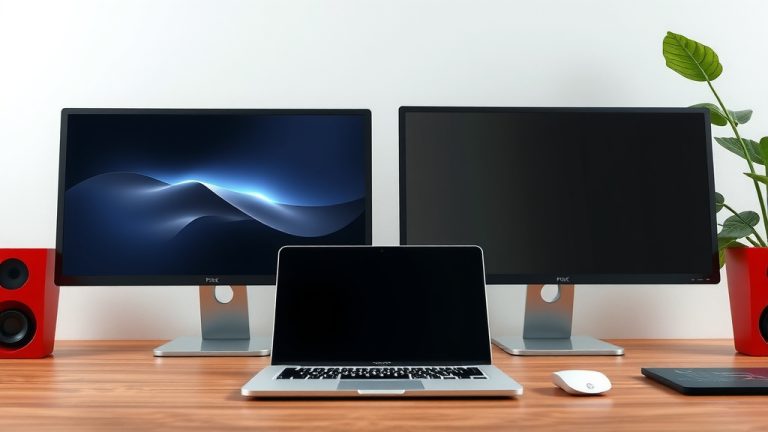
The right computer monitor size depends on your desk space and what you do most. For general use, 24-inch monitors are a solid sweet spot. If you game or do creative work, consider 27-inch or larger for a more immersive experience.
Picking a monitor isn’t just about diagonal inches. You also need to think about resolution and ergonomics. A bigger screen with a low resolution can look blurry. We found that balancing screen size with screen pixel density makes a big difference in your daily computing.
- General use: 24 inches is usually perfect.
- Gaming/Creative work: Go for 27 inches or bigger.
- Desk space: Measure before you buy!
- Resolution matters: Higher resolution means sharper images.
- Ultrawide? Great for multitasking, but needs more space.
Let’s walk through exactly how to choose the best computer monitor size for your needs.
You’ve stared at your current screen. Maybe it feels too small, or perhaps you’re just dreaming of something grander. The question of “how big of a computer monitor should I get?” is a common one, and the answer isn’t a single number. It’s about finding the sweet spot for *your* eyes and *your* desk. Let’s break it down so you can stop wondering and start enjoying your new view.
Choosing Your Ideal Monitor Size
The size of your monitor is measured diagonally, from one corner to the opposite corner. This number is often the first thing you see when shopping. But don’t let it be the only factor you consider. Your daily tasks and the space you have are just as important.
Screen Size vs. Your Eyes and Desk
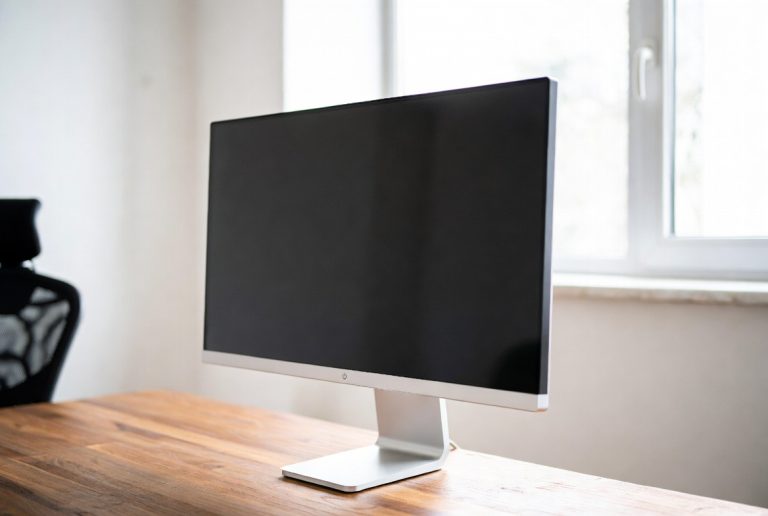
Think about how far you sit from your screen. If you’re close, a massive monitor might feel overwhelming. If you sit further back, a smaller screen might require you to squint. We’ve found that a 24-inch monitor is a great all-around choice for most people. It offers enough screen real estate without dominating your desk.
For those who love to get lost in their work or play, a 27-inch monitor can be a real step up. It provides a more immersive experience, especially for gaming or watching movies. Many experts suggest that this size offers a good balance of detail and comfort for extended use (Cleveland Clinic).
What Do You Actually Do on Your Computer?
Your primary computer activities are a major influence on monitor size. Are you mostly checking emails and browsing the web? Or are you editing photos, coding complex projects, or battling dragons in your favorite game?
Everyday Computing and Productivity
For typical daily tasks like email, web browsing, and document editing, a monitor between 22 and 24 inches is often perfect. This size allows for comfortable multitasking without requiring you to move your head too much. You can easily have a document open next to a web browser. We found that this size helps reduce eye strain for many users.
Gaming and Immersive Entertainment
Gamers and movie buffs often crave a larger screen. A 27-inch monitor is a popular choice for gaming. It pulls you deeper into the action. For even more immersion, some gamers opt for 32-inch monitors or even ultrawide displays. These larger sizes can make details pop and provide a wider field of view. Many found that going from a 24-inch to a 27-inch monitor felt like a significant upgrade in visual quality.
Creative Work and Professional Use
If your work involves graphic design, video editing, or detailed CAD work, you’ll benefit from a larger screen. A 27-inch or 32-inch monitor is often recommended. These sizes allow you to see more of your project at once. You can spread out toolbars and palettes without them cluttering your workspace. Many professionals find that higher resolutions on larger screens are essential for seeing fine details clearly.
Beyond the Inches: Resolution and Pixel Density
Monitor size is only part of the story. Resolution and pixel density play a huge role in how clear and sharp your image appears. A big screen with a low resolution can look like an old, blurry TV. We want crisp text and vibrant images, right?
Understanding Resolution
Resolution refers to the number of pixels your screen displays, usually shown as width x height (e.g., 1920 x 1080). Common resolutions include:
- 1920 x 1080 (Full HD or 1080p): Standard for 24-inch monitors.
- 2560 x 1440 (QHD or 1440p): Great for 27-inch monitors.
- 3840 x 2160 (4K UHD or 2160p): Ideal for 32-inch and larger screens.
Pixel Density: The Sharpness Factor
Pixel density, measured in pixels per inch (PPI), tells you how tightly packed those pixels are. A higher PPI means a sharper, more detailed image. We found that for a 27-inch monitor, a QHD (1440p) resolution offers excellent sharpness. For a 24-inch monitor, Full HD (1080p) is generally sufficient.
If you put a 1080p resolution on a 32-inch monitor, the pixels will be stretched thin, and everything will look a bit fuzzy. You’ll notice the individual dots. Many experts advise matching your resolution to your screen size for the best visual clarity. A 4K resolution is fantastic on a 27-inch or larger screen, offering incredibly sharp details.
Consider Your Desk Space and Ergonomics
Before you fall in love with a giant monitor, measure your desk! It sounds simple, but it’s easy to forget. A monitor that’s too big can make your workspace feel cramped. It can also force you into awkward seating positions.
Measure Twice, Buy Once
Use a tape measure to check the width of your desk. Also, consider the depth. Larger monitors, especially those with chunky stands, can take up a lot of room. You need space for your keyboard, mouse, and maybe even a notebook. We recommend leaving at least 2-3 feet of space between your eyes and the screen for optimal viewing comfort (Mayo Clinic).
Ergonomics for Comfort
Good ergonomics are key to preventing discomfort. Your monitor should be positioned so the top of the screen is at or slightly below eye level. This helps maintain a neutral neck posture. If you get a monitor that’s too big or too close, you might find yourself craning your neck. Adjustable monitor stands or arms can help you achieve the perfect height and angle.
The Rise of Ultrawide Monitors
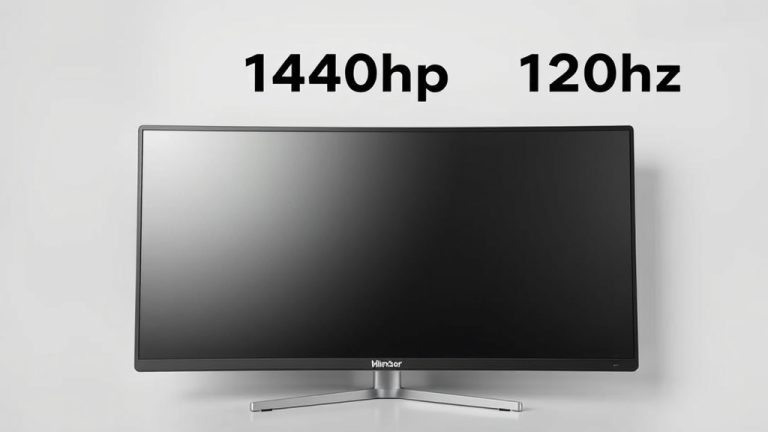
Ultrawide monitors are becoming increasingly popular. They offer a wider aspect ratio, often 21:9 instead of the standard 16:9. This gives you significantly more horizontal screen space. They are amazing for multitasking, allowing you to have multiple windows side-by-side without feeling squeezed. However, ultrawide monitors require more desk depth and width.
If you have the space and do a lot of side-by-side work, an ultrawide could be a great fit. We found that for tasks like video editing, coding, or managing complex spreadsheets, the extra screen real estate is a game-changer. Just be sure you have enough room for it to feel comfortable. If you have the space and do a lot of side-by-side work, an ultrawide could be a great fit.
Your Monitor Size Checklist
To help you decide, consider these quick points:
- Measure your desk space before you look at any monitors.
- Think about your main computer tasks.
- Aim for a 24-inch Full HD for general use.
- Consider a 27-inch QHD for gaming or more detailed work.
- Ensure the resolution matches the size for a clear picture.
- Don’t forget about ergonomics and viewing distance.
Conclusion
Choosing the right monitor size is a balance. It’s not just about picking the biggest screen you can find. You need to consider what you’ll actually be doing on your computer. Think about your desk space and how far you’ll be sitting. A 24-inch monitor often hits the sweet spot for general use. For gaming or detailed creative work, a 27-inch or larger screen might be better. Remember that resolution matters for sharpness, and good ergonomics will keep you comfortable. So, before you click ‘buy’, measure your desk and think about your primary tasks. Your eyes and your workspace will thank you!
Frequently Asked Questions
How far should I sit from my monitor?
A good general guideline is to sit about an arm’s length away from your screen. This typically translates to 2 to 3 feet. This distance helps prevent eye strain and allows you to comfortably see the entire screen without excessive head or eye movement.
Is a 27-inch monitor too big for a small desk?
A 27-inch monitor can feel large on a small desk. It takes up more physical space than smaller options. We recommend measuring your desk depth and width first. Consider if you’ll have enough room for your keyboard and mouse.
Will a bigger monitor make my games look better?
A bigger monitor, especially with a higher resolution, can make games more immersive. You’ll see more detail and have a wider field of view. However, ensure your computer’s graphics card can handle the increased resolution for smooth gameplay.
Can I use a 1080p resolution on a 27-inch monitor?
You can technically use 1080p on a 27-inch monitor, but we found the image might not be as sharp. The pixels can appear stretched, leading to a less crisp display. For a 27-inch screen, a 1440p (QHD) resolution offers a much better balance of size and sharpness.
What is an ultrawide monitor and do I need one?
An ultrawide monitor has a wider aspect ratio, giving you more horizontal screen space than a standard monitor. They are great for multitasking, like having multiple windows open side-by-side. You might consider one if you do a lot of coding, video editing, or simply want a more expansive view for productivity.