Dual Monitor Wallpaper: How to Set Yours Up Easily
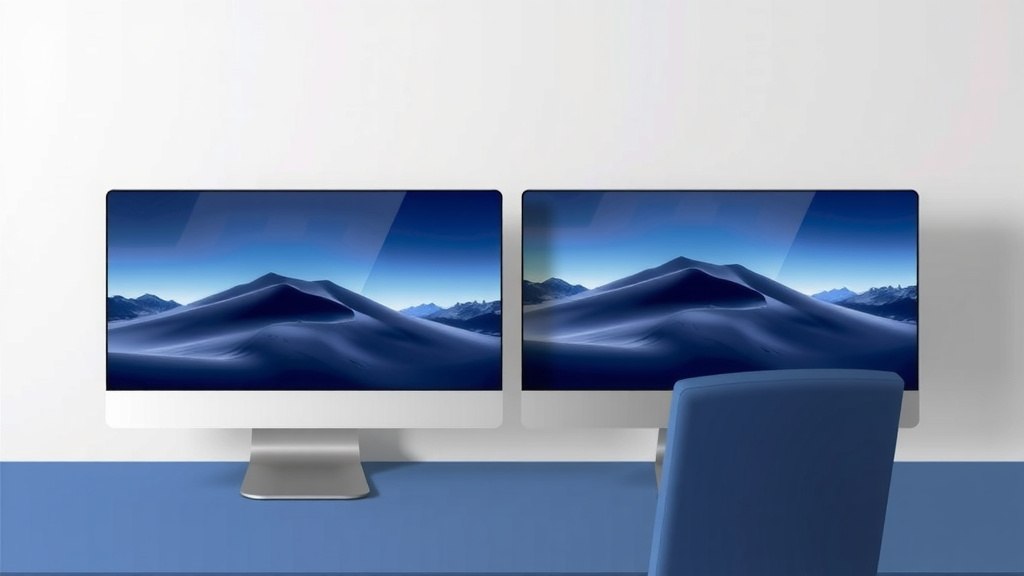
Setting up dual monitor wallpaper is easier than you might think. You can easily stretch a single image across both screens or use different wallpapers for each display. We’ll show you the straightforward steps to customize your setup and make your desktop look amazing.
Your dual monitor setup offers a fantastic opportunity for personalization. Whether you want a single, expansive landscape or two unique scenes, managing your wallpaper adds a personal touch. Many users find this simple customization greatly improves their workspace enjoyment and productivity.
- Stretch one image across both monitors.
- Use different images for each screen.
- Easy settings adjust wallpaper behavior.
- Personalize your dual screen experience.
Let’s walk through exactly how to set up your dual monitor wallpaper step by step.
Customizing Your Dual Monitor Wallpaper
Setting up your dual monitor wallpaper can really make your workspace feel like your own. You have two screens, so why settle for a single, boring background? We’ve found that with a little tweaking, you can transform your setup into something visually appealing and even more productive. Let’s figure out how to get your custom wallpaper looking just right.
Setting a Single Image Across Both Displays
Many people love the idea of one big, beautiful image stretching across both monitors. It creates a really immersive effect, especially with wide panoramic photos or artwork. It’s like a digital mural on your desk!
Windows 10 and 11 Steps
The process in Windows is pretty straightforward. You just need to know where to look in the settings. We found that the Settings app is your best friend here.
Preparing Your Wallpaper Image
First, you’ll want an image that’s suitable for a wide format. If your monitors are side-by-side, a landscape photo often works best. Make sure the image resolution is high enough to avoid pixelation. Many graphic design sites offer free, high-resolution wallpapers. We recommend checking those out.
Using the Display Settings
Right-click anywhere on your desktop and choose Display settings. Scroll down to the ‘Multiple displays’ section. Here, you’ll see how Windows recognizes your monitors. Now, right-click on your desktop again and select Personalize. In the Personalization settings, choose Background. Under ‘Choose a picture,’ select Browse and pick your wide image. Then, at the bottom, look for the ‘Choose a fit’ option. Select Span. This tells Windows to stretch the image across all connected displays. It’s surprisingly simple!
macOS Steps
For Mac users, it’s a bit different but still manageable. Apple’s system is designed to handle multiple displays nicely.
Accessing Desktop & Screen Saver Preferences
On your Mac, go to the Apple menu and select System Settings (or System Preferences on older macOS versions). Click on Wallpaper. If you don’t see a direct ‘Wallpaper’ option, look for ‘Desktop & Screen Saver’ first.
Arranging Your Wallpaper
You’ll see your current wallpaper options. Drag and drop the image you want to use into the wallpaper preview area. When you have multiple displays connected, macOS usually recognizes this. You might see an option to Span across all displays or similar wording. Select this if it appears. If not, you might need to manually arrange the image on each screen. Sometimes, clicking and dragging the image within the preview window can help you position it correctly. We found that dragging the image between the screen representations works best for manual placement.
Using Different Wallpapers for Each Monitor
Not everyone wants a single giant image. Sometimes, having a different background on each screen is more practical or aesthetically pleasing. For example, you might want a calming scene on one and a productivity-boosting graphic on the other. This is also quite achievable.
Windows 10 and 11 Method
Windows makes this quite easy to manage. It treats each monitor as a separate display that can be personalized.
Selecting and Assigning Images
Open the Personalization settings as before (right-click desktop > Personalize). Go to Background. Choose your first image. Once it’s set, right-click on the image preview in the settings window. You should see an option like Set for monitor 1 or Set for monitor 2. Select the monitor you want to apply it to. Repeat this process for your second monitor, choosing a different image. You can then select Set for monitor 2 for the second wallpaper. It’s a very direct way to assign images.
Using the File Explorer Trick
An even quicker way we found: open File Explorer and locate your desired wallpaper images. You can actually right-click on an image file. Look for the option that says Set as desktop background. If you have multiple monitors, Windows will often prompt you to choose which monitor to apply it to. You can then repeat this for the second monitor. This bypasses some of the settings menu steps.
macOS Method
macOS has a neat way to handle unique wallpapers for each screen.
Drag and Drop for Each Display
Open System Settings (or System Preferences) > Wallpaper. You’ll see previews of your displays. Drag the image file you want for your primary display into its preview window. Then, drag a different image file into the preview window for your secondary display. macOS typically assigns these directly. If it doesn’t, you might need to click on the image within the preview window and see if there’s an option to specify which display it applies to. We found this drag-and-drop method to be the most intuitive on Mac.
Using the Photos App
If your wallpapers are in your Photos app, you can also use that. In the Photos app, find the image you want. Right-click on it and select Use as Desktop Picture. Similar to Windows, macOS might ask which display you want to apply it to, or it may default to your primary display. You can then repeat the process for the other monitor.
A Quick Checklist for Dual Monitor Wallpaper Setup
Ready to get started? Here’s a quick rundown to keep you on track:
- Choose your wallpaper style: One spanning image or two different ones?
- Find high-resolution images: Avoid blurry or pixelated results.
- Know your OS settings: Windows Personalization or macOS Wallpaper.
- Use the ‘Span’ option (Windows): For one large image.
- Right-click or drag-and-drop: To assign specific images to specific monitors.
- Test and adjust: Make sure it looks exactly how you want it!
Troubleshooting Common Wallpaper Issues
Sometimes, things don’t go as planned. Don’t worry, most issues are easy to fix.
Image Looks Stretched or Squashed
This usually happens when the aspect ratio of your wallpaper image doesn’t match the aspect ratio of your monitor. If you’re spanning an image, it might not fit perfectly on both screens if they have different resolutions or orientations. Try using the ‘Fill‘ or ‘Center‘ options in Windows’ ‘Choose a fit’ setting instead of ‘Span’. For macOS, ensure the image resolution is appropriate for your displays. Many experts suggest images with resolutions matching your monitor’s native resolution work best (Apple Support).
Wallpaper Not Showing on One Monitor
This can be frustrating! Make sure Windows or macOS fully recognizes both displays. Go back to your Display settings. Check that both monitors are detected and arranged correctly. Sometimes, simply restarting your computer after setting the wallpaper can resolve this. We found that ensuring the monitor is set to ‘Extend desktop’ rather than ‘Duplicate display’ is critical for independent wallpapers.
Performance Issues (Rare)
In very rare cases, extremely high-resolution or complex animated wallpapers might slightly impact performance. If your computer feels sluggish after changing your wallpaper, try a simpler, lower-resolution image. Most modern operating systems handle static wallpapers without issue. Research from tech sites suggests that static images are almost never a cause for performance degradation.
Conclusion
You’ve learned how to set up your dual monitor wallpaper, whether you prefer a single expansive image or distinct backgrounds for each screen. We covered the straightforward steps for both Windows and macOS. Remember, a high-resolution image and the correct setting (like ‘Span’ in Windows) are key to a great look. Now, you can transform your desktop into a personalized space that boosts your mood and productivity. Go ahead and give your setup a fresh, custom look today!
Frequently Asked Questions
Can I use animated wallpapers on dual monitors?
While some third-party software allows for animated wallpapers, they are not natively supported by Windows or macOS for dual monitors. Animated wallpapers can also consume more system resources, potentially slowing down your computer. We recommend sticking to static images for the best performance and compatibility.
What if my dual monitors have different resolutions?
This can sometimes make spanning a single image tricky. If you’re spanning, the image might appear a bit distorted or stretched on one screen. It’s often best to use different wallpapers for each monitor when resolutions differ. You can also try the ‘Fill’ option in Windows’ fit settings for a more consistent look across varied resolutions.
How do I make sure my wallpaper is centered on one monitor and not stretched across both?
In Windows, instead of selecting ‘Span’ when using a single image, choose ‘Center’ or ‘Fill’ under the ‘Choose a fit’ option. This will typically place the image on your primary monitor. Then, you can assign a different wallpaper to your secondary monitor using the right-click method in the Personalization settings.
Is there a way to set wallpapers that change automatically on dual monitors?
Yes, both Windows and macOS offer slideshow options. In Windows, under Personalization > Background, you can choose a slideshow and select which folder your images come from. For macOS, in System Settings > Wallpaper, you can select a folder of images and choose a time interval for them to change. This works for both single and dual monitor setups.
What’s the best image resolution for dual monitor wallpapers?
For the sharpest results, aim for images that match the native resolution of your monitors. If you’re spanning one image, you’ll need a very wide, high-resolution image. For example, if you have two 1920×1080 monitors side-by-side, an image around 3840×1080 would be ideal for spanning. For individual wallpapers, use images that match each monitor’s resolution.
![10 Best Monitor Mount For Ultrawide [2026]](https://bestaccir.com/wp-content/uploads/2026/05/10-best-monitor-mount-for-ultrawide-2026-featured-768x432.jpg)