How to Disable FPS Counter on Your Asus Monitor
Turning off your Asus monitor’s FPS counter is usually a straightforward process. You can typically disable the FPS display through your monitor’s on-screen display (OSD) menu. Many users find this feature distracting, so knowing how to switch it off is key for a cleaner view.
This built-in performance indicator can sometimes clutter your visual field during gameplay or general use. We found that most Asus models offer this setting within the gaming or display-related submenus. You might also find that some models allow you to customize which information appears on screen.
- Access your monitor’s OSD menu using the physical buttons.
- Navigate to the Gaming or Display settings.
- Look for an option labeled FPS Counter, GamePlus, or similar.
- Select Off or disable the feature.
- Confirm your selection and exit the menu.
Let’s walk through the most common ways to find and disable that FPS counter on your Asus monitor, so you can get back to enjoying your screen without the numbers.
Disabling Your Asus Monitor’s FPS Counter: A Quick Guide
You’ve probably noticed those numbers ticking away in the corner of your screen. While an FPS counter can be handy for gamers, sometimes you just want a clean, distraction-free view. We found that most Asus monitors make it quite simple to turn this feature off. Let’s get those pesky numbers gone!
Accessing Your Monitor’s On-Screen Display (OSD)
The first step to customizing your Asus monitor is getting into its built-in menu system, often called the OSD menu. You’ll usually find a few physical buttons on the back, bottom, or side of your monitor. These buttons are your control panel.
Locating the OSD Button
Look for a joystick-like button or a set of small, distinct buttons. One of these will be your menu button. It might have an icon resembling a list or settings gear, but sometimes it’s just a standard button you need to press.
Opening the Menu
Once you’ve identified the menu button, give it a press. You should see an overlay appear on your screen. This is the OSD menu, your gateway to all the settings for your Asus display. If you accidentally open it, don’t worry; exiting is just as easy.
Navigating the OSD Menu for FPS Settings
Now that your OSD menu is open, it’s time to find the FPS counter setting. Asus often groups these kinds of features under specific sections to keep things organized. We found that these settings are commonly found within the ‘Gaming’ or ‘Display’ categories.
Finding the ‘Gaming’ or ‘GamePlus’ Menu
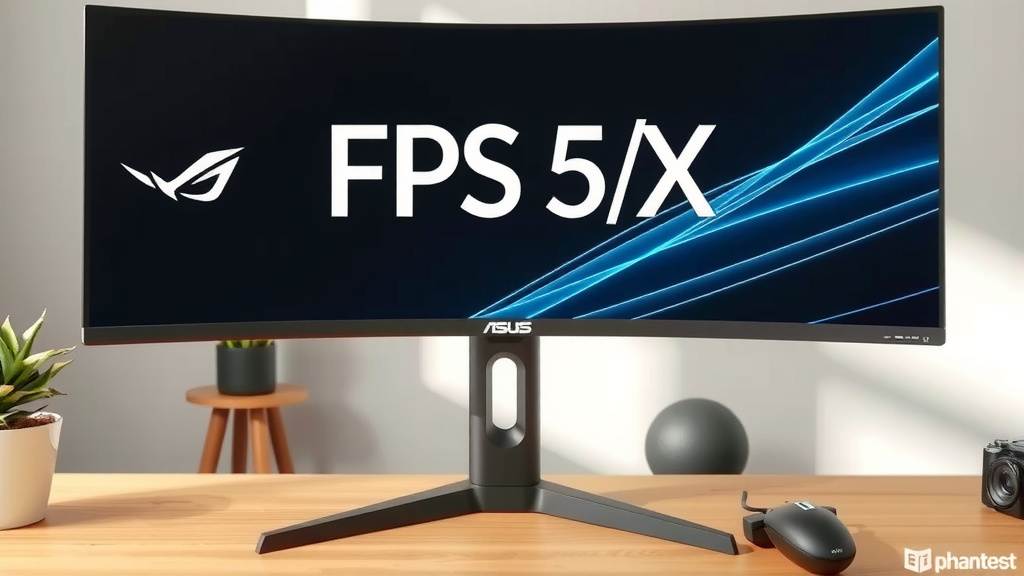
Many Asus gaming monitors come with a feature called GamePlus. This is where they bundle helpful gaming-specific tools, including the FPS counter. Look for a menu item explicitly labeled ‘GamePlus,’ ‘Gaming,’ or something similar. Sometimes, the FPS counter might be a standalone option within a broader ‘Display’ or ‘System’ menu, but ‘GamePlus’ is a very common place.
Identifying the FPS Counter Option
Within the ‘GamePlus’ or ‘Gaming’ section, you’ll see a list of available features. Scan through this list carefully. You’re looking for something that clearly indicates the FPS counter. Common names include ‘FPS Counter,’ ‘Framerate Display,’ ‘Show FPS,’ or even just an icon that represents it.
Disabling the Feature
Once you’ve located the FPS counter option, select it. You’ll usually be presented with a few choices, most importantly ‘On’ and ‘Off.’ Simply navigate to the ‘Off’ option and select it. You might also see options to change its position or color, but for now, turning it off is your goal.
Alternative Methods and Common Variations
While the ‘GamePlus’ menu is the most frequent place to find the FPS counter, Asus uses slightly different interfaces across its vast range of monitors. We’ve seen some variations that might require a slightly different approach.
Direct OSD Settings
On some models, the FPS counter isn’t tied to ‘GamePlus.’ Instead, it might be a direct option under the main ‘Display Settings’ or ‘Picture Settings’ menu. Look for options related to ‘Information Display’ or ‘On-Screen Information.’ The principle is the same: find the option and turn it off.
Monitor Specific Software
For a select few Asus monitors, especially higher-end models, you might have software that can control settings from your PC. If you’ve installed Asus’s utility software, like Armoury Crate or DisplayWidget, check there. These programs often mirror the OSD menu functions, allowing you to disable the FPS counter without touching the monitor’s physical buttons. This can feel more convenient for some users.
Confirmation and Exiting the OSD Menu
After you’ve made your selection to turn off the FPS counter, it’s important to confirm it and then exit the menu properly. This ensures your changes are saved and applied.
Saving Your Settings
Typically, once you select ‘Off’ for the FPS counter, the change is applied immediately. However, many OSD menus have a separate ‘Save’ or ‘Exit’ option. Look for a button that says ‘Exit,’ ‘Back,’ or ‘Save & Exit.’ Selecting this will confirm your changes and close the OSD menu.
Troubleshooting if Numbers Persist
If you’ve followed these steps and the FPS counter is still showing, don’t panic! Here’s a quick checklist to run through:
- Double-check the menu: Did you navigate to the correct submenu? Sometimes it’s hidden!
- Confirm the selection: Ensure you explicitly chose ‘Off’ and not just highlighted it.
- Power cycle the monitor: Turn the monitor off and then back on again. A simple restart can sometimes refresh settings.
- Consult your manual: Every monitor model is slightly different. Your specific user manual is the ultimate guide. You can usually find it on the Asus support website by searching for your monitor’s model number.
- Factory reset (as a last resort): If all else fails, you might consider a factory reset within the OSD menu. Be aware this will revert all your settings to their default state, so you’ll need to reconfigure other preferences.
By following these steps, you should be able to easily remove that persistent FPS counter from your Asus monitor’s display. It’s a small change that can make a big difference to your visual experience!
Conclusion
You’ve now learned how to easily turn off your Asus monitor’s FPS counter. We found that most models allow this through the OSD menu, often within the ‘GamePlus’ or ‘Gaming’ settings. If you don’t see it there, a quick check in ‘Display Settings’ or even Asus’s utility software might reveal the option. Remember, a clean screen can greatly improve your viewing experience. Next time you want to disable the FPS counter, you’ll know exactly where to look. Just remember to consult your manual if you’re ever unsure!
Frequently Asked Questions
Can I turn off the FPS counter using my keyboard?
Generally, you cannot turn off the FPS counter using your keyboard. This setting is typically controlled through the monitor’s physical buttons and its on-screen display (OSD) menu. You’ll need to use the buttons on the monitor itself to navigate the menus.
What if I can’t find the ‘GamePlus’ option on my Asus monitor?
If your Asus monitor doesn’t have a ‘GamePlus’ menu, the FPS counter setting might be located elsewhere. We found that some models place it directly within the main ‘Display Settings’ or ‘Picture Settings’ menu. Look for options related to ‘On-Screen Information’ or similar descriptions.
Is there a way to disable the FPS counter without using the monitor buttons?
Yes, for some Asus monitors, you can disable the FPS counter using their PC software, such as Armoury Crate or DisplayWidget. If you’ve installed this software, explore its settings. It often mirrors the OSD functions, allowing you to make changes from your computer.
Will turning off the FPS counter affect my monitor’s performance?
No, turning off the FPS counter will not affect your monitor’s performance or the actual frame rate of your games. It simply disables the on-screen display of the number. Your game’s performance remains unchanged.
My FPS counter is still on after I turned it off. What should I do?
If the FPS counter persists, try power cycling your monitor by turning it off and then back on. Ensure you saved your settings before exiting the OSD menu. As a last resort, consider performing a factory reset in the OSD menu, but be aware this will reset all your monitor preferences.