How to Get Three Monitors on One Computer
Yes, you can absolutely get three monitors on one computer. Most modern computers can handle it with the right hardware and setup. You just need to make sure your computer’s graphics card supports multiple displays and has the necessary ports.
Adding more screens can really boost your productivity. Imagine having more space for all your windows! It’s a common setup for gamers, coders, and anyone who multitasks. We’ve seen many people successfully expand their workspace this way, finding it a huge improvement.
TL;DR:
- Yes, it’s totally doable.
- You’ll likely need a compatible graphics card.
- Check your computer’s available ports.
- Adapters might be your best friend.
- It can make multitasking much easier.
Ready to expand your screen real estate? Let’s walk through exactly how to get those extra monitors connected and working with your PC.
“`htmlConnecting Multiple Monitors to Your PC
So, you’re thinking about adding more screens to your computer setup? That’s a fantastic idea! Getting three monitors on one computer is totally achievable for most people. It’s like giving your brain a whole new desk to spread out on. We’ve found that expanding your display can really supercharge your workflow. Let’s figure out how to make it happen for you.
What Your Computer Needs to Support Three Monitors
The first thing to check is your computer’s graphics card. This is the component that handles all the visuals you see. Most modern graphics cards are designed to output to more than one display. You’ll want to know what your card is capable of before you buy any new hardware.
Checking Your Graphics Card Capabilities
How do you find out what your graphics card supports? It’s usually quite straightforward. You can often find this information printed on the card itself if you look inside your computer case. Many people simply search for their computer’s model number online. You can also check your system information within your operating system. For Windows, search for “dxdiag” and run the DirectX Diagnostic Tool. It will list your display adapter, which is your graphics card.
We found that many users are surprised to learn their existing hardware can already handle multiple monitors. The key is looking for specifications like “multi-monitor support” or the number of displays it can power. Some older or very basic integrated graphics might struggle, but dedicated graphics cards are usually built for this.
Understanding Video Ports on Your Graphics Card
Next up are the ports on your graphics card. These are the physical connectors where you’ll plug in your monitors. Common ports include HDMI, DisplayPort, and DVI. Older cards might have VGA ports, but these are less common now and offer lower quality.
To connect three monitors, your graphics card needs to have at least three output ports that are compatible with your monitors. If your card has, say, two DisplayPorts and one HDMI port, you’re in good shape. You’ll just need the right cables for each connection.
Sometimes, a graphics card might have multiple ports of the same type, like two HDMI ports. This is also perfectly fine. What matters is the total number of independent display outputs your card provides. We’ve seen many setups where people use a combination of different port types.
Choosing the Right Cables and Adapters
Once you know your graphics card ports and what your monitors have, you can select your cables. You’ll need one cable for each monitor. If your graphics card has HDMI ports and your monitors have HDMI inputs, an HDMI cable will work. The same applies to DisplayPort and DVI.
When Adapters Become Your Best Friend
What if your graphics card and monitors don’t have matching ports? That’s where adapters come in handy. An adapter allows you to connect a cable of one type to a port of another type. For example, if your graphics card has a DisplayPort but your monitor only has an HDMI input, you’d use a DisplayPort to HDMI adapter. These are widely available and quite affordable.
We found that adapters are incredibly useful for bridging compatibility gaps. You can get adapters like DisplayPort to HDMI, HDMI to DVI, and many other combinations. Just make sure you’re buying the correct adapter for the direction you need (e.g., DisplayPort *output* to HDMI *input*).
It’s important to note that some adapters are “active” while others are “passive.” Active adapters have a small chip that converts the signal more robustly. For connecting multiple monitors, especially if you’re using different port types, opting for active adapters is often recommended to ensure a stable signal. Many sources suggest active adapters for DisplayPort to HDMI conversions (TechSource).
Ensuring Compatibility with Adapters
When using adapters, it’s wise to check for any potential limitations. Some adapters might limit the resolution or refresh rate your monitor can achieve. Always check the adapter’s specifications before purchasing. If you’re aiming for high resolutions like 4K, ensure your adapter supports it. We’ve seen users run into issues when their adapter couldn’t handle the desired display quality.
Setting Up Your Three-Monitor Display
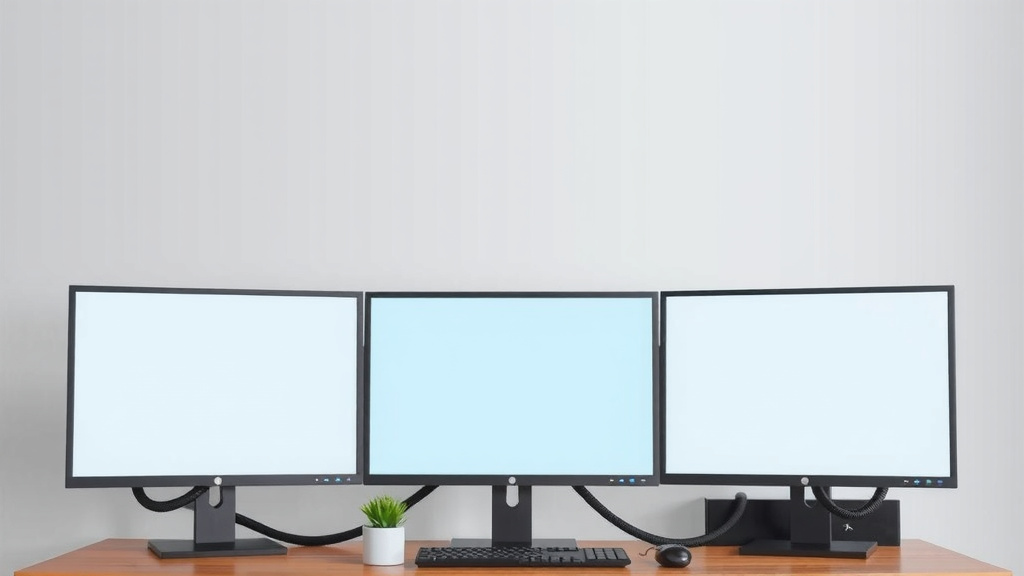
With your graphics card confirmed, ports identified, and cables/adapters ready, it’s time for the setup. This part is usually the most satisfying!
Physical Connections
First, power off your computer. Then, connect each monitor to your graphics card using the appropriate cables and adapters. Plug one end of the cable into the monitor and the other into the corresponding port on your graphics card. Repeat this for all three monitors. Once everything is physically connected, power on your monitors, and then power on your computer.
Configuring Your Display Settings
Your computer should detect the new monitors automatically. You might see your desktop appear on one or all of them. Now, you need to tell Windows (or your operating system) how you want these screens to work together. Right-click on your desktop and select “Display settings.”
In the Display settings, you’ll see numbered boxes representing each monitor. You can drag these boxes around to match the physical arrangement of your monitors on your desk. This is super important for mouse movement. You want your mouse to move smoothly from one screen to another as you expect.
Under the “Multiple displays” dropdown, you’ll typically have options like “Duplicate these displays,” “Extend these displays,” or “Show only on 1/2/3.” For a three-monitor setup, you almost always want to select “Extend these displays.” This allows each monitor to show different content, giving you that expanded workspace.
You can also choose your main display. This is the monitor where your taskbar and icons will appear by default. Select the monitor you want as your primary and check the box that says “Make this my main display.” We found that having a clear main display makes navigation much more intuitive.
Don’t forget to adjust the resolution and scaling for each monitor if needed. Sometimes, new monitors might not automatically be set to their native resolution. You can change this in the Display settings as well.
Troubleshooting Common Issues
What if one of your monitors isn’t showing up? Don’t panic! This is a common hiccup.
- Check Connections: Double-check that all cables are securely plugged in at both ends.
- Restart Your PC: A simple reboot can often fix detection issues.
- Update Graphics Drivers: Outdated drivers are a frequent cause of display problems. Visit your graphics card manufacturer’s website (NVIDIA, AMD, Intel) to download the latest drivers. Many experts recommend keeping your drivers updated (NVIDIA Support).
- Try Different Ports/Cables: If possible, swap cables or ports to rule out a faulty component.
We’ve seen that most issues can be resolved by systematically checking these points. It’s often just a small tweak needed to get everything working perfectly.
Quick Setup Checklist
Here’s a quick rundown to ensure you’re on track:
- Confirm your graphics card supports at least three displays.
- Identify all output ports on your graphics card.
- Match ports with your monitors or get the right adapters.
- Use a separate cable for each monitor.
- Select “Extend these displays” in your operating system settings.
- Arrange monitor boxes to match their physical placement.
Conclusion
Getting three monitors connected to your computer is entirely achievable, and we’ve walked you through the key steps. You’ve learned how to check your graphics card’s capabilities and identify the right video ports. Remember, using the correct cables and the right adapters can bridge any connection gaps you encounter. With a few simple configurations in your display settings, you’ll soon be enjoying a significantly expanded workspace.
Ready to make the jump? Your next step is to physically check your current setup. See what ports your graphics card has and compare them to your monitors. Then, you can gather the necessary cables and adapters to bring your triple-monitor dream to life. You’ve got this!
Frequently Asked Questions
Will my laptop support three external monitors?
Many modern laptops can support multiple external displays, but it depends on their graphics card and ports. You’ll typically need a laptop with a dedicated graphics card or a USB-C/Thunderbolt port that supports DisplayPort Alternate Mode. Always check your laptop’s specifications for multi-display support before purchasing monitors.
Can I use a docking station or hub for extra monitors?
Yes, docking stations and USB hubs are excellent solutions, especially for laptops with limited ports. Many devices are designed to expand your connectivity, allowing you to connect two or even three external monitors through a single USB-C or Thunderbolt connection. Research hubs specifically designed for multi-monitor support to ensure compatibility.
What’s the difference between mirroring and extending my display?
Mirroring, or duplicating your display, shows the exact same content on all connected monitors. Extending your display, on the other hand, creates one large desktop spread across all screens, allowing you to place different windows and applications on each one. For productivity, extending is almost always the desired setting for a multi-monitor setup.
Do I need a powerful graphics card for three monitors?
For basic tasks like browsing and word processing, a moderately capable graphics card is usually sufficient. However, if you plan to game, edit video, or use graphically intensive software across all three screens, you’ll benefit greatly from a more powerful, dedicated graphics card. This ensures smooth performance and higher resolutions.
What if my graphics card only has two output ports?
If your graphics card has only two ports but you need three monitors, you have a couple of options. You might be able to use a USB-to-HDMI adapter or a USB graphics adapter, which essentially adds another display output via a USB port. Alternatively, you could consider upgrading your graphics card to one with more output capabilities.