How to Find the Aspect Ratio of Your Monitor
Finding your monitor’s aspect ratio is pretty straightforward. You can usually find it in your display settings or by looking at the monitor’s physical specifications. Knowing this ratio helps with everything from gaming to video editing.
An aspect ratio is simply the relationship between your screen’s width and height. It’s often expressed as two numbers separated by a colon, like 16:9. This common ratio means your screen is 16 units wide for every 9 units of height. Understanding your monitor’s ratio ensures your content looks just right.
- Check your computer’s display settings.
- Look for the monitor’s model number.
- Search online using the model number.
- The aspect ratio tells you screen shape.
- It’s usually displayed as width:height.
Ready to figure out exactly what yours is? Let’s walk through the simplest ways to find your monitor’s aspect ratio, step by step.
So, you’ve got a new monitor or maybe just want to make sure your current one is set up perfectly. Knowing its aspect ratio is a key piece of that puzzle. It dictates how images and videos will fill your screen, and getting it right makes a big difference for your viewing experience. Let’s dive into the easiest ways to discover this important screen detail.
Discovering Your Monitor’s Screen Dimensions
Finding your monitor’s aspect ratio is simpler than you might think. You’re essentially looking for the proportional relationship between its width and height. We’ll cover a couple of quick methods to get you that information.
Method 1: Through Your Computer’s Display Settings
This is often the quickest way to find out your monitor’s aspect ratio, especially if it’s a standard setup. Your operating system usually keeps track of this.
On Windows
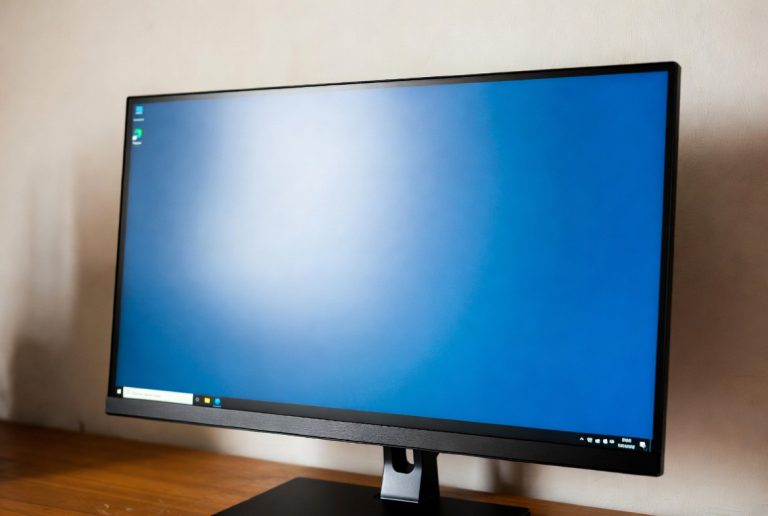
Let’s start with Windows. You’ll want to access your display settings. A fast way to do this is by right-clicking on an empty spot on your desktop. Look for an option that says “Display settings”. Click on that.
Once the settings window pops up, scroll down a bit. You’re looking for the “Display resolution” section. While this shows you the pixel dimensions, the aspect ratio is usually implied here. For example, 1920×1080 is a 16:9 aspect ratio. You might not see the ratio explicitly listed, but the resolution will tell you.
If you want to see the native resolution, which directly relates to the aspect ratio, look for a dropdown menu under “Display resolution.” The option marked “(Recommended)” is usually your monitor’s native resolution and will help you deduce the aspect ratio. For instance, 1920×1080 pixels perfectly translates to a 16:9 ratio.
On macOS
For our Mac users, finding this information is also quite straightforward. Start by clicking the Apple menu in the top-left corner of your screen. From there, select “System Settings” (or “System Preferences” on older versions).
In the System Settings window, find and click on “Displays”. Here, you’ll see information about your connected display. Your monitor’s resolution will be listed. Like on Windows, you’ll often see resolutions like 2560×1440 or 1920×1080. You can then figure out the aspect ratio from these numbers.
Some Mac models might offer scaled resolutions. To see the native aspect ratio, ensure you’re looking at the default or highest resolution option provided. This is often labeled as “Default for display” or will be the highest available number of pixels.
Method 2: Checking Your Monitor’s Physical Information
Sometimes, the easiest way to find out what you’re looking for is to look right at the source – your monitor itself!
Locate the Model Number
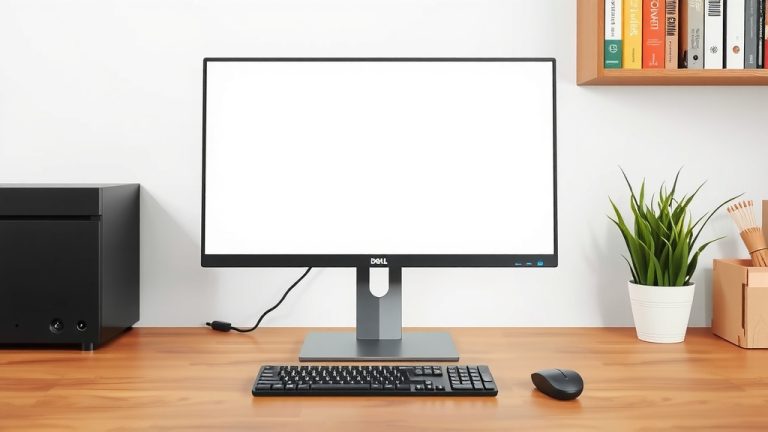
Almost every monitor has a sticker on the back or bottom. This sticker contains vital information, including the manufacturer and the model number. Jot this down carefully.
You might also find a manual that came with your monitor. If you still have it, the aspect ratio or detailed specifications will be listed inside. It’s like a treasure hunt for specs!
Search Online Using the Model Number
Once you have the model number, head over to your preferred search engine. Type in the model number followed by “specifications” or “specs.”
You’ll likely get links to the manufacturer’s website or reputable tech review sites. These pages will detail everything about your monitor, including its native resolution and, directly or indirectly, its aspect ratio. Many sites list the aspect ratio as a specific data point.
For example, if your search brings up “Dell U2721DE specifications,” you’ll find details like its native resolution (e.g., 2560 x 1440). This resolution is a clear indicator of its 16:9 aspect ratio. This method is very reliable for any monitor, even older ones.
Understanding Common Aspect Ratios
Knowing the different aspect ratios can help you identify yours more quickly. Most modern monitors fall into a few common categories.
Here’s a quick rundown of what you’ll typically see:
- 16:9 (Widescreen): This is the most common aspect ratio today for monitors, TVs, and smartphones. It offers a wide viewing experience, great for movies and gaming. Think of it as a panoramic view.
- 16:10: Slightly taller than 16:9, this was popular in laptops and some monitors for a bit more vertical screen real estate. It’s good for productivity tasks.
- 21:9 (Ultrawide): These monitors are significantly wider than standard screens. They offer an immersive experience, excellent for gaming and multitasking, giving you more space to work with.
- 4:3 (Standard Definition): This is an older, more square-like ratio common in older CRT monitors and some TVs. You won’t find this on many new monitors.
Many guidelines for video production and content creation suggest using the 16:9 aspect ratio for maximum compatibility across devices (National Association of Broadcasters).
Putting It All Together: A Quick Checklist
Let’s recap the easiest steps to confirm your monitor’s aspect ratio. You can use this as a quick guide:
- Right-click your desktop and go to Display Settings (Windows) or Apple Menu > System Settings > Displays (Mac).
- Note down your monitor’s native or recommended resolution.
- If unsure, find your monitor’s model number on the back.
- Search online for “[Model Number] specifications.”
- Compare the resolution numbers (e.g., 1920×1080) to common ratios (16:9, 16:10, 21:9).
- If still stuck, check your monitor’s original manual for a direct answer.
Once you know your monitor’s aspect ratio, you can ensure your software, games, and media are all displayed correctly. It’s a small detail that makes a surprisingly big impact on how you interact with your screen.

Conclusion
You’ve now got a clear path to finding your monitor’s aspect ratio. Whether you checked your display settings or looked up your monitor’s model number, you’ve uncovered a key detail about your screen. Knowing this ratio ensures your games look right and your videos play without stretching or squishing. It’s a simple piece of information that makes your digital life much smoother. Now that you know your monitor’s aspect ratio, take a moment to double-check your favorite game or video editing software’s settings to ensure they match for the best viewing experience.
Frequently Asked Questions
What if my display settings don’t show the aspect ratio directly?
That’s common! Your display settings usually show the resolution, like 1920×1080. You can easily figure out the aspect ratio from these numbers. For 1920×1080, divide both by their greatest common divisor (which is 120) to get 16:9.
Can I find the aspect ratio if I have an older monitor?
Yes, absolutely. The method of finding your monitor’s model number on the back and searching for its specifications online is very reliable for older monitors. Manufacturers’ websites or tech spec databases will usually list the original aspect ratio.
Does my monitor’s aspect ratio affect gaming?
It definitely can. Most modern games are designed for common aspect ratios like 16:9 or 16:10. If your monitor has a different ratio, or if the game isn’t set correctly, you might experience stretched images, black bars, or cut-off parts of the screen.
Will knowing the aspect ratio help with video editing?
Yes, it’s quite helpful. When you edit video, you often want your footage to match your output resolution and aspect ratio. Knowing your monitor’s aspect ratio helps you preview your work correctly and ensures your final video looks as intended across different devices.
Are there any online tools that can automatically detect my aspect ratio?
While some websites can help you calculate the aspect ratio from a given resolution, they can’t directly detect your monitor’s hardware. You’ll still need to find your monitor’s resolution or model number first. Your operating system’s display settings or a quick web search are generally the most straightforward methods.