How to Get the Taskbar on Both Monitors
Yes, you can easily get your taskbar on both monitors with a few simple Windows settings. Most users find this setup helps them stay organized and access their apps faster. Simply adjust your display settings to make your taskbar appear on every screen you use.
Having your taskbar duplicated across multiple displays can dramatically improve your workflow efficiency. You won’t need to hunt for your open programs across different screens. Many users report feeling more in control of their digital workspace once this is set up.
- Duplicate your taskbar in Windows settings.
- Find the “Taskbar” section in Personalization.
- Enable “Show taskbar on all displays.”
- Customize which taskbar buttons appear.
Let’s walk through exactly how to enable this handy feature step by step.
Making Your Taskbar Appear on Every Screen
So, you’ve got more than one monitor and you’re tired of looking for your programs. We get it! Having your taskbar show up on all your displays is a simple tweak that can make a big difference in how you work and play. It’s like giving yourself extra landing strips for all your open apps. This guide will show you exactly how to set that up in Windows.
Finding Your Taskbar Settings in Windows
The first step is to open up Windows’ settings menu. You can do this in a couple of quick ways. One common method is to right-click on an empty space on your desktop. This will bring up a context menu. Look for an option that says ‘Display settings’ or similar. Clicking on that will open the main display configuration window.
Alternatively, you can access these settings through the Start menu. Click the Windows icon in the bottom-left corner of your screen. Then, click on the gear icon, which represents ‘Settings’. Once the Settings window pops up, you’ll want to navigate to the ‘Personalization’ section. This is where all your display and appearance options live.
Getting to the Taskbar Options
Once you’re in the ‘Personalization’ settings, look at the menu on the left-hand side. You’ll see various categories like ‘Background,’ ‘Colors,’ and ‘Lock screen.’ Find and click on the option labeled ‘Taskbar’. This will take you directly to the settings that control how your taskbar looks and behaves on your computer.
It’s usually pretty straightforward to spot. If you’re using Windows 11, you might find it listed directly in the left-hand menu. For Windows 10, it’s also typically a direct option within ‘Personalization.’ This is the magic door to getting your taskbar on all your screens.
Turning On the Taskbar for All Displays
Now for the main event! In the ‘Taskbar’ settings menu, you’ll find several options. Scroll down until you see a section related to multiple displays. You’re looking for a toggle switch or a checkbox that says something like “Show taskbar on all displays” or “Display taskbar on all monitors.”
Make sure this option is turned On or checked. As soon as you enable it, you should immediately see your taskbar appear on your other connected monitors. It’s usually quite instantaneous, so keep an eye on your screens as you make the change. You’ll notice a familiar bar pop up on any screen that’s currently active and connected.
Choosing What Shows Up on Each Taskbar
Windows gives you a bit more control than just simply displaying the taskbar everywhere. Below the main toggle, you’ll often find additional options for how those multiple taskbars behave. One very useful setting is how the taskbar buttons are displayed.
You can usually choose from a few options here. Some common settings include:
- “All taskbars”: This shows all your open apps on every taskbar.
- “Main taskbar and taskbar where window is open”: This is a popular choice. It shows all your apps on the primary taskbar and only the apps open on that specific monitor on its own taskbar.
- “Taskbar where window is open”: This shows only the apps open on that specific monitor on each respective taskbar.
We found that the “Main taskbar and taskbar where window is open” setting provides a good balance. It keeps your primary screen showing everything, while secondary screens display what you’re actively using there. This can really help reduce clutter.
Fine-Tuning Your Multi-Monitor Taskbar
While you’re in these settings, you might also notice options for taskbar alignment. You can usually choose to have your icons centered or aligned to the left, just like on your main display. Most users prefer to keep this consistent across all screens for a familiar feel.
There’s also a setting for “Taskbar behaviors” or “Automatically hide the taskbar.” You can choose whether you want the taskbar to always be visible or to disappear when you’re not using it. Experiment with these settings to find what feels most comfortable for your workflow. Some people love a constantly visible taskbar, while others prefer the extra screen real estate that hiding it provides.
Icon Sizes and Search Bar Visibility
Within the taskbar settings, you might also find options to adjust the size of your taskbar icons. If your taskbars on the secondary monitors feel too large or too small, look for an option like “Use small taskbar buttons”. Toggling this can make a noticeable difference in how much space the taskbar takes up.
Similarly, you can often control whether the search bar is fully visible, just an icon, or hidden altogether. If you primarily use Windows search via the Start menu, hiding the search bar on your secondary taskbars can free up a bit more room. It’s all about tailoring it to your specific needs.
What If Your Taskbar Doesn’t Show Up?
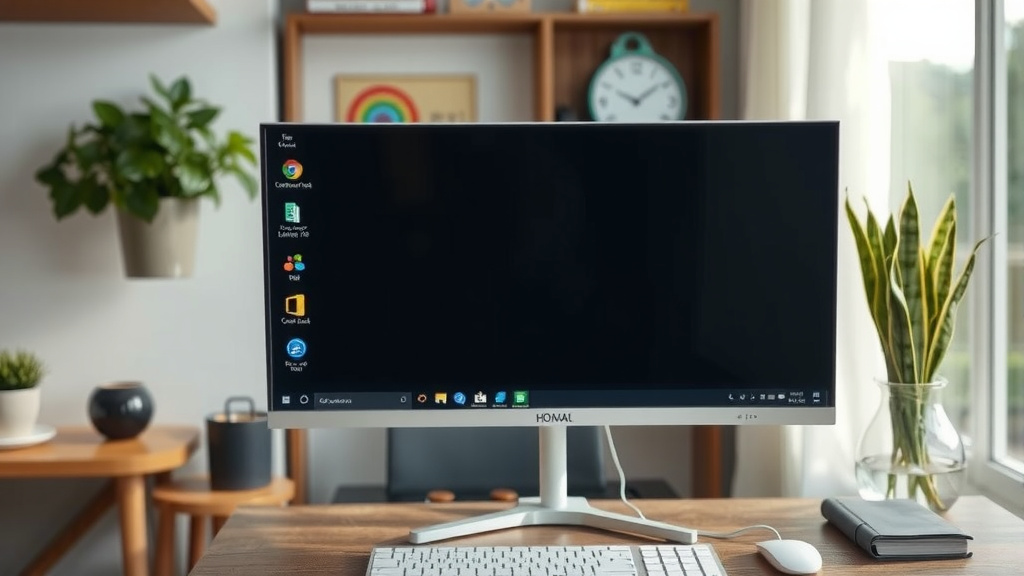
Sometimes, technology doesn’t play perfectly the first time. If you’ve followed the steps and your taskbar still isn’t appearing on all screens, don’t panic! There are a few common reasons this might happen. One is simply that the setting didn’t save correctly. Try toggling the “Show taskbar on all displays” option off and then back on again.
Another possibility is that one of your monitors is not properly detected by Windows as an extended display. You can check this by going back to the main ‘Display settings’ (the screen you accessed before finding the taskbar options). Make sure each monitor is showing up as a separate display and that they are set to “Extend these displays” and not “Duplicate these displays” if you want different content on each screen. The taskbar duplication setting works best with extended displays.
A Quick Restart Can Help
If toggling the setting and checking your display modes doesn’t work, a simple restart of the Windows Explorer process can often fix stubborn issues. This is the process that manages your taskbar, desktop, and File Explorer. To do this, press Ctrl + Shift + Esc to open the Task Manager.
In the Task Manager, go to the ‘Processes’ tab. Look for an application called “Windows Explorer”. Select it, then click the “Restart” button in the bottom-right corner. Your screen might flash or go black for a moment as Windows Explorer reloads. Once it’s back, check your taskbars again. This is a common fix for many minor display glitches.
Ensuring Your Graphics Drivers Are Up-to-Date
Outdated or corrupted graphics drivers can sometimes cause strange display behaviors, including issues with multiple monitors. We found that keeping your graphics drivers current is a good practice for overall system stability. You can usually update these through Windows Update or by visiting the website of your graphics card manufacturer (like NVIDIA, AMD, or Intel).
While this step might seem less direct, it’s a fundamental part of ensuring your displays work correctly. A healthy graphics driver setup supports all the advanced display features Windows offers, including smooth multi-monitor taskbar functionality. It’s like making sure your car’s tires are properly inflated before a long trip.
Windows Version Differences
It’s worth noting that the exact wording and location of these settings can vary slightly between different versions of Windows (like Windows 10 versus Windows 11) and even between different updates. If you’re struggling to find a specific option, a quick search within the Windows Settings app itself can often point you in the right direction. Just type “taskbar” into the search bar at the top of the Settings window.
Quick Checklist for Setup
Here’s a handy checklist to make sure you’ve got it all covered:
- Right-click desktop > Display settings OR Start > Settings > Personalization.
- Select ‘Taskbar’ from the left-hand menu.
- Find and enable “Show taskbar on all displays.”
- Check the “Taskbar behaviors” for button display options.
- Test by opening apps on different monitors.
- If issues persist, restart Windows Explorer or update graphics drivers.
Conclusion
You’ve now learned how to easily extend your Windows taskbar across multiple monitors. This simple adjustment can significantly boost your productivity and make managing your open applications much smoother. By navigating just a few settings, you give yourself quick access to all your programs on any screen you’re using. Don’t let your workflow get stuck on one display. Take a moment now to implement these steps and enjoy a more efficient, organized workspace.
Frequently Asked Questions
Can I have different taskbar settings on each monitor?
Yes, Windows allows for customization. You can choose how taskbar buttons are displayed on each monitor, such as showing only windows open on that specific screen or all open windows. Experiment with these options to find what works best for your workflow.
Will this work if I have more than two monitors?
Absolutely. The setting to “Show taskbar on all displays” applies to every monitor that is properly connected and recognized by your Windows system as an extended display.
Is it possible to hide the taskbar on secondary monitors?
Yes, you can use the “Automatically hide the taskbar” option within the taskbar settings. This allows you to have the taskbar visible on your primary monitor while it hides on secondary ones until you need it, saving screen space.
What if my taskbar icons look too big or small on the second monitor?
You can adjust the icon size by looking for the “Use small taskbar buttons” option in the taskbar settings. Toggling this setting can help you achieve a consistent look and feel across all your displays.
Does having the taskbar on all monitors slow down my computer?
In most cases, the performance impact is negligible. Modern computers are well-equipped to handle this setting. Unless you have a very old or underpowered system, you shouldn’t notice any significant slowdowns.