How to Get Your Computer to Recognize 2 Monitors
Getting your computer to recognize two monitors is usually quite straightforward. Most modern computers and operating systems support multiple displays right out of the box. You primarily need to ensure your graphics card has enough ports and that your cables are properly connected. This setup can significantly boost your productivity and multitasking abilities.
Adding a second screen is a popular upgrade for many users. It transforms your workspace into a more efficient environment. You can easily spread out windows, view multiple applications side-by-side, and even extend your desktop for a more immersive experience. We found that troubleshooting often involves checking display settings and driver updates.
TL;DR:- Check your computer’s video ports.
- Use the correct cables for each monitor.
- Connect monitors to your graphics card or motherboard.
- Configure display settings in your operating system.
- Update graphics drivers if needed.
Below, we’ll walk you through the simple steps to get your computer seeing and using both of your monitors, so you can stop squinting and start multitasking.
Making Your Computer See Double: Adding a Second Monitor
Getting your computer to display on two monitors is usually a simple process. You likely have everything you need already. It mainly involves checking your computer’s video outputs and ensuring your cables are plugged in correctly. This setup can really boost your productivity.
Understanding Your Computer’s Display Capabilities
Before you start plugging things in, it’s smart to know what your computer can handle. Most modern computers are built for multiple monitors. However, older machines or very basic laptops might have limitations. We found that checking your graphics card is your first step.
Finding Your Graphics Card and Ports
Your graphics card is what sends the video signal to your screens. It’s usually a dedicated component or integrated into your motherboard. Look at the back of your desktop computer. You’ll see several ports. Common video ports include HDMI, DisplayPort, and DVI. Make sure your graphics card has at least two of these ports available. If you’re using a laptop, you might need a docking station or adapter if it only has one video output. We found that most laptops have at least one HDMI or USB-C port that supports video.
What If You Don’t Have Enough Ports?
Don’t worry if your computer doesn’t have enough ports. You have a few options. You can get a USB-to-HDMI adapter. These are relatively inexpensive and can add an extra video output. Another option is to upgrade your graphics card. This is more involved, especially for desktops. If you have an integrated graphics chip on your motherboard and a separate graphics card, you might be able to use both. Many modern motherboards support using the integrated graphics alongside a dedicated card for extra displays. We found that USB adapters are often the easiest solution for laptops.
Connecting Your Monitors: The Physical Setup
Now for the fun part! Connecting the monitors themselves is like plugging in any other device. Just make sure you’re using the right kind of cable for your ports.
Choosing the Right Cables
You’ll need a cable that matches the ports on both your computer and your monitors. HDMI is very common and carries both video and audio. DisplayPort is also very popular, especially for higher resolutions and refresh rates. DVI is an older standard but still works well for many setups. Always try to use the same type of connection for both monitors if possible. However, adapters can help if your ports don’t match. We found that using native cables (like HDMI to HDMI) often provides the best performance.
Plugging Everything In
First, turn off your computer and monitors. This helps prevent any electrical surges. Then, connect the first monitor to your computer using its video cable. Plug the other end into the monitor. Repeat this for your second monitor. Make sure the cables are securely seated. Once both monitors are connected, plug in their power cords. Finally, turn on your monitors, and then turn on your computer. You should see your desktop appear on at least one screen.
Configuring Your Display Settings in Windows
Once your monitors are physically connected, your computer needs to know how to use them. Windows makes this pretty straightforward. You’ll be telling Windows how you want your screens to work together.
Accessing Display Settings
The easiest way to get to display settings is by right-clicking on an empty spot on your desktop. From the menu that pops up, select “Display settings.” This will open a window showing all connected displays. If your second monitor isn’t showing up, scroll down and click the “Detect” button. Sometimes it just needs a little nudge! We found that this detection step is often all that’s needed for Windows to see the new screen.
Choosing Your Display Mode
In the Display settings window, you’ll see boxes representing your monitors. They’ll likely be numbered. Click on the monitor you want to be your main display. Then, under the “Multiple displays” dropdown menu, you can choose how you want them to work. Your options are typically:
- Duplicate these displays: This shows the exact same thing on both screens. It’s useful for presentations.
- Extend these displays: This is the most common choice for multitasking. It turns your two screens into one large desktop. You can drag windows from one screen to the other.
- Show only on 1 / Show only on 2: This will disable one of the monitors.
We found that “Extend these displays” is what most people want when setting up two monitors.
Arranging Your Monitors
After you’ve chosen “Extend these displays,” you’ll need to arrange the monitor icons to match how they are physically set up on your desk. Click and drag the numbered boxes to position them correctly. For example, if your second monitor is to the left of your primary monitor, drag its box to the left of the other. This ensures that when you move your mouse, it moves realistically between screens. Hit “Apply” to save your changes. Your mouse should now be able to travel between screens!
Configuring Your Display Settings in macOS
Mac users will find the process very similar and just as intuitive. Apple’s operating system is designed to be user-friendly with multiple displays.
Accessing Display Preferences
On your Mac, click the Apple menu in the top-left corner of your screen. Then, select “System Preferences” (or “System Settings” on newer macOS versions). From there, click on “Displays.” You should see icons for each of your connected monitors.
Arranging and Extending Your Displays
In the Displays settings, you’ll see tabs or sections for each monitor. Go to the “Arrangement” tab. Here, you can drag the display icons to match their physical placement. Just like in Windows, moving your mouse will show how the arrangement works. If you want to use one monitor as your primary display, you can drag the white menu bar to that monitor’s icon. To extend your desktop, ensure that “Mirror Displays” is unchecked. We found that the visual arrangement tool makes it easy to get your mouse movement just right.
Troubleshooting Common Issues
Sometimes, things don’t work perfectly on the first try. Don’t get discouraged! Most problems are easy to fix.
Monitor Not Detected
If your computer isn’t seeing the second monitor, the first thing to check is the cable. Is it plugged in securely at both ends? Try unplugging and replugging it. If that doesn’t work, try a different cable. If you’re using an adapter, make sure it’s compatible and working correctly. On Windows, remember to click “Detect” in the Display settings. On Mac, sometimes simply disconnecting and reconnecting the display in System Preferences can help.
Outdated Graphics Drivers
Graphics drivers are like translators between your operating system and your graphics card. If they’re old, they might not understand how to handle a second monitor properly. We found that updating these drivers is a common fix for display issues.
How to Update Drivers
For Windows:
- Search for “Device Manager” in the Windows search bar and open it.
- Expand the “Display adapters” section.
- Right-click on your graphics card (e.g., NVIDIA GeForce, AMD Radeon, Intel HD Graphics) and select “Update driver.”
- Choose “Search automatically for drivers.” Windows will try to find and install the latest version.
Incorrect Resolution or Display Quality
If your monitor is working but the image looks fuzzy or too big/small, you need to adjust the resolution. In Windows Display settings, scroll down to “Display resolution.” Choose the recommended resolution for your monitor. For macOS, this setting is usually found in the Displays preferences. You can often select “Scaled” and then choose the resolution that looks best. We found that using the native resolution recommended by the monitor manufacturer provides the sharpest image.
Quick Checklist for Success
Here’s a handy list to run through if you hit any snags:
- Check Ports: Ensure your graphics card has enough compatible video outputs.
- Use Correct Cables: Match your cables to the ports on your computer and monitors.
- Secure Connections: Make sure all cables are firmly plugged in.
- Detect Display: Use the “Detect” option in your OS display settings if a monitor isn’t showing.
- Update Drivers: Ensure your graphics card drivers are up to date.
- Arrange Correctly: Position your monitor icons to match your physical desk setup.
Conclusion
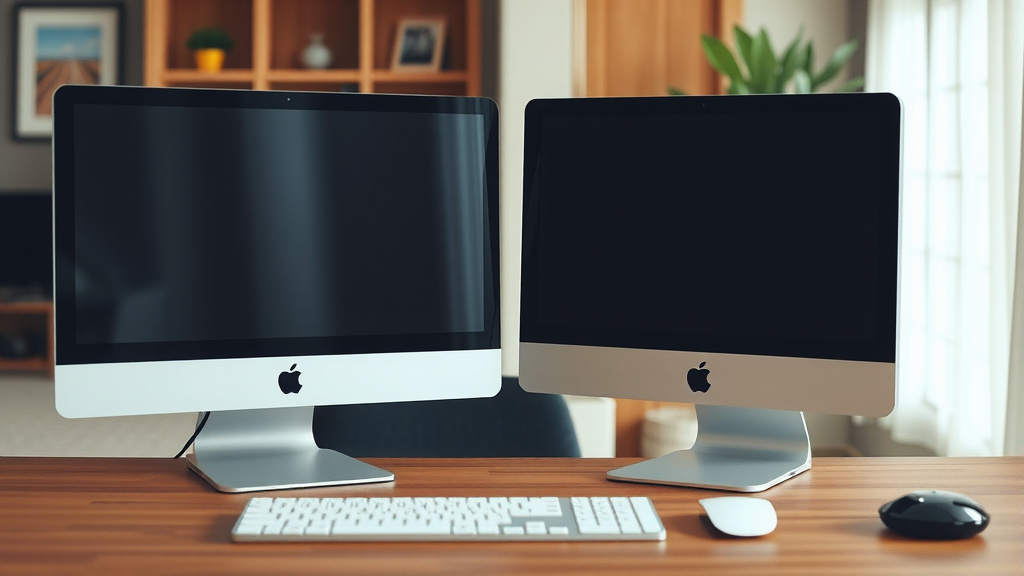
You’ve learned how to easily get your computer to display on two monitors. It mainly involves checking your available video ports and using the correct cables. You also know how to use your operating system’s display settings. This can be as simple as extending your desktop for better multitasking. Don’t forget that updating your graphics drivers can solve many common issues. Now, you’re ready to enjoy your expanded workspace and boost your productivity!
Frequently Asked Questions
What if my computer only has one video output?
If your computer lacks sufficient ports, you can use a USB-to-HDMI adapter. These are widely available and relatively inexpensive. For laptops, a docking station is another great option to expand your connectivity. We found these to be very effective solutions.
Can I connect two different types of monitors?
Yes, you can connect two monitors with different resolutions or even different brands. Your operating system will let you set them up side-by-side. Just ensure that the cables you use are compatible with both your computer and each monitor. We’ve seen many setups like this work well.
Do I need to buy special cables for dual monitors?
Generally, no. You’ll need cables that match the ports on your computer and monitors, such as HDMI, DisplayPort, or DVI. Sometimes, an adapter might be necessary if the ports don’t match. Using the native cable type for each connection is often best for performance.
My second monitor is showing a black screen, what’s wrong?
Start by checking that the cable is securely plugged into both the computer and the monitor. Try a different cable if possible. Also, ensure you’ve selected the correct input source on the monitor itself. If these steps don’t help, try updating your graphics drivers.
How do I make one monitor my main screen?
In your operating system’s display settings (like Windows Display settings or macOS Displays preferences), you can designate a primary monitor. Look for an option to set it as the main display. This is usually indicated by the taskbar or menu bar appearing on that screen.