How to Get Sound From a BenQ Monitor
Yes, you can absolutely get sound from your BenQ monitor, but it often depends on the specific model you have and how it’s connected. Many BenQ monitors do have built-in speakers, while others rely on external audio devices. We’ll help you figure out if your monitor is capable of producing sound and how to make it happen.
Getting sound to work might seem tricky at first. Sometimes it’s a simple setting adjustment, and other times it involves checking your connections or audio drivers. We’ve researched common issues to help you troubleshoot sound problems on your BenQ display quickly and easily.
- Check if your BenQ monitor model has built-in speakers.
- Verify your audio cables are correctly connected to both the monitor and your computer.
- Ensure your computer’s sound output is set to the BenQ monitor.
- Update your computer’s audio drivers if necessary.
- Test with a different audio source or cable to pinpoint the issue.
Ready to hear your BenQ monitor sing? Let’s walk through the simple steps to get sound playing.
It can be frustrating when your BenQ monitor is connected, but you’re not hearing any sound. You might be wondering if your monitor even has speakers or if there’s a setting you’re missing. Don’t worry, we’ve got you covered. Let’s get that sound playing so you can enjoy your audio.
Getting Audio Output from Your BenQ Display
Having sound come from your BenQ monitor isn’t always a given. It depends heavily on whether your specific model was designed with built-in speakers. Many modern monitors are, but some rely on external audio. We’ll guide you through figuring this out first.
Does Your BenQ Monitor Have Built-In Speakers?
This is the most important question to answer. If your monitor doesn’t have speakers, no amount of fiddling with settings will make sound come out. You’ll need external speakers or headphones in that case. How can you check?
Checking Your Monitor’s Specifications
The best way is to look up your monitor’s exact model number. You can usually find this on a sticker on the back of the monitor. Once you have the model number, visit the official BenQ website. Search for your model, and check the product specifications page. It will clearly state if the monitor includes built-in speakers.
Physical Inspection of Your Monitor
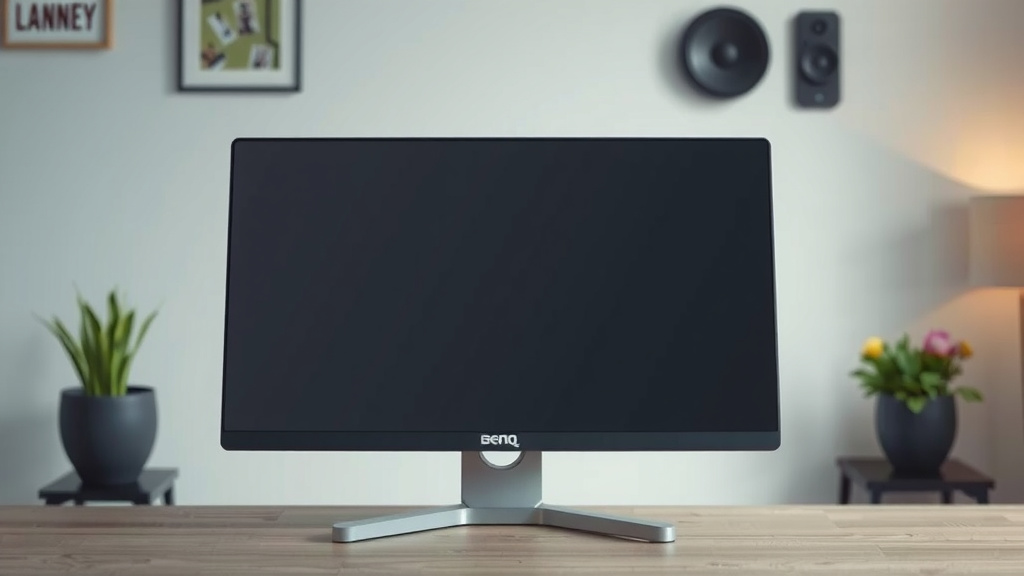
Sometimes, you can tell by looking. Carefully examine the edges and the area below the screen. Look for small grilles or openings. These are often where speakers are hidden. If you see these, there’s a good chance your monitor has speakers. But remember, this isn’t always foolproof; some speakers are very discreet.
Understanding Audio Connections
Once you’ve confirmed your monitor has speakers, the next step is to ensure the audio signal is reaching them. This involves checking your cables and connection types. The way your monitor connects to your computer plays a big role in whether audio is transmitted.
HDMI and DisplayPort: The Modern Standard
If you’re using an HDMI or DisplayPort cable to connect your monitor to your computer, you’re in luck. Both of these cable types are capable of carrying both video and audio signals. This means if your computer is sending audio through that cable, and your monitor has speakers, you should hear sound. This is often the easiest setup.
VGA and DVI: Older Technology
Older connection types like VGA and DVI generally only transmit video. They were not designed to carry audio signals. If you’re using one of these cables, you will need a separate audio connection. This usually means a 3.5mm audio cable running from your computer’s sound card to your monitor’s audio input port. Your monitor might also have an audio-in jack near where the VGA or DVI cable plugs in.
The 3.5mm Audio Jack: A Separate Path
Many monitors with built-in speakers also have a 3.5mm audio input jack. This is a small, round port, typically green or blue. If your monitor only has VGA or DVI, or if your HDMI/DisplayPort isn’t carrying audio, this is the port you’ll likely use. You’ll need a standard 3.5mm audio cable (often called an aux cable) to connect your computer’s audio output to this monitor input.
Configuring Your Computer for Sound Output
Even with the right monitor and cables, your computer needs to know where to send the sound. It might be set to output audio to your computer’s speakers or headphones by default. You need to tell it to use your BenQ monitor instead.
Setting Your BenQ Monitor as the Default Audio Device
This process is slightly different depending on whether you’re using Windows or macOS. We’ve found that most users are on Windows, so let’s start there.
On Windows
Right-click the speaker icon in your system tray (usually in the bottom-right corner of your screen). From the menu that pops up, select “Open Sound settings” or “Sounds.” In the Sound settings window, look for a section called “Output” or “Playback devices.” You should see a list of available audio devices. Find your BenQ monitor in the list (it might be identified by its model name or as an HDMI/DisplayPort audio device). Click on your BenQ monitor to select it, then click the “Set Default” button. You can also right-click it in the older “Sound” control panel and choose “Set as Default Device.”
On macOS
Click on the Apple menu in the top-left corner of your screen. Select “System Settings” (or “System Preferences” on older macOS versions). Navigate to “Sound,” and then select the “Output” tab. You should see a list of devices. Choose your BenQ monitor from this list. It might appear as an HDMI or DisplayPort output. If you don’t see it, it could indicate a connection or driver issue.
Adjusting Monitor Volume and Settings
Don’t forget the monitor itself! Some monitors have their own volume controls. You might need to use the physical buttons on the monitor to adjust its volume. Look for buttons labeled “Volume Up” or “Volume Down,” or a navigation joystick. Sometimes, there’s a menu system on the monitor where you can find audio settings.
On-Screen Display (OSD) Menu
Press the menu button on your BenQ monitor. Navigate through the OSD menu using the control buttons. Look for sections like “Audio,” “Sound,” or “Volume.” You can often adjust the volume level here, and sometimes even mute the sound. Make sure the volume isn’t set to zero or muted. This is a common oversight.
Troubleshooting Common Audio Issues
If you’ve gone through the steps above and still have no sound, don’t get discouraged. There are a few more things we can check. Sometimes, it’s a simple fix like a loose cable or an outdated driver.
Check Your Cables and Connections Again
It sounds basic, but a loose or faulty cable is often the culprit. Make sure your HDMI, DisplayPort, or 3.5mm audio cable is firmly plugged in at both ends. Try unplugging and replugging them. If you have spare cables, try swapping them out to rule out a bad cable.
Update Your Audio Drivers
Your computer’s audio drivers are like translators for sound. If they’re outdated or corrupted, they can cause problems. Many experts recommend keeping these drivers up-to-date (Microsoft, 2023).
For Windows users, you can usually find driver updates through Windows Update. Go to Settings > Update & Security > Windows Update and click “Check for updates.” You may also want to visit your computer manufacturer’s website or your motherboard manufacturer’s website for the latest audio drivers specific to your system.
Test with Another Device or Input
To narrow down the problem, try testing your setup. Connect a different device (like a laptop or game console) to your BenQ monitor using the same cable. If you get sound, the issue is likely with your original computer. If you still get no sound, try connecting another audio source to your computer and playing it through different speakers or headphones. This helps determine if the problem is with the monitor, the computer’s audio output, or the speakers themselves.
Here’s a quick checklist to run through:
- Confirm your BenQ monitor model has built-in speakers.
- Verify your audio cable (HDMI, DisplayPort, or 3.5mm) is securely connected.
- Ensure your computer’s sound output is set to your BenQ monitor.
- Check that the monitor’s volume is turned up and not muted.
- Update your computer’s audio drivers if they are old.
- Test with a different audio cable or device if possible.
Conclusion
Getting sound from your BenQ monitor is often a straightforward process. You’ve learned that the first step is confirming your monitor model actually has built-in speakers. From there, it’s about ensuring the correct cables are connected and that your computer is configured to send audio to the right device. We found that checking your computer’s sound settings and your monitor’s OSD menu are key. Don’t forget to try updating your audio drivers if you hit a snag.
If you’ve checked all these steps and still have no sound, consider reaching out to BenQ support for model-specific assistance. Your goal is clear audio, and with these steps, you’re well on your way to achieving it.
Frequently Asked Questions
My BenQ monitor has HDMI, but I don’t get sound. What could be wrong?
If your computer is sending audio via HDMI and your monitor has speakers, it should work. First, ensure your computer’s sound output is set to the BenQ monitor in your sound settings. Also, check if your monitor has its own volume control or mute setting accessible through its on-screen display (OSD) menu. Sometimes, simply replugging the HDMI cable can resolve temporary glitches.
Can I connect external speakers to my BenQ monitor?
Yes, many BenQ monitors have a 3.5mm audio output jack that allows you to connect external speakers or headphones. Check the back or bottom edge of your monitor for a small, round port, usually green or blue. If your monitor has an audio-out port, you can connect your powered speakers directly to it.
My BenQ monitor only has VGA input. How do I get sound?
VGA connections do not transmit audio signals. You will need a separate audio cable, typically a 3.5mm aux cable. Connect one end to your computer’s headphone or audio-out jack and the other end to the audio-in port on your BenQ monitor. Then, make sure your computer’s audio output is set to the monitor’s audio input.
Where do I find the model number for my BenQ monitor?
You can usually find the model number on a sticker located on the back of your BenQ monitor. It might also be on the original box or manual if you still have them. Once you have the model number, you can visit the BenQ support website to check its specifications for built-in speakers.
How often should I update my computer’s audio drivers?
It’s good practice to check for audio driver updates periodically, especially if you’re experiencing sound issues. While Windows Update often handles this, visiting your computer manufacturer’s or motherboard manufacturer’s website can provide the most current drivers. Keeping them updated ensures compatibility and can resolve bugs.