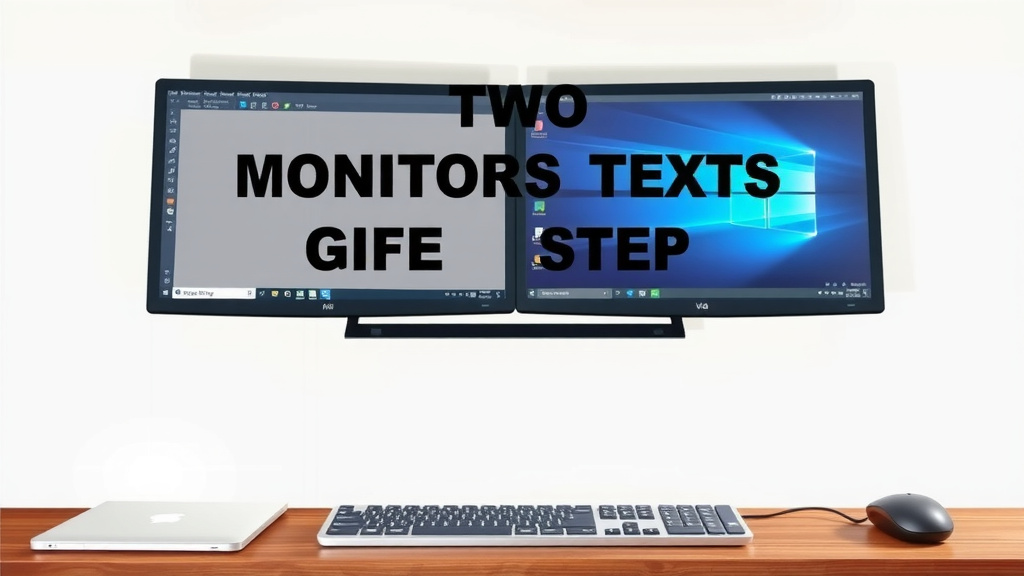
Connect Two Monitors to Your Laptop: A Step-by-Step Guide
Yes, you can absolutely add two monitors to your laptop. Doing so is a fantastic way to boost your productivity and make multitasking much easier. You just need to make sure your laptop has the right connections, like HDMI, DisplayPort, or USB-C.
Expanding your screen real estate can feel like getting a whole new setup. It’s great for professionals, students, and anyone who juggles many tasks. We found that having multiple displays can dramatically improve your workflow and reduce eye strain by giving you more space to spread out.
- Check your laptop’s ports for video output.
- You might need a docking station or adapter.
- Ensure your graphics card supports multiple displays.
- Connect your monitors and configure display settings.
Let’s walk through exactly how to set up your dual monitors so you can enjoy that expanded workspace!
“`htmlSetting Up Additional Displays for Your Laptop
Getting your laptop connected to two external monitors is a fantastic way to expand your digital workspace. It’s like giving yourself a personal command center right on your desk. You can keep your email open on one screen, your main project on another, and maybe some research on the third. We found that this setup can really boost your multitasking abilities.
Understanding Your Laptop’s Video Outputs
The first step is to check what kind of video ports your laptop has. These are the gateways that send the video signal from your laptop to your monitors. Most modern laptops come with at least one, often more. You’ll want to find these ports on the sides or back of your computer.
Common Video Port Types
The most common ports you’ll encounter are HDMI and DisplayPort. HDMI is very popular for its versatility and is found on most TVs and monitors. DisplayPort is often favored for its ability to handle higher resolutions and refresh rates, which is great for gaming or professional graphics work. Some newer laptops also feature USB-C ports that can carry video signals, sometimes alongside charging and data.
We found that identifying these ports is like finding the right key for your new digital door. An HDMI port looks like a wider, flattened USB port. DisplayPort is similar but often has one angled corner. USB-C is a small, oval-shaped port that’s reversible.
How to Identify Your Ports
Take a close look at your laptop. You’ll likely see symbols next to the ports. An HDMI port usually has an ‘HDMI’ label or a small symbol resembling a rectangular plug with a point on one end. DisplayPort often has a ‘DP’ label or a symbol that looks like a rectangle with a line extending from the top and bottom. USB-C will simply be labeled ‘USB-C’ or have the standard USB symbol. If you’re still unsure, consulting your laptop’s user manual or searching its model number online is a good idea.
Checking Your Laptop’s Display Capabilities
Not all laptops are created equal when it comes to handling multiple displays. Your laptop’s graphics card and its overall processing power play a role. You need to ensure your system can actually push signals to two external screens. Many laptops are designed for this, but it’s wise to check.
Finding Out How Many Monitors Your Laptop Supports
Your laptop’s manufacturer often provides specifications for the maximum number of external displays it can support. You can usually find this information on their website by searching for your specific laptop model. Many newer laptops can easily handle two external monitors, especially if you’re not running extremely demanding applications on all three screens simultaneously. We found that checking the support page for your device model is the most reliable method.
You can also sometimes find this information in your system’s display settings. Go to your display settings, and if your system is capable, it will often show you the option to detect or connect to multiple displays. Many modern laptops can support two external monitors in addition to their built-in screen, giving you a total of three displays.
Connecting Your Monitors: What You’ll Need
Once you know your laptop’s capabilities and ports, you’ll need the right cables. For each monitor, you’ll need a cable that matches the video output port on your laptop and the input port on your monitor. For example, if your laptop has HDMI and your monitor has HDMI, you’ll need an HDMI cable.
Cables and Adapters: Your Connection Tools
If your laptop has different ports than your monitors, you might need adapters or converters. For instance, if your laptop has USB-C and your monitor has HDMI, you’ll need a USB-C to HDMI adapter or cable. These are widely available and usually quite affordable. We found that a good quality adapter ensures a stable connection and clear image.
Some users may find that their laptop doesn’t have enough video output ports for two monitors. In such cases, a docking station or a USB-C hub can be a lifesaver. These devices plug into a single port on your laptop (often USB-C or Thunderbolt) and provide multiple video outputs, along with other ports like USB and Ethernet.
When to Consider a Docking Station or Hub
A docking station is particularly useful if you have a thin laptop with limited ports or if you want a cleaner desk setup. It allows you to connect all your peripherals—monitors, keyboard, mouse, external hard drives—to the dock with a single cable to your laptop. This makes it incredibly easy to pack up and go or to set up your workstation when you return. We found that many people prefer docks for their convenience and ability to simplify cable management.
Configuring Your Display Settings
After you’ve physically connected your monitors, you’ll need to tell your laptop how to use them. This is done through your operating system’s display settings. You can choose how you want your screens to work together.
Choosing Your Display Mode
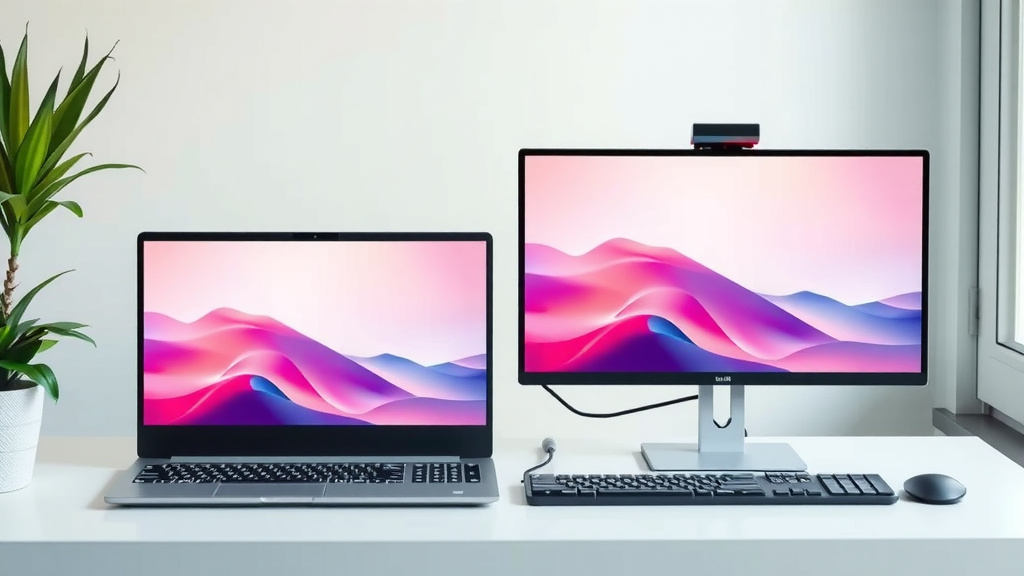
You have a few main options for how your monitors will function. You can choose to duplicate your screen, meaning all monitors show the exact same thing. This is useful for presentations. You can choose to extend your display, which is the most popular choice for productivity. This turns your multiple monitors into one large, continuous desktop space. Finally, you can set up monitors to show different content or turn them off entirely.
To access these settings, right-click on your desktop and select “Display settings” (on Windows) or go to “System Settings” > “Displays” (on macOS). You’ll see a visual representation of your monitors. You can then drag and drop them to match their physical arrangement on your desk. This ensures that when you move your mouse from one screen to another, it feels natural. Many experts say that properly arranging your displays here is key to a smooth workflow.
Setting Up Resolution and Arrangement
Within the display settings, you can also adjust the resolution for each monitor. Make sure you select the native resolution for each screen to get the clearest picture. You can also set the scaling if text appears too small or too large on any of your displays. You’ll want to ensure that your primary display (where your taskbar or dock usually appears) is set correctly, and that the extended desktop flows logically from one screen to the next. We found that taking a few minutes to fine-tune these settings makes a big difference in daily use.
Here’s a quick checklist to get you started:
- Confirm your laptop’s video output ports.
- Check how many external displays your laptop supports.
- Gather the necessary cables or adapters.
- Consider a docking station if needed.
- Connect your monitors and power them on.
- Adjust your display settings for extended mode.
Conclusion
You’ve learned that adding two monitors to your laptop is totally achievable. It really comes down to checking your laptop’s ports and its display capabilities. With the right cables, adapters, or even a docking station, you can significantly boost your productivity. Remember to configure your display settings to extend your desktop so you can take full advantage of your expanded workspace. Your next step is to identify your laptop’s specific ports and then gather the necessary equipment to get your new multi-monitor setup running!
Frequently Asked Questions
Will adding two monitors slow down my laptop?
It might, depending on your laptop’s processing power and graphics card. If you’re running demanding applications across all screens, you might notice a slowdown. For general tasks like browsing, email, and document work, most modern laptops handle it well. We found that simply extending your display is usually fine for everyday use.
Can I use monitors with different resolutions?
Yes, you can. Your laptop’s display settings allow you to set the resolution for each monitor individually. It’s best to use the native resolution for each screen for the clearest picture. You can then adjust scaling if text appears too small on one of them.
What’s the difference between a docking station and a USB-C hub?
A USB-C hub is generally smaller and offers fewer ports, often including video outputs. A docking station is usually larger, provides more ports (like Ethernet, more USBs, and multiple display outputs), and sometimes requires its own power adapter. We found that docks are better for a full desktop replacement setup.
Do I need a powerful graphics card for multiple monitors?
For basic tasks, a standard integrated graphics card often suffices for two external monitors. If you plan on gaming or doing heavy video editing across all screens, a dedicated, more powerful graphics card will be beneficial. Check your laptop’s specifications to see what it recommends.
How do I know if my laptop supports two external monitors?
You can usually find this information in your laptop’s user manual or on the manufacturer’s website by searching your model number. Additionally, check your operating system’s display settings; if your laptop can detect multiple displays, it’s a good sign. Many newer laptops are designed to handle at least two external displays.