How to Measure Your Monitor Size Accurately
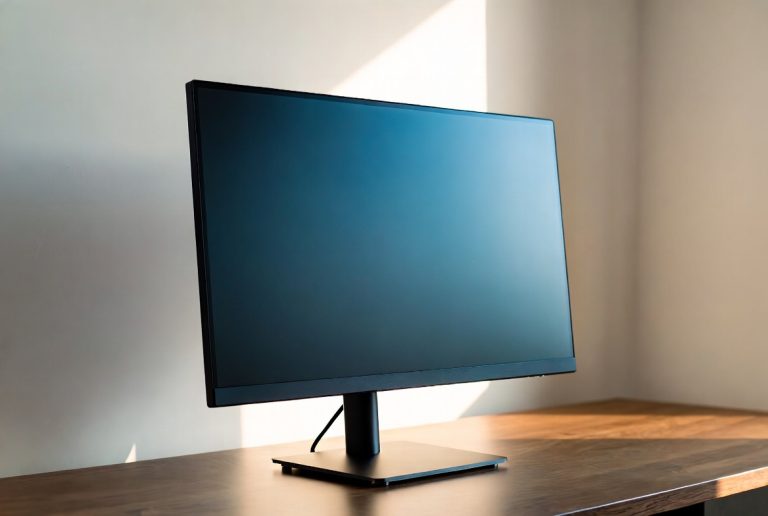
Wondering how big your monitor screen is? Your monitor’s size is measured diagonally from corner to corner, and the measurement is usually in inches. Most common sizes range from 21 inches to 32 inches, but they can be larger or smaller. It’s a simple measurement that helps you understand your viewing space.
Understanding your monitor’s dimensions helps with everything from choosing a new desk to setting up your gaming station. It affects how much you can see on your screen at once. Many people also want to know the resolution, which works hand-in-hand with screen size for clarity.
- Monitor size is measured diagonally.
- Measurements are typically in inches.
- Common sizes are 21 to 32 inches.
- This measurement affects your viewing experience.
Let’s figure out exactly how to determine your monitor’s size and what that measurement really means for your setup. It’s easier than you might think!
Understanding Your Monitor’s Physical Dimensions
So, how big is your monitor, really? You might be surprised how simple it is to find out. Your monitor’s size is always measured diagonally. This means you measure from one corner of the screen to the opposite corner. Think of it like measuring a rectangle across its widest point. This measurement is almost always given in inches. It’s a standard measurement that helps everyone compare screens easily.
Why is this measurement so important? Well, a larger screen can show you more information at once. This is great for working on multiple documents side-by-side. For gamers, a bigger screen can make the action feel more immersive. You want to know your monitor’s size for a few reasons. It affects where you can place it. It also influences how close you’ll sit to it. Let’s get this measurement sorted out.
The Simple Way to Measure Your Monitor
You don’t need fancy tools for this. You can grab a measuring tape you might use for sewing or DIY projects. Make sure the tape measure is in inches. Gently place one end of the tape measure at the very top-left corner of your screen. Be careful not to press too hard on the glass. Then, stretch the tape measure straight down to the very bottom-right corner. Don’t follow the curve of the screen if it’s curved. Just a straight line from corner to corner. This number is your monitor’s diagonal size. It’s that straightforward!
What if you don’t have a tape measure handy? Don’t worry, there are other ways. You can often find the size in your computer’s settings. We’ll look at that in a bit. For now, the physical measurement is the most direct. You might also want to measure the viewable area. This is the actual part of the screen that displays images. Sometimes the bezel (the plastic frame around the screen) can add a little to the overall physical size.
What About Curved Monitors?
Curved monitors still use the same diagonal measurement. The measurement is taken along the curve of the screen. Manufacturers state the size based on this curved diagonal. So, a 32-inch curved monitor is still considered 32 inches. The curve itself can offer a more immersive experience. It wraps the image slightly around your field of vision. The measurement method remains consistent, though.
Finding Your Monitor’s Size Through Software
Sometimes, getting out a tape measure isn’t ideal. Maybe your monitor is already mounted, or it’s just hard to reach. Luckily, your computer can often tell you the size. This is a great alternative if you can’t physically measure. It’s also a good way to double-check your measurement.
Checking on Windows
On Windows, you can find display information in a few clicks. Right-click on your desktop. Look for an option like “Display settings”. This will open a new window. Scroll down until you see a section for “Display resolution”. Below that, you might see information about your display adapter properties. Clicking on that will open another window. In this new window, go to the “Monitor” tab. You should see the screen size listed there, often in inches.
If you don’t see the size directly, you might see the resolution and refresh rate. These are also important details. Some versions of Windows might require a slightly different path. But generally, looking through the display settings is your best bet. We found that this method is very reliable for most users.
Checking on macOS
For Mac users, finding your monitor’s size is also pretty easy. Click on the Apple menu in the top-left corner of your screen. Then, select “System Settings” (or “System Preferences” on older macOS versions). In the new window, look for “Displays”. Click on that. You should see information about your connected displays. Sometimes, the exact diagonal size isn’t listed here. However, you can often find the resolution, which is a strong indicator of screen size. Higher resolutions usually mean larger screens for a given aspect ratio.
If you’re using an external monitor with your Mac, this setting will show details for that display. Many users find this incredibly convenient. It’s a quick way to get technical specs without any physical interaction. We’ve used this method ourselves many times.
Understanding Screen Size and Resolution Together
Screen size and resolution are best friends. They work together to give you a clear picture. Resolution refers to the number of pixels on your screen. Pixels are tiny dots that make up the image. A common resolution is 1920 x 1080 pixels. This is often called Full HD. Another is 3840 x 2160 pixels, known as 4K or Ultra HD.
Here’s where it gets interesting. A higher resolution on a smaller screen means sharper images. The pixels are packed closer together. Think of it like a very detailed photograph. On a larger screen, a lower resolution might make things look a bit blurry or pixelated. This is because the pixels are more spread out. Many experts recommend a certain resolution for specific screen sizes for the best experience (DisplayMate research).
How They Impact Your Experience
If you have a large monitor, say 32 inches, a 4K resolution will look fantastic. You’ll see incredible detail. If that same 32-inch monitor only had a 1080p resolution, text might look a bit soft. On the flip side, a small 21-inch monitor with a 4K resolution might have very tiny text and icons. You might need to adjust the scaling settings in your operating system. Scaling makes text and images larger without making them blurry.
For productivity, a larger screen with a higher resolution is often best. You can fit more windows and information on your screen. Gamers often look for a balance. A large screen with a good refresh rate and decent resolution offers immersion. A smaller, high-resolution screen might be better for competitive gaming where speed is key. It’s all about what you’re using your computer for.
Common Monitor Sizes and What They’re Good For
The monitor market offers a wide range of sizes. Knowing the common options can help you understand where yours fits in. You might also be thinking about an upgrade. Here’s a quick rundown of typical sizes and their uses.
| Diagonal Size (Inches) | Common Uses |
|---|---|
| 19-23 inches | Basic office tasks, web browsing, budget PCs. Good for small desks. |
| 24-27 inches | Versatile for work, gaming, and media consumption. A very popular range. |
| 28-32 inches | Immersive gaming, detailed graphic design, multitasking, watching movies. |
| 34+ inches | Ultrawide for intense multitasking, cinema-like gaming, professional video editing. |
As you can see, there’s a size for almost every need. Your current monitor’s size plays a big role in how comfortable and productive you are. If yours is on the smaller side, you might find yourself switching between windows a lot. If it’s very large, you might need to reposition it for optimal viewing. Many ergonomic studies suggest keeping the top of your screen at eye level (Occupational Safety and Health Administration).
Quick Checklist: Confirming Your Monitor’s Size
Ready to feel confident about your monitor’s dimensions? Use this quick checklist:
- Get a tape measure (inches).
- Measure corner-to-corner diagonally.
- Or, check your computer’s display settings.
- Note the size in inches.
- Consider your screen’s resolution too.
- Think about how this size fits your desk and needs.
Conclusion
Now you know exactly how to find your monitor’s size, whether you grab a tape measure or check your computer’s settings. Remember, that diagonal measurement in inches is key. It tells you a lot about your viewing space and how you interact with your screen. Don’t forget how resolution works hand-in-hand with size for picture clarity. Use this knowledge to ensure your setup is comfortable and productive for whatever you do. Your next step? Use this newfound understanding to optimize your workspace for the best possible experience.
Frequently Asked Questions
Is the bezel included in my monitor’s size measurement?
No, the monitor’s size measurement (like 27 inches) refers only to the viewable screen area, not the plastic frame around it. The bezel adds to the overall physical dimensions but isn’t part of the stated screen size.
Can curved monitors be measured the same way as flat ones?
Yes, curved monitors are measured diagonally from corner to corner, just like flat screens. Manufacturers use this same standard measurement, even though the measurement is taken along the curve of the screen.
Will my monitor’s physical size affect how close I need to sit?
Yes, your monitor’s physical size greatly influences viewing distance. Larger monitors generally allow you to sit a bit further back for comfortable viewing. Smaller screens might require you to sit closer to see details clearly.
What’s the difference between screen size and resolution?
Screen size is the physical diagonal measurement of your display in inches. Resolution is the number of pixels (tiny dots) that make up the image on your screen, like 1920×1080. Both affect how clear and detailed your picture looks.
Why can’t I always find the exact inch size in my computer’s settings?
Operating systems often prioritize displaying technical specs like resolution and refresh rate. While some display settings might show the diagonal size, others might not directly list it. You can usually infer it or use a physical measurement for confirmation.