How to Measure Your Monitor Size in Inches Accurately
Figuring out how big your monitor is in inches is usually about its diagonal screen size. This measurement is taken from one corner of the screen to the opposite corner, not including the bezel. Most common monitor sizes range from 20 inches to 32 inches, but some can be much larger or smaller.
When we talk about monitor size, we’re almost always referring to the viewable screen area. This is the part of the screen that actually displays images, not the plastic frame around it. Understanding this can help you make a better choice when buying a new monitor.
- Monitor size is measured diagonally across the viewable screen.
- This measurement does not include the monitor’s frame or bezel.
- Common sizes fall between 20 and 32 inches.
- Knowing your monitor’s size helps with space planning and buying accessories.
So, how do you actually measure your monitor if you’re not sure? Let’s walk through a couple of quick ways to find out exactly what size screen you’re working with.
Understanding Your Monitor’s True Size
You’re probably wondering, “Just how big is my monitor in inches?” It’s a fair question! Knowing the exact size of your screen helps you plan your workspace. It also makes shopping for accessories a breeze. Let’s break down how monitor sizes are measured so you can be sure you’re getting the right fit for your desk and your eyes.
How Monitor Size is Measured: The Diagonal Rule
When you see a monitor advertised as “27 inches,” for example, that number refers to the diagonal measurement of the screen itself. This is the distance from the bottom-left corner to the top-right corner, or vice versa. Think of it like measuring a TV – it’s always the diagonal.
It’s All About the Viewable Screen
It’s important to remember that this measurement is for the viewable screen area only. This means the part of the monitor where the picture actually shows up. It does not include the plastic frame, also known as the bezel, that surrounds the screen. This is a key detail that often causes confusion.
Why Diagonal Measurement?
Why diagonal? It’s a standardized way to describe screen size across different shapes and aspect ratios. Whether your monitor is widescreen or a more traditional shape, the diagonal measurement gives a consistent way to compare them. This has been the industry standard for decades for both TVs and monitors.
Quick Ways to Measure Your Monitor
If you’re not sure about your monitor’s size, or if the model number isn’t handy, don’t worry. There are a couple of easy ways to figure it out yourself. You might not need any special tools at all!
Method 1: The Simple Ruler or Tape Measure
This is the most straightforward approach. Grab a tape measure or a long ruler. You’ll want to measure from one corner of the screen to the opposite corner. Make sure you’re measuring only the glass part where the image appears. Try to keep the tape measure straight and taut.
What to Measure
Start at the inside edge of the bezel on one corner of the screen. Extend the tape measure diagonally across the screen to the inside edge of the bezel on the opposite corner. Don’t measure over the plastic frame. The number you get will be in inches or centimeters.
Converting if Needed
Most monitors are sold in inches. If your measurement comes out in centimeters, you can easily convert it. There are about 2.54 centimeters in one inch. So, just divide your centimeter measurement by 2.54. For example, if you measure 68.58 cm, dividing by 2.54 gives you 27 inches.
Method 2: Checking Your Monitor’s Specs Online
If you know the brand and model number of your monitor, you can find its specifications very easily online. This is often the most accurate way to get the exact size. Look for a sticker on the back or bottom of your monitor. It usually has the model number printed there.
Where to Find the Model Number
The model number is often found on a small label attached to the monitor’s stand or the back panel. Sometimes it’s on the bottom edge. Once you have it, you can search the manufacturer’s website or use a search engine like Google.
Searching for Specifications
Type the brand name and model number into your search bar. Look for a “Specifications” or “Specs” page for your monitor model. The screen size, measured diagonally, should be clearly listed there. You might also find other helpful details like resolution and refresh rate.
Common Monitor Sizes You’ll See
The world of monitors offers a wide range of sizes. However, most people tend to gravitate towards a few popular options. Knowing these can give you a good idea of what’s out there.
| Common Monitor Size (Diagonal) | Typical Use Cases |
|---|---|
| 21-24 inches | Everyday computing, home offices, and basic gaming. These are great for saving desk space. |
| 27 inches | A very popular size for a balance of screen real estate and desk footprint. Good for work, gaming, and media. |
| 32 inches | Offers a more immersive experience. Ideal for gaming, content creation, or if you want a larger workspace. |
| 34 inches and larger (Ultrawide) | These are ultrawide monitors. They offer exceptional horizontal space for multitasking, creative work, or cinematic gaming. |
As you can see, there’s a size for almost every need and preference. We found that many users consider 27 inches to be the sweet spot for a versatile setup (TechRadar).
Why Knowing Your Monitor Size Matters
So, why go through the trouble of measuring or looking up your monitor’s size? It’s more than just a number. It impacts your daily computer use in several ways.
Desk Space and Ergonomics
A larger monitor takes up more desk real estate. If you have a small desk, a 32-inch monitor might feel cramped. Conversely, a huge monitor on a tiny desk can feel overwhelming. You also want to consider the viewing distance. For larger screens, you might need to sit further back. This helps prevent eye strain, a point often stressed by ergonomic experts.
Accessorizing Your Setup
Planning to buy a monitor arm? Or maybe a new webcam mount? The size of your monitor is crucial for selecting compatible accessories. A monitor arm needs to support the weight and VESA mounting pattern of your specific screen. You wouldn’t want to buy an arm that’s too small or too large.
Choosing Your Next Monitor
When you’re ready to upgrade, knowing what size you currently have helps you decide if you want bigger, smaller, or perhaps an ultrawide. You might love your 24-inch screen and want to stick with it. Or, you might feel ready for a more expansive view. This knowledge is power when making a purchase.
Your Monitor Size Checklist
Ready to confirm your monitor’s dimensions? Here’s a quick rundown of what to do:
- Grab a tape measure or ruler.
- Measure diagonally from corner to corner of the viewable screen.
- Note the measurement in inches (or convert from cm).
- If unsure, find your monitor’s model number.
- Search online for the model number to find official specs.
- Compare your findings to common monitor sizes.
Conclusion
Now you know how to pinpoint your monitor’s exact diagonal screen size. Remember, it’s always the viewable area, not the bezel, that counts. Whether you used a tape measure or looked up the model number online, you’ve got the facts. This knowledge is handy for making sure your workspace feels right and for any future accessory purchases. Ready to optimize your setup? Take a moment to check your current monitor size against common recommendations to see if it’s the perfect fit for your needs.
Frequently Asked Questions
Can I measure my monitor’s size with just my hand?
While your hand can give you a rough idea, it’s not accurate enough for precise measurements. For exact inches, you’ll need a tape measure or ruler. This ensures you’re measuring diagonally across the viewable screen area correctly.
Will measuring the bezel affect my monitor size?
Yes, measuring the bezel (the plastic frame) will give you an incorrect size. Monitor dimensions always refer to the diagonal measurement of the actual screen where the image appears, excluding the bezel.
What if my monitor’s screen is curved? How do I measure it?
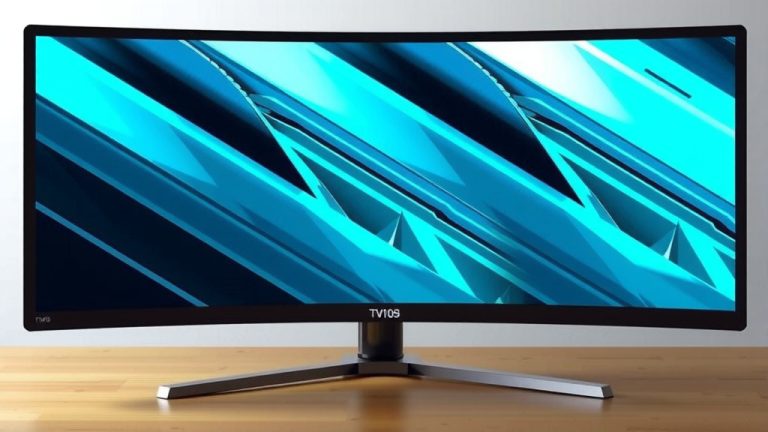
For curved monitors, you still measure diagonally. You’ll want to measure the straight-line distance from one corner to the opposite corner of the curved viewable screen. Manufacturers provide this diagonal measurement as the screen size.
My monitor is old. How can I find its size if there’s no sticker?
If you can’t find a model number sticker, your best bet is a physical measurement. Use a tape measure to get the diagonal distance of the viewable screen. You might also be able to find its size by searching for common monitor sizes from its era if you know roughly when it was made.
Does the aspect ratio affect how big my monitor feels?
Aspect ratio, like 16:9 or 21:9, does affect how your screen feels and is used, but not the diagonal inch measurement itself. An ultrawide monitor (like 21:9) will be wider and provide more horizontal space than a standard monitor of the same diagonal size (like 16:9).