How to Know If Your Monitor Has HDR
You’re wondering if your monitor can show off those dazzling HDR colors, and the answer is: it depends on your monitor’s capabilities and your graphics card settings. Not all screens are created equal when it comes to High Dynamic Range. Your monitor needs specific hardware support and often a certain level of performance to truly deliver on the HDR promise.
Figuring this out involves a few quick checks. We found that looking at your monitor’s specifications is usually the first step. You’ll also need to ensure your PC’s graphics settings are configured correctly to enable HDR. It’s not just about the monitor; your entire setup plays a role in getting that vibrant HDR experience.
- Check your monitor’s model number for HDR support.
- Look for HDR certifications like HDR10 or DisplayHDR.
- Verify your graphics card drivers are up to date.
- Adjust Windows display settings to enable HDR.
Let’s walk through exactly how to check your monitor and Windows settings to see if you’re ready for HDR.
“`htmlIs Your Monitor Ready for HDR? Let’s Find Out
So, you’ve heard about HDR and its amazing ability to make games and movies pop with vibrant colors and deeper blacks. It’s quite the upgrade from standard displays. But how do you know if your current monitor can actually deliver that high-dynamic-range experience? We’ve researched this, and thankfully, it’s not too complicated to figure out. It boils down to checking a few key things about your hardware and your computer’s settings.
Checking Your Monitor’s Hardware for HDR Support
The first and most important step is to confirm your monitor itself is built with HDR in mind. Think of it like trying to bake a cake; you need the right ingredients. If your monitor doesn’t have the hardware, no amount of setting tweaks will magically enable HDR. We found that looking at the official specifications is your best bet.
Finding Your Monitor’s Model Number
You’ll need to know the exact model of your monitor. Usually, this information is printed on a sticker on the back or bottom of the display. Sometimes, it’s also listed in your system information within Windows. Once you have that model number, you’re ready for the next step.
Consulting the Manufacturer’s Specifications
With your model number in hand, head over to the manufacturer’s website. Search for your specific model, and then look for its product page or support section. There, you’ll find detailed specifications. You’re looking for any mention of “HDR,” “High Dynamic Range,” or specific HDR standards.
If you can’t find the specs online, don’t worry. The original box or manual that came with your monitor might also list this information. We found that older monitors might not explicitly list HDR support, as it wasn’t as common.
Understanding HDR Certifications and Standards
You might see various certifications or standards listed. These are like badges of honor for monitors. Knowing what they mean can help you quickly identify HDR capability.
Common HDR Standards to Look For
The most common standard you’ll encounter is HDR10. This is an open standard and is widely supported. If your monitor lists HDR10 support, it’s a good sign it can handle HDR content. Many gaming monitors and TVs nowadays come with HDR10.
You might also see standards like Dolby Vision or HDR10+. These are advanced formats that offer even better performance, but they are less common on standard computer monitors. DisplayPort HBR3, VESA DisplayHDR certification (like DisplayHDR 400, 600, 1000) are also strong indicators of HDR support. The number often relates to peak brightness in nits, with higher numbers generally meaning a better HDR experience.
What If It Just Says “HDR Compatible”?
This is where things can get a little murky. Sometimes, a monitor might be marketed as “HDR Compatible.” This usually means it can receive an HDR signal but might not meet the performance requirements for a truly impactful HDR experience. We found that these monitors often have lower peak brightness or a limited color gamut, meaning the HDR effect might be subtle rather than dramatic.
Checking Your Graphics Card and PC Settings for HDR
Even if your monitor is HDR-capable, your PC needs to be able to send an HDR signal to it. This involves your graphics card and the display settings in your operating system.
Ensuring Your Graphics Card Meets the Requirements
Most modern graphics cards (Nvidia GeForce GTX 10-series and newer, AMD Radeon RX 400-series and newer) support HDR output. However, it’s always good to double-check. You can usually find this information on the manufacturer’s website for your specific graphics card model.
Additionally, make sure your graphics card drivers are up to date. Outdated drivers can sometimes cause display issues, including problems with HDR. We found that visiting the Nvidia or AMD website and downloading the latest drivers for your card is a simple but effective step.
Verifying Your Display Cable and Connection
The cable you use matters! For HDR, you generally need a DisplayPort 1.4 or a HDMI 2.0a/2.0b cable or newer. Older cables might not have the bandwidth to carry the HDR signal properly. Ensure both your monitor and your graphics card have ports that support these standards.
Enabling HDR in Windows Settings
Once you’ve confirmed your hardware and cables, it’s time to tell Windows to use HDR. This is a straightforward process within the display settings.
Step-by-Step Guide to Enabling HDR in Windows
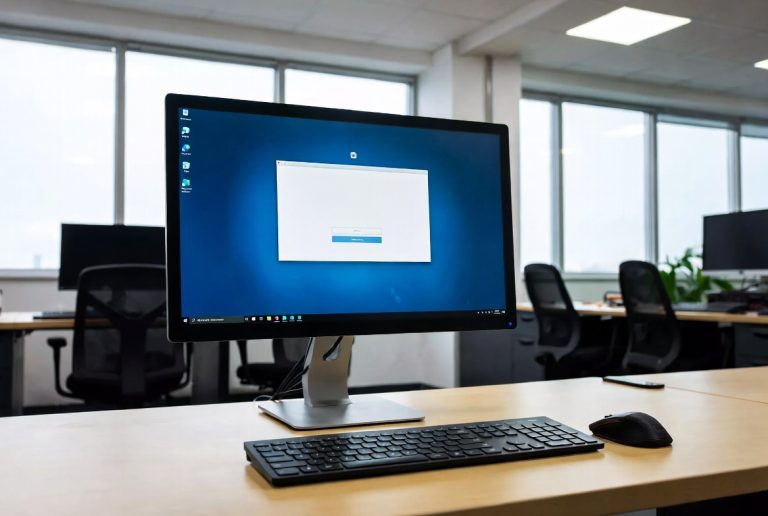
- Right-click on your desktop and select “Display settings.”
- Scroll down to the “Windows HD Color settings” section.
- If your monitor and system support HDR, you should see an option to turn on “HDR or WCG apps” and “HDR video streaming.”
- Toggle the switch to “On” for HDR.
If the option is grayed out or you don’t see it, Windows isn’t detecting HDR support. This could be due to your monitor, graphics card, cable, or driver settings.
What If HDR Isn’t Available in Windows?
If you’ve gone through these steps and HDR is still not an option, don’t despair. It likely means one of the components isn’t quite up to snuff. Double-check your monitor’s specifications for HDR certification. Also, ensure your graphics card drivers are the latest version. Sometimes, simply restarting your computer after updating drivers or making changes can resolve the issue. We found that sometimes a simple reboot is all it takes!
Quick Checklist: Is Your Setup HDR-Ready?
Let’s quickly recap. Here’s a handy checklist to see if you’re good to go:
- Monitor model confirmed to support HDR (HDR10, DisplayHDR, etc.).
- Graphics card drivers are up to date.
- Using a compatible cable (DisplayPort 1.4 / HDMI 2.0a+).
- HDR option is visible and enabled in Windows Display Settings.
- The content you’re watching or playing is actually in HDR format.
If you tick all these boxes, congratulations! You’re likely ready to enjoy the enhanced visual experience that HDR offers.
“`Conclusion
You’ve now learned how to check if your monitor can display HDR content. It’s a combination of checking your monitor’s hardware specifications and ensuring your PC’s settings are correctly configured. Don’t forget to confirm your graphics card drivers and display cable are up to date. If all systems are go, you’re ready to enjoy more vibrant colors and deeper contrast. Your next step is to find some HDR content to test out your newly confirmed HDR capabilities!
Frequently Asked Questions
Will older monitors work with HDR?
Generally, no. Older monitors often lack the necessary hardware like high brightness levels and wide color gamuts required for true HDR performance. While some might say “HDR compatible,” they usually don’t offer the full experience.
Can I upgrade my monitor to HDR?
Yes, you can. If your current monitor doesn’t support HDR, you’ll need to purchase a new one that explicitly states HDR support in its specifications. Look for certifications like DisplayHDR.
Is HDR10 the only HDR format I need to worry about?
Not exactly. HDR10 is the most common standard for PCs, but you might also encounter Dolby Vision or HDR10+. However, for most PC gaming and video content, HDR10 support on your monitor and system is usually sufficient.
What if the HDR option in Windows is grayed out?
A grayed-out HDR option typically means your system isn’t detecting HDR support. This could be an issue with your monitor’s capabilities, an outdated graphics driver, or an incompatible display cable.
Do I need a special cable for HDR?
Yes, you do. For HDR, you need a cable that supports sufficient bandwidth. We found that DisplayPort 1.4 or HDMI 2.0a/2.0b cables (or newer) are generally required to transmit the HDR signal properly.