How to Know How Many Inches Your Monitor Is
To find out how many inches your monitor is, you need to measure the screen diagonally from corner to corner. This measurement is always done on the viewable screen area, not including the bezel or casing around it. It’s a simple process that tells you the screen size everyone talks about.
Understanding your monitor’s size is helpful for various reasons. It influences how much you can see on screen at once. Knowing the correct measurement helps when you’re buying new monitors or comparing setups. It’s all about getting the right fit for your desk and your eyes.
- Measure the screen diagonally.
- Use a tape measure for accuracy.
- Ignore the monitor’s frame (bezel).
- This gives you the standard screen size.
Let’s walk through exactly how to measure your monitor’s diagonal screen size step by step. It’s easier than you think!
“`htmlFiguring Out Your Monitor’s Diagonal Size
So, you’re wondering about your monitor’s dimensions. Specifically, how do you find out the number of inches that define its screen size? You might have seen numbers like 24-inch, 27-inch, or even larger when looking at monitors. These numbers are usually the diagonal measurement of the screen itself. Let’s make sure you can find yours accurately.
This measurement is important for a few reasons. It helps you understand how much space the monitor will take up on your desk. More importantly, it tells you how much visual real estate you’ll have for your work or entertainment. Getting the right size can make a big difference in your daily computer use.
The Simple Steps to Measuring Your Monitor
Measuring your monitor is surprisingly straightforward. You won’t need any fancy tools, just a regular tape measure. The key is to remember that the measurement is for the screen only, not the whole plastic frame around it.
Gather Your Measuring Tools
You’ll need a basic tool for this. A flexible tape measure, like the kind used for sewing, works best. A rigid tape measure can also work, but you might find it a bit trickier to get around the screen edges. Make sure your tape measure has clear inch markings.
Identify the Viewable Screen Area
This is a super important step that many people miss. The size advertised for a monitor refers to the active display area, not the entire physical unit. Think of it like buying a picture frame; the size is for the photo it holds, not the frame itself. So, you’ll want to ignore the black or colored border (the bezel) around the screen. Your measurement should start from one corner of the illuminated display and go to the opposite corner.
Perform the Diagonal Measurement
Take your tape measure and place one end at the very corner of the screen’s display area. It’s best to start in the top-left or bottom-left corner. Then, stretch the tape measure across the screen diagonally to the opposite corner. For example, if you started at the top-left, you’d measure to the bottom-right corner. Try to keep the tape measure as straight as possible. You’re looking for the number of inches.
It’s easy to get a slightly off measurement if the tape measure isn’t perfectly straight. You might need to adjust it a little. What you’re aiming for is the longest possible straight line across the screen’s display surface.
Ensuring Accuracy
To double-check your work, you can measure the other diagonal. Both diagonal measurements should be the same. If they differ significantly, it might indicate your screen isn’t perfectly rectangular, or your tape measure wasn’t straight. For most standard monitors, this won’t be an issue. A quick second measurement can give you confidence in your result.
Some people find it easier to have a friend help hold the tape measure steady. If you’re doing it alone, you might want to use a bit of tape to secure the starting point of your measurement. This can prevent it from slipping while you’re trying to read the final number.
Why This Measurement Matters
Knowing your monitor’s diagonal size isn’t just for trivia. It has practical applications when you’re setting up your workspace or making purchasing decisions. It’s a universal standard.
For Workspace Planning
When you’re thinking about buying a new monitor, its diagonal size is a primary factor. It dictates how much desk space it will occupy. A larger screen generally needs more depth and width. You don’t want to buy a monitor that overwhelms your desk or feels too cramped.
Consider your viewing distance too. Experts often suggest a viewing distance of about 20-40 inches for most monitors. If you sit very close to your screen, a smaller monitor might be better. If you have more room and prefer to lean back a bit, a larger display can be more immersive. The diagonal measurement is your starting point for these decisions.
Understanding Monitor Specifications
When you look up monitor specs online or in a store, you’ll always see the diagonal size listed. This number helps you quickly compare different models. A 24-inch monitor will offer a different experience than a 32-inch one. It’s the most common way manufacturers communicate screen dimensions.
This measurement also gives you a general idea of the monitor’s aspect ratio and resolution capabilities. While not a direct measure of resolution (like 1080p or 4K), screen size often correlates with the intended resolution for optimal viewing clarity. A larger screen can benefit more from higher resolutions.
Comparing Different Monitor Types
Different types of monitors are measured the same way. Whether you have a gaming monitor, a professional photo editing monitor, or a standard office monitor, the diagonal measurement applies. Even curved monitors are measured diagonally across their viewable surface. This consistency makes it easy to compare across brands and models.
For instance, if you’re looking at ultrawide monitors, they’ll have a diagonal size like other monitors, but their aspect ratio will be significantly wider. The diagonal measurement still gives you a baseline for scale. It helps you visualize how much horizontal space the monitor will take up.
Quick Checklist: Measuring Your Monitor
Here’s a quick rundown to make sure you nail the measurement:
- Grab a tape measure. A flexible one is ideal.
- Find the screen’s edge. Ignore the plastic bezel.
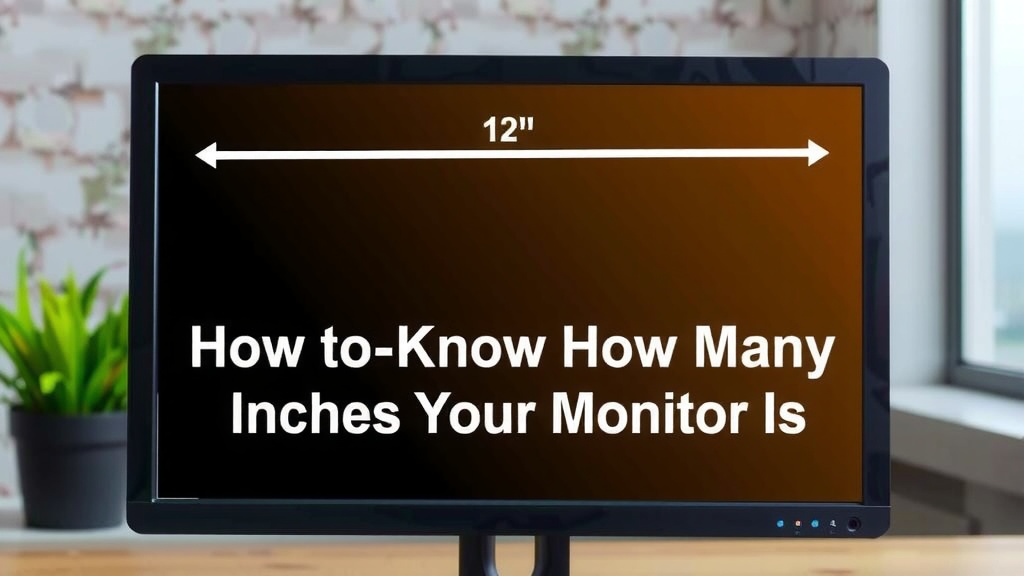
- Measure corner to opposite corner. Keep the tape straight.
- Record the inches. This is your monitor’s standard size.
- Check the other diagonal. Ensure accuracy.
- Note your viewing distance. Consider desk space too.
Conclusion
You’ve now learned the simple, straightforward way to measure your monitor’s diagonal screen size. Remember, it’s all about measuring the viewable screen area, corner to corner, ignoring the outer frame. This measurement is your key to understanding workspace needs and comparing new monitors accurately. Armed with this knowledge, you can confidently assess your current setup and make informed decisions about future purchases. Go ahead, grab that tape measure, and know your screen!
Frequently Asked Questions
What if my tape measure isn’t flexible?
A rigid tape measure can still work. You’ll just need to be extra careful to keep it as straight as possible across the screen. Try to hold the tape measure taut at both ends to ensure a more accurate reading of the diagonal distance.
Can I measure the screen while it’s on?
Yes, you can measure your monitor while it’s on. However, some find it easier to turn the monitor off or display a solid black screen. This helps clearly define the edges of the viewable display area, making it simpler to pinpoint the exact corners for measurement.
Does the monitor’s resolution affect its diagonal size?
No, the resolution (like 1080p or 4K) doesn’t change the physical diagonal size of the screen. Resolution refers to the number of pixels on the screen. A higher resolution on the same-sized screen will just make the image appear sharper and more detailed.
How do I measure a curved monitor’s size?
You measure a curved monitor the same way: diagonally, from corner to corner of the viewable screen. Even though the screen is curved, the measurement follows the arc from one edge to the opposite. Manufacturers list this curved diagonal measurement.
What if I get slightly different numbers on both diagonals?
If the two diagonal measurements are very close, use the average or the larger number. This small difference is usually due to slight inaccuracies in holding the tape measure perfectly straight. For practical purposes, this minor variation won’t significantly impact your understanding of the monitor’s size.