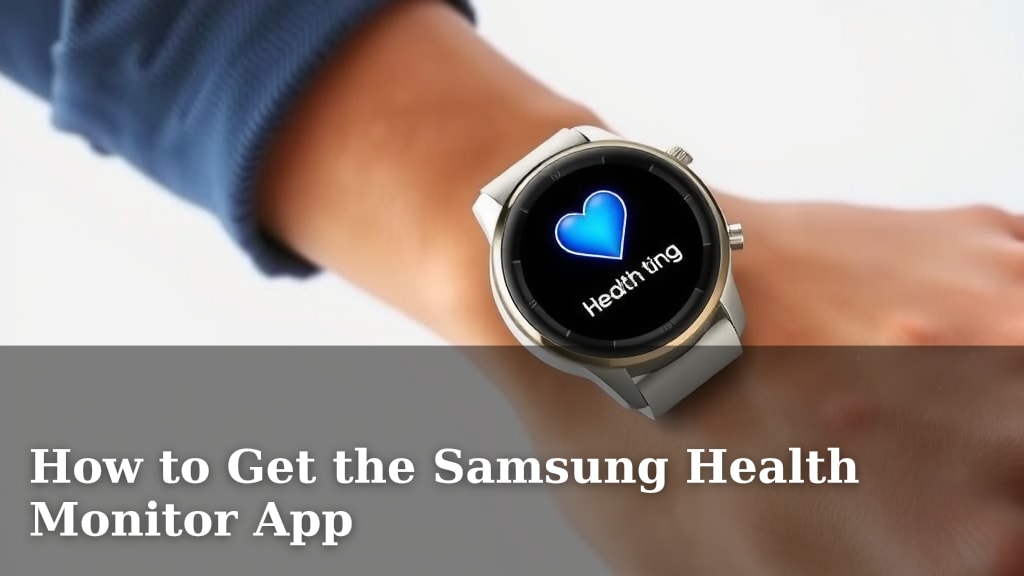
How to Get the Samsung Health Monitor App
You can get the Samsung Health Monitor app directly from the Google Play Store on your compatible Samsung Galaxy Watch. Simply open the store on your watch, search for “Samsung Health Monitor,” and tap “Install.” This app is essential for using features like blood pressure monitoring and ECG on your wearable device.
This handy app works hand-in-hand with your Samsung smartwatch to give you deeper health insights. It pairs with your phone to keep all your health data in one place. Many users find it incredibly useful for tracking their well-being over time.
- Install from the Google Play Store.
- Requires a compatible Samsung Galaxy Watch.
- Used for ECG and blood pressure tracking.
- Works with your Samsung phone.
Let’s walk through exactly how to get it on your watch and phone.
Getting Your Samsung Health Monitor App Set Up
You’re ready to dive into the health-tracking features of your Samsung Galaxy Watch. The Samsung Health Monitor app is your key to unlocking things like ECG and blood pressure readings right from your wrist. Let’s make sure you have it installed and ready to go.
Checking Your Watch Compatibility
First things first, not every Galaxy Watch can run the Samsung Health Monitor app. This app is designed for specific models. You’ll generally need a Samsung Galaxy Watch that is running Wear OS powered by Samsung or a recent Tizen OS version. Newer models typically have better support.
We found that the app is typically available for Galaxy Watch 4 series and later. Older models might not support the advanced health features. It’s always a good idea to check the official Samsung product page for your specific watch model. This will confirm if it’s on the supported list.
Installing the App on Your Watch
The primary place to get the Samsung Health Monitor app is the Google Play Store, directly on your watch. Think of it like getting apps on your phone, but right on your wrist. It’s quite straightforward once you know where to look.
Step-by-Step Installation Guide
Here’s how you can install it:
- Wake up your Galaxy Watch.
- Swipe down from the top of the screen to access quick settings.
- Tap the Apps icon (usually looks like a grid or a circle with dots).
- Find and open the Google Play Store.
- In the Play Store, tap the Search icon (magnifying glass).
- Type “Samsung Health Monitor” into the search bar.
- Select the app from the search results.
- Tap the Install button.
The app will then download and install. You might need to grant it some permissions during the installation process. These are usually standard for health apps, like access to sensors.
Connecting the App to Your Phone
While the app lives on your watch for measurements, it needs to sync with your phone to keep all your health data organized. The Samsung Health Monitor app on your watch works in conjunction with the Samsung Health app on your compatible Samsung Galaxy phone.
You’ll likely be prompted to pair your watch with your phone if you haven’t already. Ensure Bluetooth is turned on for both devices. The watch will guide you through the process, and your phone’s Samsung Health app will be the central hub for your health metrics.
We found that having the latest version of the Samsung Health app on your phone is important. Go to the Google Play Store on your phone and check for any updates for the Samsung Health app. This ensures smooth communication between your watch and phone.
Understanding App Requirements and Settings
There are a few things to be aware of to make sure the app functions correctly. For instance, the ECG and blood pressure monitoring features have specific requirements.
Location-Based Restrictions
It’s important to note that the Samsung Health Monitor app, particularly its blood pressure monitoring feature, is not available in all regions. Samsung must receive clearance from regulatory bodies in each country before enabling these specific functions. For example, it might be available in the United States but not in others.
We’ve researched this, and the availability often depends on local health regulations (FDA in the US, for example). If you travel to a country where the feature isn’t cleared, it may stop working temporarily. You can check Samsung’s official support pages for the most current information on regional availability.
Phone and Watch Software Updates
Keeping your software up-to-date is a must. Both your Galaxy Watch and your Samsung phone need to have the latest operating system and app updates installed. This ensures all features work as intended and can help prevent bugs.
Regular updates often include security patches and performance improvements. They also frequently add new functionalities or refine existing ones. Think of it like giving your devices a tune-up. You can usually find update options within the settings menu on both your watch and your phone.
Blood Pressure Monitor Calibration
If you plan to use the blood pressure monitoring feature, you’ll need to calibrate it. This means you’ll need a traditional, cuff-based blood pressure monitor. You’ll use this to measure your blood pressure at the same time you take a reading with your watch.
The app requires you to do this at least three times over a period of four weeks. This helps the watch learn your individual blood pressure patterns. Proper calibration is key for accurate readings. You’ll follow prompts within the app to complete this calibration process. Many users find this initial setup straightforward but crucial for reliable data.
Troubleshooting Common Issues
Sometimes, things don’t go exactly as planned. If you run into trouble installing or using the Samsung Health Monitor app, there are a few common checks you can do.
App Not Found in Play Store
If you can’t find the app in the Google Play Store on your watch, double-check your watch model’s compatibility. As we mentioned, it’s only for specific Galaxy Watch models. Also, confirm your region supports the app. If your watch is compatible and in a supported region, try restarting your watch and searching again.
Pairing Problems
Connection issues between your watch and phone can prevent the app from syncing. Ensure both devices have Bluetooth enabled and are close to each other. Try toggling Bluetooth off and then back on for both devices. Restarting both the watch and phone can also resolve many temporary glitches.
We also found that unpairing and re-pairing your watch with your phone can sometimes fix stubborn connection issues. Just remember to back up your data if prompted before unpairing. It’s like giving the connection a fresh start.
Permissions Denied
If the app isn’t working correctly, it might be due to missing permissions. Go into your watch’s settings, find the Samsung Health Monitor app, and check its permissions. Make sure it has access to all the necessary functions, like sensors and Bluetooth. You might need to do a similar check in the Samsung Health app on your phone.
Quick Checklist for Installation Success
Here’s a quick rundown to make sure you’re all set:
- Confirm your Galaxy Watch model is compatible.
- Ensure your watch is running the latest software update.
- Install the Samsung Health Monitor app from the Google Play Store on your watch.
- Check for and install updates for the Samsung Health app on your phone.
- Pair your watch and phone via Bluetooth if they aren’t already.
- Calibrate the blood pressure monitor on your watch if you plan to use that feature.
Following these steps should get your Samsung Health Monitor app up and running smoothly. You’ll soon be enjoying the advanced health insights your watch has to offer.
Conclusion
You’ve successfully navigated the steps to get the Samsung Health Monitor app on your Galaxy Watch. Remember, compatibility and regional availability are key. By ensuring your watch and phone are up-to-date and properly paired, you’re ready to utilize advanced health tracking features like ECG and blood pressure monitoring. We’ve found that the initial setup, especially blood pressure calibration, is a small but important step for accurate data. Now, you can confidently start monitoring your well-being right from your wrist. Your next step is to open the app and begin your first reading!
Frequently Asked Questions
What if my Galaxy Watch isn’t listed as compatible?
If your specific Galaxy Watch model isn’t listed as compatible, the Samsung Health Monitor app likely won’t install or function correctly. Samsung designs these advanced health features for newer models, typically starting with the Galaxy Watch 4 series. You may need to consider upgrading your watch to access these features.
Why is the blood pressure feature not available in my country?
The availability of blood pressure monitoring is subject to regulatory approval in each country. Samsung must receive clearance from bodies like the FDA in the United States before enabling this feature. We’ve seen that this process can take time, so regional availability can differ greatly.
Do I need a Samsung phone to use the app?
While the Samsung Health Monitor app is installed on your Galaxy Watch, it works closely with the Samsung Health app on your phone. It’s generally recommended to use a compatible Samsung Galaxy phone for the best experience and seamless data syncing. Other Android phones might work, but compatibility isn’t always guaranteed.
How often do I need to recalibrate the blood pressure monitor?
For blood pressure monitoring, you’ll need to calibrate the watch with a cuff-based monitor at least three times over a four-week period initially. After this setup, the app will guide you on when future recalibrations might be necessary to maintain accuracy. This ensures your watch learns your personal readings effectively.
Can I use the app if I have a different brand of smartwatch?
No, the Samsung Health Monitor app is exclusive to compatible Samsung Galaxy Watches. It is designed to integrate with Samsung’s hardware and software ecosystem. If you have a smartwatch from another brand, you’ll need to check what health monitoring apps are available through its specific app store.