How to Fix a BenQ Monitor No Signal Detected
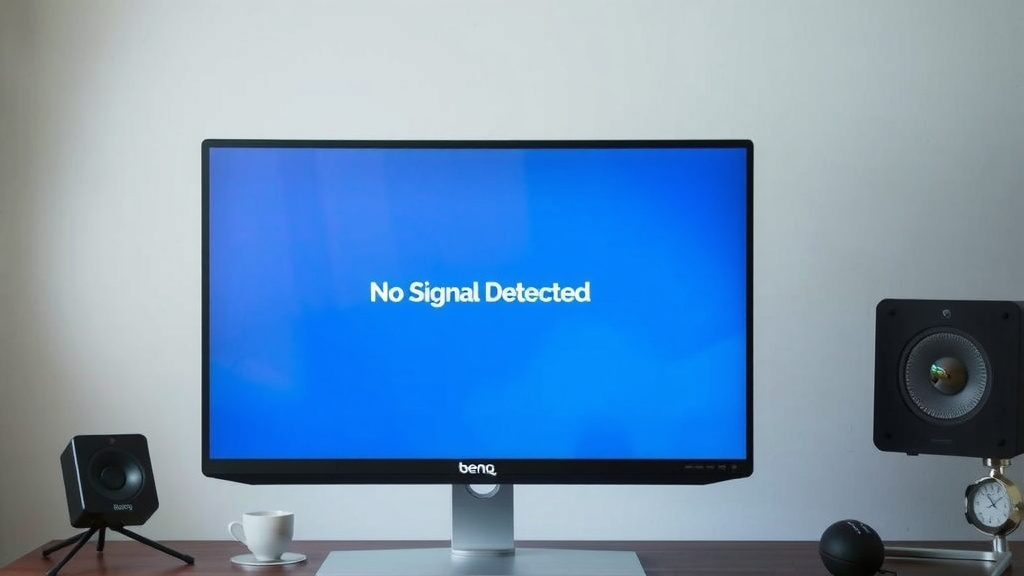
When your BenQ monitor says “No Signal Detected,” it can be frustrating. The good news is you can often **fix a BenQ monitor no signal issue** with a few simple checks. First, ensure your **cables are securely connected** at both ends and try a different cable if possible. This is the most common culprit for the dreaded “no signal” message.
This common problem can stem from a variety of sources, from a loose connection to a deeper software glitch. Understanding the potential causes helps you **troubleshoot your BenQ monitor effectively**. We’ve found that many users can resolve this without needing professional help by following a few key steps.
- Check all cable connections.
- Try a different video cable.
- Verify the correct input source is selected.
- Restart both your computer and monitor.
- Update your graphics drivers.
Let’s walk through the most effective ways to get your BenQ monitor back up and running so you can stop staring at a blank screen.
Troubleshooting Your BenQ Monitor’s “No Signal” Message
Seeing that “No Signal Detected” message on your BenQ monitor can halt your work or play in its tracks. But don’t panic! This is a common issue that many users encounter. We’ve found that often, the fix is simpler than you might think.
This guide will walk you through the most likely reasons your BenQ monitor isn’t getting a signal. We’ll cover everything from basic cable checks to a few more advanced steps. Our goal is to get your display working again with minimal fuss.
Checking Your Connections: The First Line of Defense
The most frequent culprit behind the dreaded “no signal” error is a loose or faulty connection. Think of it like a phone line – if it’s not plugged in properly, you won’t get a dial tone. Your monitor and computer need a solid link to communicate.
Securing Your Video Cables
First, let’s focus on the cable that connects your monitor to your computer. This is usually an HDMI, DisplayPort, or DVI cable. You’ll want to ensure it’s **firmly seated** in both the monitor’s input port and the graphics card’s output port on your computer. Sometimes, they just need a gentle push to click into place.
Don’t just glance at it. **Give each end a good tug** (gently, of course!) to confirm it’s fully inserted. This simple step resolves a surprising number of “no signal” problems. We found this to be the most common fix for BenQ monitors reporting no signal.
Testing with a Different Cable
If securing the cable doesn’t do the trick, the cable itself might be the problem. Cables can get damaged internally, even if they look fine on the outside. A **bent pin** in the connector or a frayed wire can easily cause a signal interruption.
The best way to rule out a bad cable is to try a **different video cable**. If you have a spare HDMI cable, for example, swap it out and see if that makes a difference. Many experts suggest this as the next logical step after checking the physical connection. If a new cable works, you’ve found your issue.
Ensuring the Correct Input Source is Selected
Your BenQ monitor likely has multiple input options (HDMI 1, HDMI 2, DisplayPort, etc.). If the monitor is set to receive a signal from an input that isn’t connected to your computer, you’ll see the “no signal” message. It’s like tuning your TV to the wrong channel.
You’ll need to use the buttons on your monitor to navigate its on-screen display (OSD) menu. Look for an option like “Input Select” or “Source.” Cycle through the available inputs until you find the one your computer’s cable is plugged into. For instance, if you’re using an HDMI cable, make sure your monitor is set to the HDMI input.
Many users accidentally connect their cable to the wrong input. We’ve found that simply switching to the correct source often immediately resolves the “no signal” alert.
Restarting Your Devices: A Fresh Start
Sometimes, your computer or monitor can get into a state where they’re not communicating correctly due to a temporary glitch. A simple restart can often clear these minor software hiccups.
Power Cycling Your Monitor and Computer
This process is more thorough than a standard restart. It involves completely cutting power to both devices. First, **shut down your computer** completely, not just sleep or hibernate. Then, **unplug the power cable** from your BenQ monitor. Also, unplug the power cord from your computer and any other peripherals.
Wait for about **60 seconds**. This allows any residual power to drain from the components. After the waiting period, plug everything back in. Start your computer first, and then turn on your BenQ monitor. This “power cycle” forces all the components to reset and re-establish connections. It’s like giving them a quick reboot to clear their short-term memory.
Checking Your Computer’s Output
If the connections and restarts don’t solve the problem, the issue might be with your computer’s graphics output. Your computer needs to tell the monitor what to display.
Verifying Graphics Card Connections (Desktop PCs)
For desktop computers, it’s essential to ensure your monitor is plugged into the **graphics card**, not the motherboard’s video ports. The graphics card is usually a separate component with its own ports, often located lower down on the back of the computer case. The motherboard video ports are typically found higher up, near the USB and audio jacks.
Plugging into the motherboard ports when you have a dedicated graphics card can lead to no signal. If you’re unsure, consult your computer’s manual or a friend who’s familiar with computer hardware. Many support sites recommend double-checking this if the monitor is still showing “no signal.”
Updating or Reinstalling Graphics Drivers
Graphics drivers are the software that allows your operating system to communicate with your graphics card. If these drivers are outdated, corrupt, or incompatible, they can cause display problems, including the “no signal” error. Updating them is a smart move.
You’ll need to access your computer’s safe mode to do this if your monitor isn’t displaying anything. Search online for instructions on how to enter Safe Mode for your specific Windows version. Once in Safe Mode, visit the website of your graphics card manufacturer (NVIDIA, AMD, or Intel) and download the latest drivers. Install them and restart your computer normally.
If updating doesn’t work, or if you suspect the drivers are severely corrupted, you might need to **uninstall the current drivers** completely before installing the new ones. This process can sometimes be a bit technical, but many online guides walk you through it step-by-step. We found this step to be vital for resolving persistent display issues.
BenQ Monitor Specific Checks
While most steps apply universally, BenQ monitors do have a few specific considerations.
Using the Monitor’s Built-In Diagnostics
Some BenQ monitors come with built-in diagnostic tools. These can help you determine if the issue lies with the monitor itself or with the incoming signal. Check your BenQ monitor’s user manual for instructions on how to access its diagnostic mode. This can often save you time by quickly indicating if the monitor is functioning correctly internally.
Checking the Monitor’s Power Light
The power light on your BenQ monitor can offer clues. If it’s off, the monitor isn’t receiving power. If it’s blinking, it might indicate a specific error state. A solid blue or green light usually means it’s powered on and ready, while an amber or red light can sometimes signify a standby or error mode.
Consult your BenQ monitor’s manual to understand what each light color or pattern signifies. This small indicator can be a **helpful diagnostic tool** to tell you if the monitor is at least powering on.
Quick Checklist for BenQ “No Signal” Issues
Here’s a quick rundown of the essential steps to get your BenQ monitor back online:
- Double-check that your video cable is securely plugged into both the monitor and the computer.
- Try using a different video cable (HDMI, DisplayPort, etc.).
- Ensure your monitor is set to the correct input source (e.g., HDMI 1, DisplayPort).
- Perform a full power cycle: unplug both your monitor and computer from power for 60 seconds.
- For desktop PCs, confirm your monitor is plugged into the graphics card, not the motherboard.
- Update your computer’s graphics card drivers.
Conclusion
You’ve navigated the common “No Signal Detected” message on your BenQ monitor. We’ve walked through checking your cables, ensuring the correct input source, and performing power cycles. You’ve also learned about verifying computer output and updating drivers, which are often the keys to resolving this issue. If you’ve tried these steps and are still facing a blank screen, it might be time to consider a hardware problem or reach out for professional support. Don’t give up – often, a persistent approach to these troubleshooting steps will get your display working again.
Frequently Asked Questions
My BenQ monitor still says “No Signal” after I checked the cables. What else could it be?
If cables are secure and you’ve tested a different one, the next steps involve the monitor’s settings and your computer’s output. Ensure your BenQ monitor is set to the correct input source using its on-screen menu. Then, try performing a full power cycle on both your computer and monitor.
Can a faulty graphics card cause a “No Signal” error on my BenQ monitor?
Yes, a malfunctioning or improperly seated graphics card in your computer can absolutely lead to a “No Signal” message. For desktop PCs, also confirm that your monitor cable is plugged into the graphics card itself, not the motherboard’s video output ports.
How do I know if I’m using the correct input source on my BenQ monitor?
You can check the input source by pressing the menu or source button on your BenQ monitor. This will bring up an on-screen display (OSD) menu where you can cycle through the available inputs like HDMI 1, HDMI 2, DisplayPort, etc. Make sure it’s set to the input that your video cable is physically connected to on your computer.
What is a “power cycle” and why should I do it?
A power cycle is a more thorough reboot than a simple restart. It involves unplugging both your monitor and computer from their power sources for about 60 seconds. This drains any residual power, clears temporary glitches, and forces all components to re-establish connections cleanly when you power them back on.
My BenQ monitor’s power light is blinking. What does that mean?
A blinking power light on your BenQ monitor often indicates an error state or that it’s not receiving a proper signal. The exact meaning can vary by model, so it’s best to consult your BenQ monitor’s user manual. The manual will explain what different light colors and patterns signify for your specific device.