How to Fix Dead Pixels on a Monitor
Yes, you can often fix dead pixels on a monitor, or at least try to. Most dead pixels are actually stuck pixels, and some simple software or pressure techniques might bring them back to life. It’s worth a shot before you consider replacing your screen.
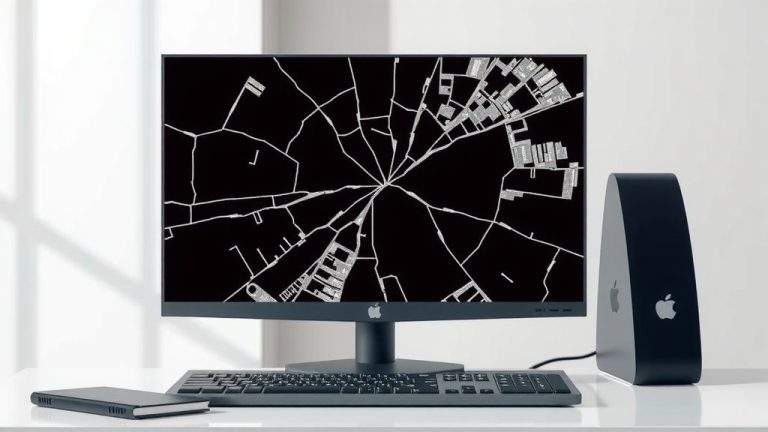
Dead pixels appear as tiny black or colored dots that are permanently on or off. They can be quite distracting during movies or while you’re gaming. We found that identifying if it’s a truly dead pixel or a stuck pixel is the first important step in deciding how to fix it. Understanding the difference can save you a lot of frustration.
- Many “dead” pixels are actually “stuck” pixels.
- Software can sometimes help unstick pixels.
- Gentle pressure might also work for stuck pixels.
- Truly dead pixels usually can’t be fixed at home.
- If all else fails, contact the manufacturer.
Let’s dive into the common methods people use to try and revive those stubborn pixels. We’ll guide you through the steps so you can see if your monitor can be brought back to its full glory.
Finding a tiny, stubborn dot on your screen can be incredibly annoying. You might have a dead pixel marring your view. But before you resign yourself to a pixelated fate, there’s good news! Many times, what looks like a dead pixel is actually a stuck pixel. These are far more likely to be fixable.
Reviving Your Screen: Tackling Stuck Pixels
So, how do we fix those pesky pixels?
The first step is figuring out if your pixel is truly dead or just stuck. A dead pixel is permanently off. It always looks black. A stuck pixel, on the other hand, is stuck on one color. It might be red, green, or blue, or a combination. You can usually tell the difference by displaying a solid black image. If the dot disappears, it’s likely stuck. If it remains black, it might be dead.
Method 1: The Software Fix
Many people have success with software designed to jolt stuck pixels back to life. These programs rapidly cycle through colors on your screen. The idea is to repeatedly stimulate the pixel. This can help it unstuck itself. We found that it’s worth trying this first because it’s completely non-invasive.
Using a Stuck Pixel Software Program
There are many free and paid options available. Some popular ones include JScreenFix, UDPixel, and PixelHealer. You typically just run the software. It will then display a small window filled with rapidly changing colors. Place this window directly over the stuck pixel. You’ll need to let it run for a while. We found that at least 20 minutes is a good starting point. Some people leave it running for hours.
How it Works (The Theory)
Think of it like exercising a stiff muscle. The rapid color changes are like a workout for the pixel’s liquid crystal. This process can help reset the sub-pixel. It gets the electrical charge flowing correctly again. This allows it to display the full spectrum of colors once more. This method is often effective for pixels stuck on red, green, or blue.
Method 2: The Gentle Pressure Technique
This method requires a bit more caution. It involves applying gentle pressure to the affected area. Experts suggest this can sometimes help reseat the connections within the pixel. However, it’s important to be extremely careful. Too much force can damage your screen. We recommend this only after trying software fixes.
What You’ll Need
Gather a few items. You’ll need a soft, lint-free cloth. A microfiber cloth is perfect. You’ll also need something slightly firm but still soft to apply pressure. A stylus with a rubber tip or the eraser end of a pencil can work. Make sure the device you use has a rounded, smooth tip.
Step-by-Step Application
First, turn off your monitor. This helps you see the pixel more clearly. Next, place the soft cloth over the stuck pixel. This protects the screen surface. Now, gently press down on the cloth directly over the pixel. Use your stylus or pencil eraser through the cloth. Apply very light, even pressure. Hold it for a few seconds. Then, release the pressure. Turn your monitor back on and check the pixel. You might need to repeat this process several times. If the pixel doesn’t respond, or if you feel any clicking or popping, stop immediately.
Why This Might Work
The idea is that the pressure can help realign the crystals within the LCD. It might encourage them to move freely again. It’s like tapping an old TV to fix a flickering image, but with more finesse. Many find this method works when software alone doesn’t.
When Pixels Are Truly Dead
Sometimes, despite your best efforts, a pixel is just… dead. It’s permanently off. This is often due to a manufacturing defect or physical damage. Unfortunately, there’s generally no DIY fix for truly dead pixels. They are often beyond repair outside of professional servicing.
Can Dead Pixels Be Replaced?
In most consumer monitors, individual pixels cannot be replaced. The LCD panel is a single unit. If a pixel is dead, the entire panel might need to be replaced. This is usually not cost-effective for most monitors.
Check Your Manufacturer’s Warranty
This is where your warranty becomes your best friend. Many manufacturers have policies regarding dead or stuck pixels. They often have a minimum number of dead pixels required before they’ll consider a repair or replacement. Check your monitor’s manual or the manufacturer’s website. You might be surprised what qualifies.
Here’s a quick checklist to guide you:
- Identify if your pixel is stuck or dead.
- Try a stuck pixel software fixer first.
- If software fails, try the gentle pressure method carefully.
- Repeat fixes a few times if needed.
- If pixel remains problematic, check your warranty.
- Contact the manufacturer if you’re covered.
While not every pixel can be saved, these methods give you a fighting chance. Remember to be patient and gentle. Your screen might just surprise you with its resilience!
Conclusion
You’ve learned that many frustrating “dead” pixels are actually stuck pixels. These can often be revived with patient effort. We’ve covered non-invasive software fixes and the more hands-on gentle pressure technique. Remember to always proceed with care, especially when applying pressure. If your pixel remains stubbornly black, it might be truly dead. In that case, your best bet is to check your manufacturer’s warranty. Don’t hesitate to contact them if your screen qualifies for repair or replacement.
Frequently Asked Questions
How long should I run a stuck pixel software fixer?
It’s often recommended to run stuck pixel software for at least 20 minutes. Some users report success after leaving it on for several hours. The key is persistence, so try a longer duration if the initial attempt doesn’t work.
What’s the biggest risk with the pressure technique?
The main risk is applying too much force. This can permanently damage the LCD panel, making the problem worse. Always use a soft cloth and apply very light, even pressure to protect your screen.
Can I fix a dead pixel on my phone or tablet screen?
The methods for fixing stuck pixels can sometimes work on phone and tablet screens too. However, these devices are even more delicate. You should be extra cautious if attempting any fix on a smaller, integrated screen.
Is there a difference between dead pixels and stuck pixels that matters for fixing?
Yes, a big difference! Stuck pixels are stuck on one color (red, green, or blue) and are often fixable. Dead pixels are permanently off (black) and usually cannot be repaired at home.
What should I do if my monitor has multiple dead or stuck pixels?
If you have several problematic pixels, your first step should still be to identify if they are stuck or dead. If they are stuck, try the software and pressure methods. If they are dead or unfixable, it’s definitely time to check your manufacturer’s warranty policy.