How to Find Activity Monitor on a Mac
You can find Activity Monitor on your Mac easily. It’s a built-in tool that helps you see what your Mac is doing. Think of it as your Mac’s dashboard for performance. You can use it to spot apps using too much memory or CPU power. We found this tool is essential for keeping your Mac running smoothly.
This handy utility shows you all the processes currently running on your Mac. It helps you understand resource usage. If your Mac is acting slow, Activity Monitor can show you why. It’s a great way to manage your Mac’s health without needing to be a tech expert.
- Activity Monitor shows running processes.
- It helps track CPU and memory usage.
- Find it in your Applications folder.
- Use it to troubleshoot slow Mac performance.
Let’s walk through exactly how to find and use this powerful tool on your Mac. We’ll make it super simple!
Locating Your Mac’s Activity Monitor
So, your Mac feels a bit sluggish? You’re wondering what’s hogging all its power. The good news is, finding Activity Monitor is quite straightforward. It’s your go-to tool for seeing exactly what’s running under the hood.
Accessing Activity Monitor: The Quickest Ways
Method 1: Through the Applications Folder
This is the most traditional way to find almost any app on your Mac. Think of your Applications folder as a digital filing cabinet for all your programs.
First, open a Finder window. You can usually do this by clicking the smiley face icon in your Dock. Next, navigate to the “Applications” folder, which is often listed in the sidebar on the left. Once you’re in the Applications folder, scroll down or use the search bar at the top right to find “Activity Monitor.” Double-click it to open.
Method 2: Using Spotlight Search
Spotlight is like your Mac’s super-fast search engine. It can find files, apps, and even information on the web in seconds. This is often the fastest method if you’re in a hurry.
To use Spotlight, press Command (⌘) + Space bar together. A search bar will appear, usually in the middle of your screen. Start typing “Activity Monitor.” As you type, Spotlight will show you matching results. Click on “Activity Monitor” when it appears in the list, or press Enter if it’s highlighted.
Method 3: Via the Utilities Folder
Activity Monitor is technically a system utility. This means it lives within a special sub-folder inside your Applications.
Open your Applications folder, then open the “Utilities” folder. You’ll find a lot of helpful tools in here. Look for “Activity Monitor” and double-click it.
Understanding the Activity Monitor Interface
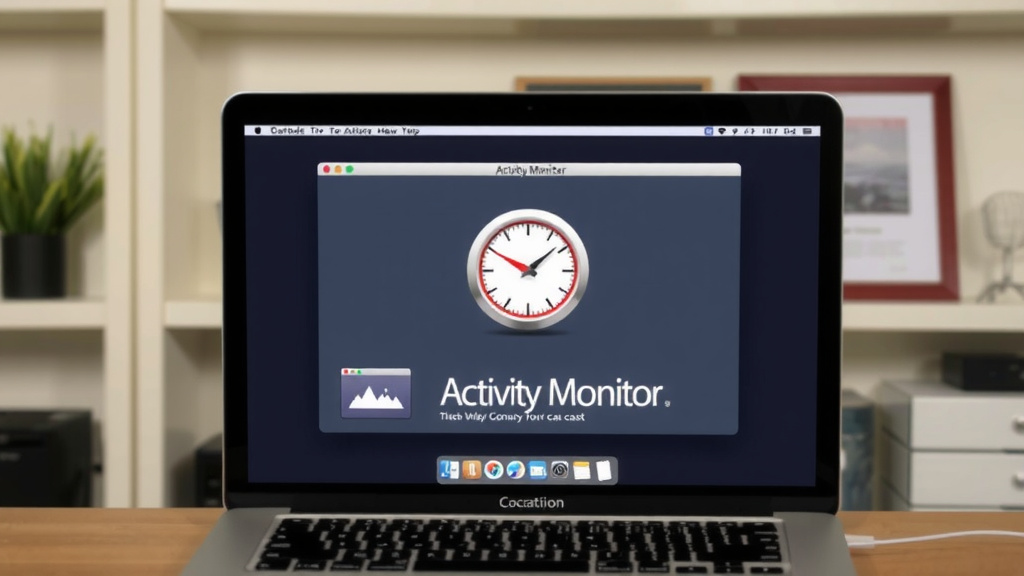
Once you open Activity Monitor, you’ll see a window with several tabs at the top. These tabs categorize the information about what your Mac is doing. It might look a little intimidating at first, but we’ll break it down.
The Main Tabs Explained
These are the key areas you’ll want to pay attention to when you’re troubleshooting performance issues:
- CPU: This tab shows you how much processing power your Mac’s central processing unit is using. You’ll see a list of processes and their CPU usage percentage. High usage here can slow things down.
- Memory: Here, you can see how much random access memory (RAM) is being used. Macs need RAM to run apps smoothly. If your Mac is running out of memory, it will use your hard drive as a slower substitute, making everything feel sluggish.
- Energy: This tab is useful for laptops. It shows which apps and processes are consuming the most battery power. Keeping an eye on this can help you get more life out of a single charge.
- Disk: This shows how much data your Mac is reading from and writing to its storage drive. High disk activity can sometimes cause performance issues, especially if you have an older hard drive.
- Network: If you’re having problems with your internet connection or network speed, this tab can help. It shows the data being sent and received over your network connections.
What Are Processes?
You’ll notice a long list of items in each tab. These are called processes. A process is essentially a program or a part of a program that is running on your Mac. Some processes are familiar, like your web browser or word processor. Others are background processes that your Mac needs to operate.
Common Scenarios for Using Activity Monitor
Why would you want to open this tool? We found it’s incredibly helpful in a few key situations.
When Your Mac is Slow
This is the most common reason people look for Activity Monitor. If your Mac is dragging its feet, the first place to check is the CPU and Memory tabs.
Look for any processes that are using an unusually high percentage of CPU or a large amount of memory. Sometimes, an app might have a glitch causing it to go into a loop, consuming excessive resources. Many experts suggest closing or quitting such processes to regain performance (Apple Support).
When an App Freezes or Crashes
If an application becomes unresponsive (the dreaded “spinning beach ball”), Activity Monitor can help you identify the culprit. You might see that the frozen app is showing 100% CPU usage or is using a significant amount of memory.
To Understand Resource Usage
Even if your Mac is running fine, you might just be curious. Activity Monitor offers a transparent view of your Mac’s internal workings. It’s a great way to learn more about how your computer manages tasks. We found that understanding these basics can prevent future problems.
A Quick Checklist for Finding Activity Monitor
Here’s a simple way to remember how to find it:
- Open Finder.
- Go to Applications.
- Look for Utilities (or search directly).
- Find and double-click “Activity Monitor.”
- Or, use Spotlight (Command + Space) and type its name.
Conclusion
You now know exactly how to find and open Activity Monitor on your Mac. Whether you’re using the Applications folder, Spotlight search, or the Utilities sub-folder, accessing this powerful tool is straightforward. Remember, Activity Monitor is your Mac’s dashboard for performance. It helps you understand what’s using your CPU and memory, which is key to troubleshooting a slow or unresponsive computer. So, the next time your Mac acts up, don’t hesitate to open Activity Monitor and take control of your Mac’s performance.
Frequently Asked Questions
Why is my Mac running slow all of a sudden?
When your Mac slows down, an application or process might be using too many resources. Open Activity Monitor and check the CPU and Memory tabs. Look for any processes using an unusually high percentage of your CPU or a large amount of RAM. Closing these resource-heavy processes can often speed up your Mac.
Can Activity Monitor help me if an app is frozen?
Yes, Activity Monitor is excellent for this. If an app freezes and shows the spinning beach ball, open Activity Monitor. You’ll likely see that the frozen app is consuming a very high percentage of your CPU. You can then select the unresponsive app and force quit it from within Activity Monitor.
Is it safe to quit processes I don’t recognize in Activity Monitor?
Be cautious when quitting unfamiliar processes. Some are essential for macOS to run correctly. Generally, stick to quitting applications you recognize or processes you’ve identified as causing performance issues. If you’re unsure about a process, it’s best to leave it running.
How do I find Activity Monitor if I can’t locate it in Applications?
The quickest way to find Activity Monitor is by using Spotlight Search. Press Command (⌘) + Space bar together, then type “Activity Monitor” into the search bar that appears. It should pop up as the first result, allowing you to open it instantly.
What’s the difference between CPU and Memory in Activity Monitor?
CPU (Central Processing Unit) refers to your Mac’s processor, which does the thinking and calculating. Memory (RAM) is your Mac’s short-term workspace where active apps and data are stored. High CPU usage means your Mac is working hard, while high memory usage means it’s juggling a lot of information.