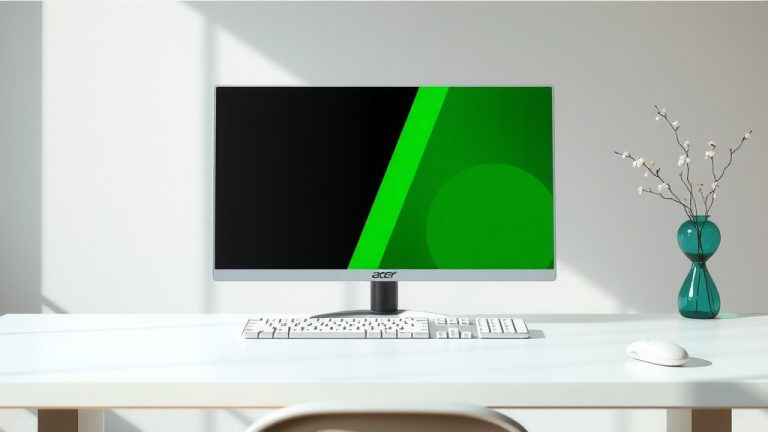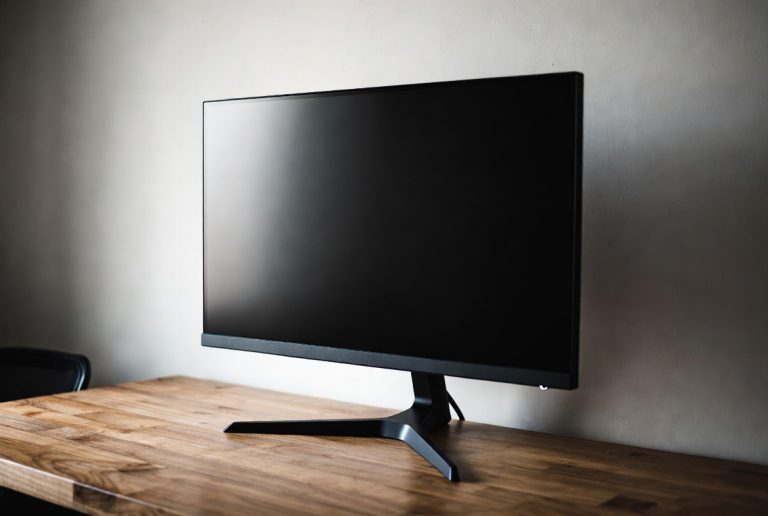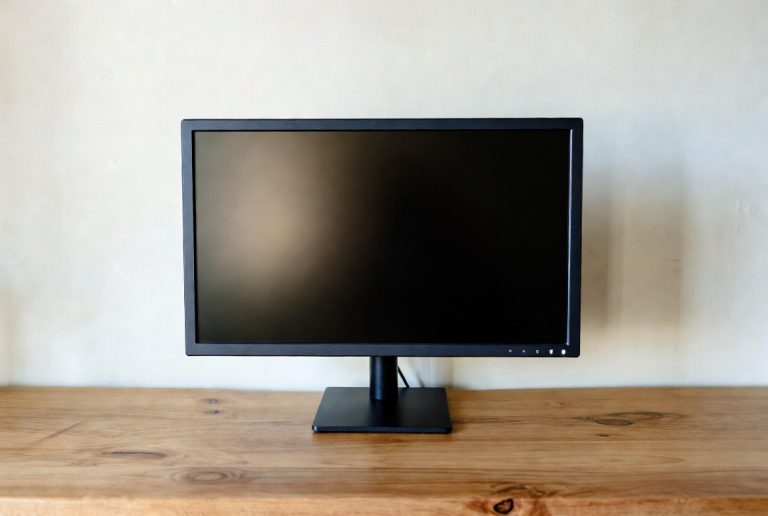
How to Find Your Monitor Model Number
Finding your monitor model number is usually quite simple. You can typically find it printed on a sticker on the back or bottom of your monitor. This number is essential for troubleshooting or finding specific drivers.
Knowing your monitor model number helps you get the right support. It’s also key if you’re looking for replacement parts or trying to find the original manual. We’ve gathered the easiest ways to locate this important detail.
- Check the back or bottom of your monitor.
- Look for a sticker with the model number.
- It’s often near other details like serial numbers.
- If you can’t find it, check your monitor’s manual.
Let’s walk through exactly where to look and what to do if you’re still having trouble finding that elusive model number.
Don’t worry if you’re not a tech wizard! We’ve all been there, staring at the back of a piece of hardware, trying to find a tiny number. Pinpointing your monitor’s model number is usually a straightforward process, and it can save you a lot of headaches down the line. Think of it as your monitor’s unique fingerprint. You’ll need it for support, finding drivers, or even just figuring out how to adjust the brightness properly.
Locating Your Monitor’s Identification Details
Let’s start with the most common places to find your monitor’s model number. It’s often printed on a sticker that’s about the size of a postage stamp. You’ll usually find this sticker on the back or the bottom of your monitor.
The Sticker Hunt: Where to Look First
The vast majority of monitors have an identification sticker applied during manufacturing. This sticker contains vital information, including the model number, serial number, and sometimes manufacturing date. You’ll typically find it:
- On the back panel of your monitor.
- On the underside, where the stand connects to the screen.
- On the base of the stand itself.
You might need to tilt your monitor or get down on your hands and knees to get a good look. Sometimes, these stickers are placed in less obvious spots, like near ventilation holes or under a fold-out stand. Just take your time and scan the entire surface.
What to Look For on the Sticker
Once you find the sticker, you’ll see a lot of text and numbers. The model number is usually clearly labeled. It might be preceded by terms like “Model,” “M/N,” or “Product Name.” It’s often a combination of letters and numbers that identifies the specific version of your monitor.
Interpreting the Sticker Information
Don’t get confused by the other numbers on the sticker. You’ll often see a serial number (S/N), which is unique to your individual unit. There might also be voltage ratings or compliance information. Focus on the line that clearly says “Model” or has a designation that looks like a product name (e.g., “Dell U2721DE” or “HP EliteDisplay E243”).
Finding Your Monitor Model When the Sticker Fails
What if you’ve scoured your monitor and can’t find a sticker, or the print is too faded to read? Don’t despair! There are still a few reliable ways to find that model number.
Check Your Monitor’s Packaging and Manual
If you’re like many people and still have the original box, that’s a goldmine! The model number is almost always printed on the outside of the box, often on a label near the product name or barcode. The user manual is another excellent resource. Flip through the first few pages, and you should see the model number printed prominently.
Consult Your Monitor’s On-Screen Display (OSD) Menu
Modern monitors come with a built-in OSD menu that you can access using buttons on the monitor itself. This menu often contains detailed hardware information.
Navigating the OSD Menu
Typically, you’ll need to press a specific button (often labeled “Menu,” “Settings,” or represented by an icon like a gear or three lines) on your monitor. Once the menu appears on your screen, navigate through the options. Look for sections labeled “System,” “Information,” “About,” or “Support.” Within these sections, you should find the monitor’s model number listed. The exact path varies by manufacturer and model, so you might need to do a little clicking around.
Using Your Computer’s System Information
Sometimes, your computer can tell you what monitor it’s connected to. This is especially true if you’re using a standard connection like HDMI or DisplayPort. While this method doesn’t always pull the exact model number, it can often give you enough information to identify it.
How to Check on Windows
On Windows, you can usually find this information by going to Settings > System > Display. Scroll down to the “Advanced display settings.” Here, you should see details about your connected display, including its name, which often corresponds to the model number. For more detail, you can open the “Display adapter properties” for the monitor. You’ll see a “Monitor” tab that lists the model name.
How to Check on macOS
For Mac users, click the Apple menu in the top-left corner. Select “About This Mac.” Then, click on “System Report.” In the Hardware section, choose “Graphics/Displays.” Your connected monitor’s details, including its name and model, should be listed here.
We found that using the system information on your computer is particularly handy if the monitor is wall-mounted or difficult to physically access. It’s like having a remote control for your monitor’s identity!
Consider the Manufacturer’s Website
If you know the brand of your monitor (e.g., Samsung, LG, Acer), you can visit their support website. Often, they have a tool where you can enter a serial number (if you can find that) or select from a list of common models to find specific information, including drivers or manuals. This can indirectly help you confirm the model number you’ve found.
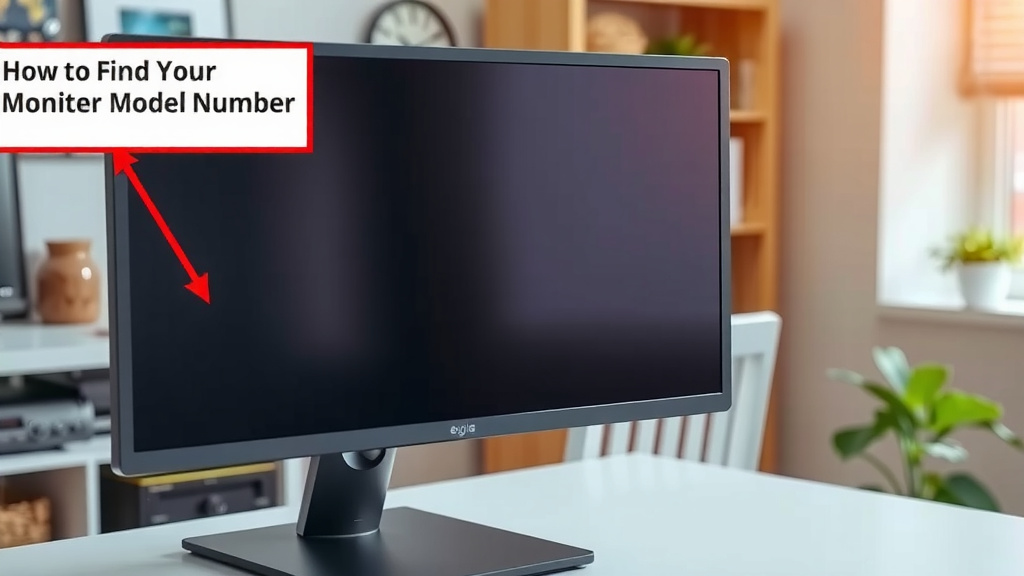
Quick Checklist for Finding Your Monitor Model Number
Here’s a quick rundown to help you locate that important number:
- Look for a sticker on the back or bottom.
- Check the original box or user manual.
- Navigate your monitor’s on-screen display (OSD) menu.
- Use your computer’s system information.
- If all else fails, check the manufacturer’s website.
Finding your monitor’s model number might seem like a small task, but it’s surprisingly important for keeping your setup running smoothly. Whether you’re troubleshooting a flickering screen or looking for a firmware update, having that number readily available makes all the difference. Happy hunting!
Conclusion
You’ve now learned several reliable ways to find your monitor’s model number. Whether it’s a quick check of a sticker, a peek into your computer’s settings, or a quick search on the manufacturer’s website, this number is essential for support. Having it handy makes troubleshooting a breeze and ensures you get the right parts or drivers. So, take a moment now to locate that number. You’ll be glad you did when your monitor needs a little attention!
Frequently Asked Questions
What if the sticker on my monitor is completely unreadable?
If the sticker is too faded or damaged, don’t worry. Your next best bet is to check your monitor’s on-screen display (OSD) menu for system information. If that doesn’t work, try looking up your monitor’s specs using your computer’s system information or the original packaging. These methods can often reveal the model number.
Can my computer really tell me my monitor model number?
Yes, your computer can often provide details about your connected monitor. On Windows, you can find this under Advanced display settings. For macOS, check the “Graphics/Displays” section in System Report. While it might not always be the exact model number, it’s usually enough to identify your monitor.
Is the serial number the same as the model number?
No, the serial number (S/N) is unique to your specific unit, like a fingerprint for your exact monitor. The model number identifies the product line or specific version of the monitor that the manufacturer produced. You’ll usually find both on the same sticker, but they serve different purposes.
What if I threw away the original box and manual?
If you no longer have the original box or manual, your best bet is to use your monitor’s on-screen display (OSD) menu or your computer’s system information to find the model number. These digital resources are great backups when physical documentation is missing.
Why do I need my monitor model number anyway?
Knowing your monitor’s model number is vital for several reasons. It helps you find the correct drivers for optimal performance, allows you to search for specific troubleshooting guides if you encounter issues, and is necessary if you ever need to order replacement parts or contact customer support for your display.