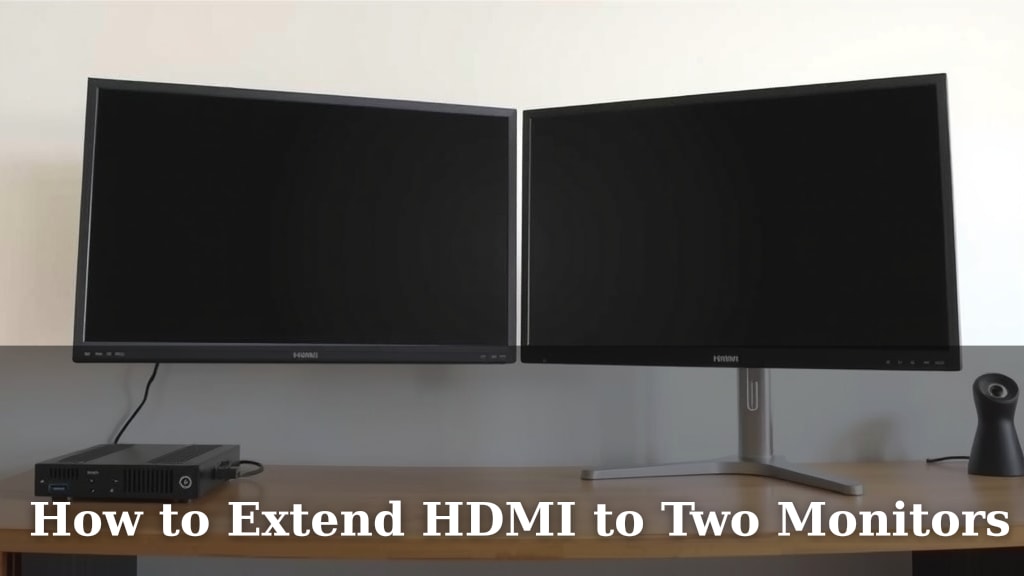
How to Extend HDMI to Two Monitors
Yes, you can absolutely extend your HDMI to two monitors. The most straightforward way is by using an HDMI splitter. This device takes a single HDMI signal and duplicates it, sending the same picture to multiple displays. You can easily mirror your screen across two screens without much fuss.
This setup is fantastic for increasing your productivity or enjoying a more immersive viewing experience. Many users find that having two monitors significantly boosts their workflow efficiency. Research shows that using dual monitors can boost productivity by as much as 20-50%. It’s a simple upgrade with big benefits.
- Use an HDMI splitter for an easy solution.
- Splitters send the same image to both screens.
- This is great for mirroring your display.
- It can also boost your productivity.
- It’s a budget-friendly upgrade.
Below, we’ll break down how to choose the right HDMI splitter and set it up for your dual-monitor needs. Let’s get your extra screen working!
So, you’re ready to get more screen real estate. That’s a smart move! Doubling up your monitors can really change the way you work and play. You might be wondering if you can actually use two monitors with just one HDMI port. The answer is a resounding yes! Let’s dive into how you can make that happen.
Getting Your Second Monitor Connected via HDMI
Connecting a second monitor isn’t as complicated as it might sound. It often comes down to using a simple device to split your existing HDMI signal. Think of it like a Y-cable for audio, but for your video signal. This lets you mirror what’s on your main screen. You’ll see the exact same thing on both displays.
Understanding HDMI Splitters
An HDMI splitter is the most common tool for this job. It takes one HDMI input and splits it into two (or more) identical HDMI outputs. You plug your HDMI source (like a computer or gaming console) into the splitter. Then, you run two separate HDMI cables from the splitter to each of your monitors. It’s a pretty plug-and-play solution.
How a Splitter Works
The splitter essentially copies the video and audio signal. It sends this identical stream to all connected displays. This is why it’s great for mirroring. If you’re giving a presentation, you can show the same slide on a big screen and your laptop. Or, if you’re gaming, you can have the same action on two TVs. It’s a direct duplication of your output. Many splitters support resolutions up to 4K, so you won’t lose much quality. However, always check the specifications for the resolutions and refresh rates it supports.
Choosing the Right HDMI Splitter
Not all splitters are created equal. You’ll want to consider a few things to make sure you get the best experience.
- Resolution Support: Ensure the splitter supports the resolution of your monitors. If your monitors are 1080p, a 1080p splitter is fine. If you have 4K monitors, get a 4K-compatible splitter.
- Number of Outputs: Most splitters for dual monitors will have two outputs. Some offer more if you ever plan to add a third or fourth display.
- HDCP Compliance: High-bandwidth Digital Content Protection (HDCP) is a copy protection standard. If you plan to watch Blu-rays or stream from services like Netflix, your splitter needs to be HDCP compliant. Otherwise, you might get a black screen.
- Powered vs. Unpowered: Some splitters are unpowered and draw power from the HDMI signal itself. For longer cable runs or more demanding signals, a powered splitter with an external power adapter is often more reliable.
Setting Up Your Dual Monitor System
Getting this hooked up is usually straightforward. Here’s a simple step-by-step guide:
- Power Down: Turn off your computer or HDMI source device.
- Connect Source: Plug one end of an HDMI cable into your computer’s HDMI output port.
- Connect Splitter: Plug the other end of that HDMI cable into the ‘HDMI In’ port on your splitter.
- Connect Monitors: Use two more HDMI cables. Connect one from the ‘HDMI Out 1’ port on the splitter to your first monitor. Connect the second from the ‘HDMI Out 2’ port to your second monitor.
- Power Up (If Needed): If your splitter has a power adapter, plug it in now.
- Turn On Displays: Power on both of your monitors.
- Power On Source: Turn on your computer or HDMI source device.
- Configure Settings: Your computer should detect both monitors. You might need to go into your display settings to set them up.
Configuring Your Display Settings
Once everything is powered on, your computer will likely default to mirroring your display. This means both screens show the same thing. You can change this in your operating system’s display settings. On Windows, right-click on your desktop and select ‘Display settings’. You’ll see your monitors represented by numbers. You can choose to ‘Duplicate these displays’ or ‘Extend these displays’. For actual dual-monitor productivity, you’ll want to choose ‘Extend’. This allows you to drag windows between screens. It’s a huge productivity booster.
What to Expect: Limitations of Splitters
It’s important to understand that an HDMI splitter duplicates your signal. This means you cannot extend your desktop to two *different* resolutions or refresh rates *independently* if they are significantly different. The splitter will typically default to the lowest common resolution and refresh rate supported by all connected displays. For example, if you have one 4K monitor and one 1080p monitor, both will likely run at 1080p when connected through a standard splitter. You’re essentially showing the same content, just on multiple screens.
When a Splitter Might Not Be Enough
If your goal is to have two monitors showing different, independent content at their native resolutions, a simple HDMI splitter won’t do the trick. This usually requires a graphics card with multiple output ports (like DVI, DisplayPort, and HDMI) or a more advanced setup involving docking stations or MST hubs (Multi-Stream Transport), especially if you’re using DisplayPort.
Alternatives to a Basic HDMI Splitter
While an HDMI splitter is the go-to for mirroring, what if you need more? Let’s look at other options.
Multi-Monitor Graphics Cards
Many modern computers, especially desktops, come with graphics cards that have multiple video output ports. You might have HDMI, DisplayPort, and DVI. You can often connect one monitor to each of these ports directly from your computer. This allows for true extended desktop functionality, meaning each monitor can run at its own optimal resolution and refresh rate. Check the back of your computer for available ports. You might just need a different type of cable, like a DisplayPort cable.
USB to HDMI Adapters/Docks
If your computer has limited HDMI outputs but plenty of USB ports, you can use a USB to HDMI adapter or a docking station. These devices use your computer’s USB port to output a video signal. They often contain a small internal graphics chip to handle the display. You can plug multiple monitors into a docking station, and it connects to your computer with a single USB cable. This is a very flexible solution for laptops or older desktops. Research different adapters, as performance can vary.
Here’s a quick look at when you might choose each:
| Scenario | Best Solution | Why |
|---|---|---|
| Mirroring the same content to two screens easily. | HDMI Splitter | Simple, inexpensive, and direct duplication. |
| Running two monitors at different resolutions/content. | Graphics Card with multiple ports or USB Dock | Allows independent display management. |
| Expanding laptop display options. | USB Docking Station | Consolidates multiple peripherals and displays via one USB port. |
Quick Setup Checklist for Your Dual Monitors
Ready to get going? Here’s a simple checklist to make sure you have everything covered:
- Confirm your source device has an HDMI output.
- Acquire an HDMI splitter (check resolution and HDCP needs).
- Get the necessary HDMI cables (one for source to splitter, two from splitter to monitors).
- Ensure your monitors are powered and have HDMI inputs.
- Connect all cables securely before powering on.
- Check your computer’s display settings to “Extend” your desktop.
With these steps, you’ll be enjoying your expanded digital workspace in no time!
Conclusion
You now know how to easily extend your HDMI signal to two monitors, primarily by using an HDMI splitter. This simple upgrade can really boost your productivity and enhance your viewing experiences. Remember to choose a splitter that matches your monitors’ resolutions and check for HDCP compliance if you stream protected content. If you need independent display control at different resolutions, consider a graphics card with multiple ports or a USB docking station. Get ready to enjoy your expanded digital workspace!
Frequently Asked Questions
Can I connect two monitors to my laptop using just the HDMI port?
Typically, a single HDMI port on a laptop is designed for one display output. To connect two monitors, you’ll usually need an HDMI splitter for mirroring the same content or a USB docking station/adapter for extending your display independently.
Will an HDMI splitter work if my two monitors have different resolutions?
An HDMI splitter will generally send the same signal to both monitors. This means it will likely default to the lowest resolution supported by either monitor. If you need each monitor to run at its native, different resolution, a splitter isn’t the best solution.
Do I need to buy special HDMI cables for a splitter setup?
No, standard HDMI cables should work fine. You’ll need one cable to go from your source device to the splitter, and then two more cables to go from the splitter to each of your monitors. Ensure they are in good condition.
What is HDCP, and why do I need it for my HDMI splitter?
HDCP (High-bandwidth Digital Content Protection) is a copyright protection technology. If you plan to watch Blu-rays or stream from services like Netflix or Hulu, your splitter must be HDCP compliant. Otherwise, you might see a black screen or an error message.
How do I extend my desktop versus just mirroring with a splitter?
A standard HDMI splitter can only mirror your screen, meaning both monitors show the exact same thing. To truly extend your desktop so you can drag windows between two different screens, you’ll need a graphics card with multiple outputs or a USB docking station.