Close Laptop Use Two Monitors: Your Complete Guide
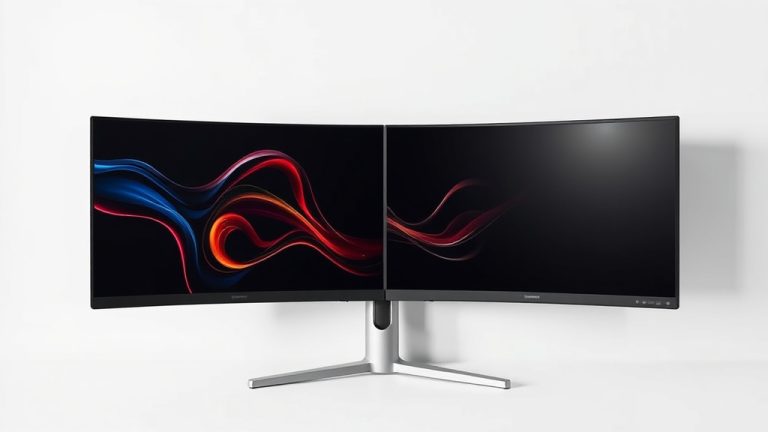
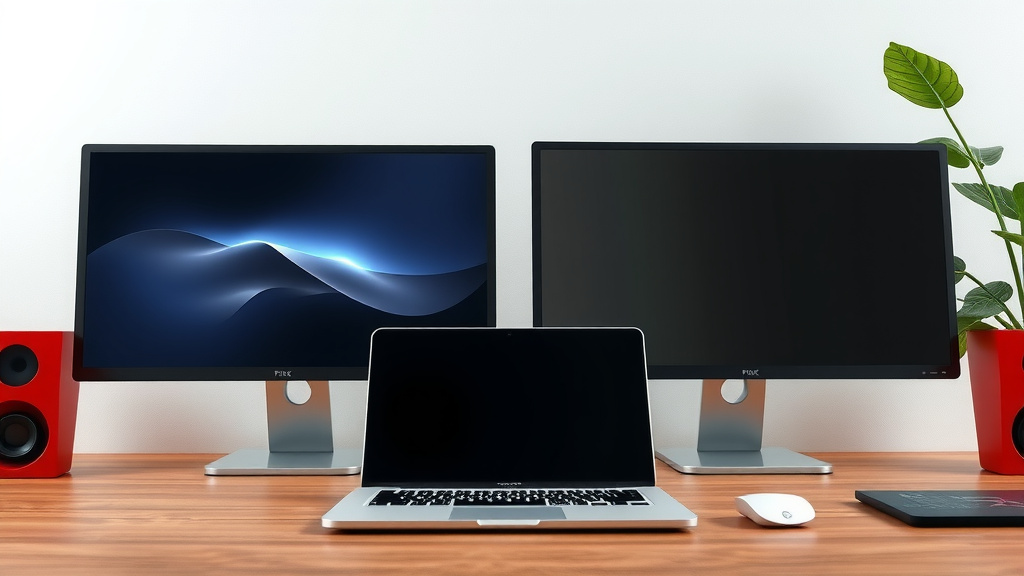
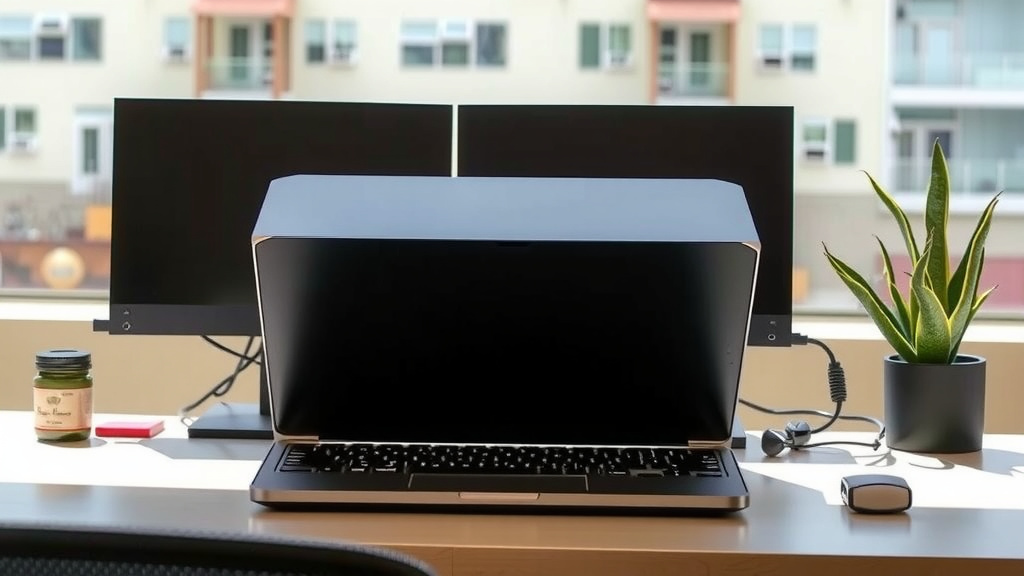
Yes, you absolutely can close your laptop and use two external monitors. This setup is often called a “clamshell mode”. It’s a fantastic way to get more screen space without needing a bulky desktop. You’ll need to connect your laptop to your monitors and ensure it’s plugged into power.
When your laptop is closed in this mode, your external monitors become your primary displays. It’s a common setup for people who want a more permanent workstation. Many users find it significantly boosts their productivity and workflow. It’s like giving your laptop a desktop makeover!
- You can use your laptop with the lid closed.
- This lets you use two external monitors effectively.
- Ensure your laptop is plugged in for power.
- You’ll need the correct cables to connect everything.
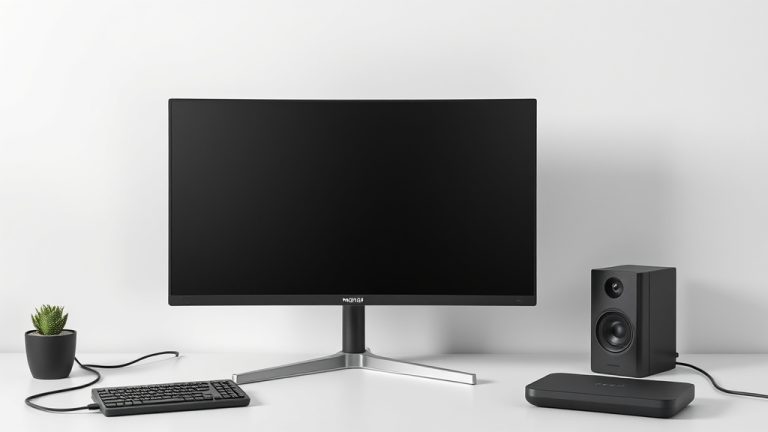
- External keyboards and mice are usually needed too.
Let’s walk through exactly how to set up your laptop for this dual-monitor bliss with your lid closed.
“`htmlSetting Up Your Laptop for Dual Monitors with the Lid Closed
You’re probably wondering how to make this happen. It’s simpler than you might think! You can indeed close your laptop and run two external monitors. This setup is often called clamshell mode. It essentially turns your laptop into a compact desktop. The key is to ensure your laptop knows to use the external screens even when its lid is shut.
This mode is perfect for creating a permanent workspace. Many people find it boosts their productivity. It’s like giving your laptop a desktop makeover without the extra cables and clutter. Let’s get this set up so you can enjoy that extra screen real estate!
Essential Hardware You’ll Need
Connecting Your Monitors
The first step is to connect your external monitors to your laptop. You’ll need the right cables for this. Most modern laptops have ports like HDMI or DisplayPort. Your monitors will also have these input options. If your laptop doesn’t have enough ports for two monitors, you might need a docking station or a USB-C hub. Research your laptop’s specifications to see what it supports. We found that checking the number and type of ports is the best way to start.
Powering Up Your Setup
This is a really important point. When your laptop is running with the lid closed, it’s still working hard. To avoid unexpected shutdowns or battery drain, you must keep your laptop plugged into its power adapter. Most operating systems will automatically prevent your laptop from sleeping when plugged in and the lid is closed, but it’s good to double-check this setting. Don’t risk losing your work!
Input Devices: Keyboard and Mouse
Since your laptop lid will be closed, you won’t be using its built-in keyboard or trackpad. You’ll need external input devices. A comfortable keyboard and a reliable mouse are essential for a good workstation experience. You can connect these via USB or Bluetooth, depending on your preference and your laptop’s capabilities. Many users find that a full-sized keyboard greatly improves their typing speed and comfort.
Configuring Your Laptop for Clamshell Mode
Understanding Display Settings
Once everything is physically connected, you need to tell your laptop how to use the monitors. When you boot up your laptop with the lid closed, it should automatically detect the external displays. You’ll want to ensure your laptop is set to extend these displays rather than just mirror them. This gives you more space to work with. We found that the display settings in your operating system are the place to make these changes.
Accessing Display Settings
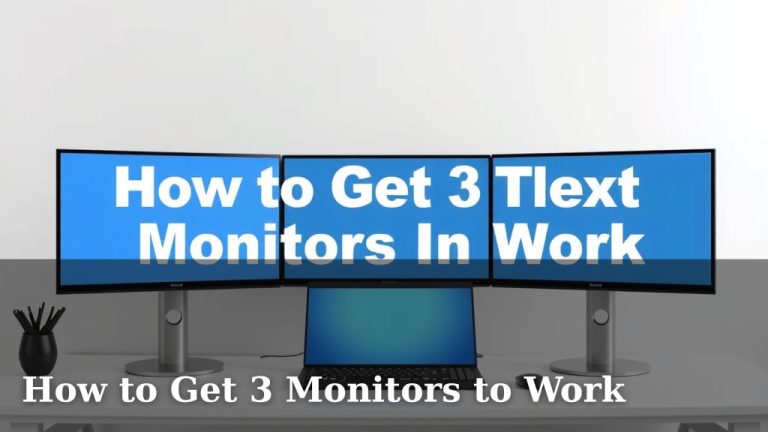
On Windows, you can usually right-click on your desktop and select “Display settings.” On macOS, you’ll find these options under “System Settings” (or “System Preferences”) and then “Displays.” Your goal is to see all three displays (your laptop screen, and your two external monitors) listed. You can then arrange them virtually to match their physical placement on your desk.
Enabling External Displays
In your display settings, look for an option that says “Make this my main display” for one of your external monitors. You can then set the other external monitor to extend your desktop. Your laptop screen might be disabled by default when the lid is closed, and that’s perfectly fine for this setup. You want your two external monitors to be your primary workspace.
Ensuring Your Laptop Stays Awake
This is where power settings come into play. You absolutely don’t want your laptop to go to sleep while you’re in the middle of a project. Most operating systems have power options that allow you to prevent sleep mode when plugged in. You can often find these settings under “Power Options” or “Battery” in your system settings. We found that adjusting these settings prevents your laptop from closing down unexpectedly.
Windows Power Settings
On Windows, navigate to Settings > System > Power & sleep. Under “When plugged in, put my device to sleep after,” select “Never.” Also, check “Additional power settings” to ensure that closing the lid doesn’t put the computer to sleep.
macOS Power Settings
For macOS, go to System Settings > Battery. Look for options related to “Power Adapter.” Ensure that “Prevent automatic sleeping on power adapter when the display is off” is enabled. This is key for clamshell mode.
Troubleshooting Common Issues
Monitors Not Detected
If one or both of your monitors aren’t showing up, first double-check all your cable connections. Make sure they are seated firmly at both ends. Try using a different cable or a different port on your laptop or monitor. Sometimes, a faulty cable can cause a lot of frustration. Restarting your laptop with everything connected can also help it recognize the new displays.
Laptop Still Sleeping with Lid Closed
If your laptop is still going to sleep even after adjusting power settings, you might need to check your BIOS/UEFI settings. Some older laptops had specific options for lid closure behavior. However, for most modern machines, the operating system’s power settings are sufficient. Ensure you’ve applied the changes correctly and restarted your laptop. We found that sometimes a simple restart after changing settings is all that’s needed.
Resolution or Display Issues
If your displays look blurry or aren’t showing the correct resolution, you may need to adjust the resolution settings. Go back into your display settings and select the recommended resolution for each monitor. Ensure your graphics drivers are up to date. Outdated drivers are a common cause of display problems. You can usually find driver updates on your laptop manufacturer’s website.
Here’s a quick checklist to help you get started:
- Connect both external monitors using appropriate cables.
- Plug your laptop into its power adapter.
- Connect your external keyboard and mouse.
- Adjust your display settings to extend your desktop.
- Configure power settings to prevent sleep when plugged in.
- Test your setup by closing the laptop lid.
Conclusion
You’ve learned how to transform your laptop into a powerful dual-monitor workstation by closing its lid. By connecting your external displays, ensuring constant power, and adjusting your system settings, you can create a comfortable and productive setup. This clamshell mode is a smart way to maximize your screen real estate without needing a full desktop computer. Now that you have the knowledge, go ahead and set up your new workspace!
Frequently Asked Questions
Will closing my laptop’s lid damage it?
Generally, no. Laptops are designed to run with the lid closed in clamshell mode, especially when connected to external power and monitors. Just ensure your laptop has adequate ventilation, as closing the lid can sometimes restrict airflow a bit.
Can I use my laptop’s built-in screen along with two external monitors?
While the primary goal of this setup is to use your laptop with the lid closed, most operating systems allow you to extend your display across three screens (laptop + two external) if you prefer not to close the lid. You would just need to adjust your display settings accordingly.
What if my laptop doesn’t have enough ports for two monitors?
If your laptop lacks sufficient video output ports, a docking station or a USB-C hub is your best solution. These accessories can expand your laptop’s connectivity, allowing you to connect multiple monitors, along with other peripherals.
Do I need a special type of cable to connect my monitors?
You’ll need cables that match the ports on both your laptop and your monitors. Common types include HDMI and DisplayPort. If you’re using a docking station, it will have its own set of output ports that your monitor cables will connect to.
How do I ensure my external keyboard and mouse work correctly in clamshell mode?
Simply connect your external keyboard and mouse via USB or Bluetooth before you put your laptop into clamshell mode. Once your operating system boots up on the external monitors, these devices should be recognized and ready for use.