Computer Monitor Size Explained: What You Need to Know
A computer monitor’s size is measured diagonally across the screen, and most common sizes range from 21 inches to 27 inches. Smaller monitors, like those found on laptops, are typically 11 to 15 inches. Larger displays, often used for gaming or professional work, can exceed 30 inches, with some ultra-wide models reaching 49 inches or more. The screen size directly impacts your viewing experience.
When choosing a monitor, you’ll encounter terms like “resolution” and “aspect ratio” alongside size. Resolution tells you how many pixels are on the screen, affecting sharpness. Aspect ratio describes the proportional relationship between width and height. Understanding these factors helps you pick the right display for your needs, whether it’s for work, gaming, or watching movies.
- Monitor size is measured diagonally.
- Common desktop monitors are 21-27 inches.
- Laptops usually have 11-15 inch screens.
- Larger displays are available for specific uses.
- Size is just one factor; consider resolution too.
Ready to figure out what size is right for you? Let’s dive into the details of computer monitor dimensions.
So, you’re wondering about computer monitor sizes. It’s a pretty straightforward question, but the answer has a lot of practical implications for your daily computer use.
Understanding Monitor Dimensions: What Size Is Right for You?
The size of a computer monitor is typically measured in inches. This measurement refers to the diagonal distance from one corner of the screen to the opposite corner. Think of it like measuring a picture frame – you measure across the glass, not just the width or height.
It’s important to remember that this is the diagonal screen size, not the physical dimensions of the monitor itself. The actual size of your desk space will also be taken up by the monitor’s bezel and stand. So, a 24-inch monitor will take up more physical space than just 24 inches.
Common Desktop Monitor Sizes
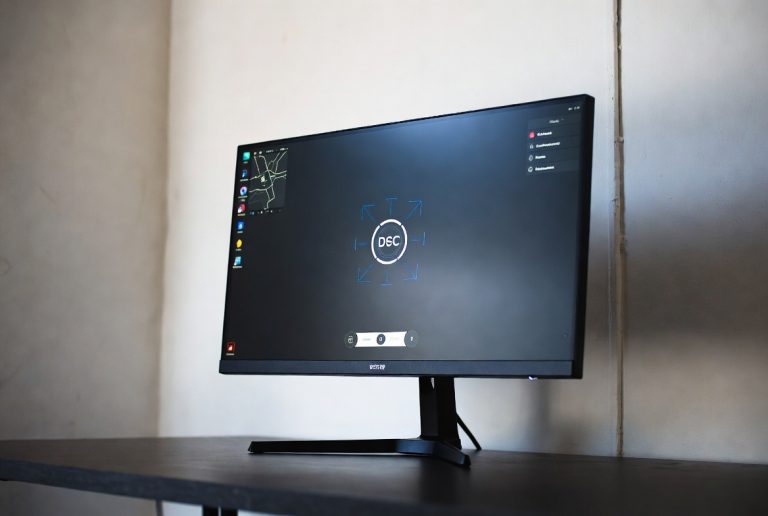
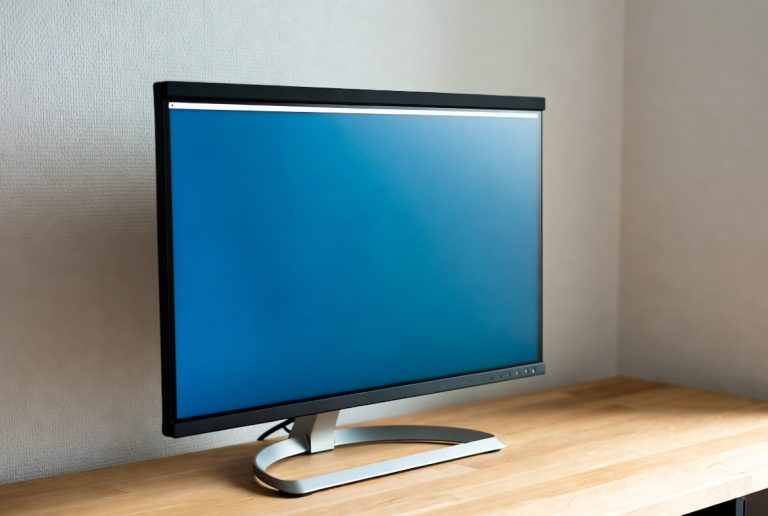
For desktop computers, you’ll find a few sizes that are incredibly popular. We’ve found that the 21-inch to 27-inch range is the sweet spot for many users. Why? These sizes offer a good balance between screen real estate and desk space.
A 24-inch monitor is a workhorse for many offices and home setups. It’s large enough to comfortably view documents and browse the web without feeling cramped. Many experts suggest this size for general productivity tasks (U.S. Department of Labor).
Stepping up to a 27-inch monitor gives you a bit more room to spread out. This is fantastic if you multitask a lot, perhaps with multiple windows open side-by-side. We found that even a few extra inches can make a noticeable difference in your workflow.
Laptop Screen Sizes: Portability in Mind
When we talk about laptop screen sizes, the numbers are generally smaller. This is because laptops are designed for portability. You’ll most commonly see screen sizes ranging from 11 inches up to 15 inches.
An 11-inch or 13-inch laptop is super lightweight and easy to carry around. They’re perfect for students or anyone who needs to work from coffee shops or while traveling. We found that while smaller, modern laptops use screen technology very efficiently.
A 15-inch laptop offers a bit more viewing area. This can be more comfortable for longer work sessions. It’s a popular choice for those who want a good mix of portability and usable screen space. Some users find this size sufficient for basic photo editing or even some light gaming.
Larger Displays: When More Screen is Better
For some users, standard sizes just don’t cut it. This is where larger monitors come into play. We’re talking about displays that go beyond the 27-inch mark.
Gaming and Professional Workstations
Gamers and creative professionals often seek out larger screens. A 32-inch monitor can provide a more immersive experience, especially for gaming. It also gives graphic designers, video editors, and programmers ample space to work with complex software.
You might also encounter ultra-wide monitors. These aren’t just bigger; they’re much wider than they are tall. Think of them as having two or even three monitors placed side-by-side. Sizes like 34 inches or even 49 inches are available in this format.
We found that ultra-wide monitors are excellent for a few specific tasks. They can be amazing for video editing timelines or for tracking multiple data streams. Some users even find them more comfortable than using two separate monitors because there’s no bezel in the middle.
Beyond Size: Other Factors to Consider
While screen size is a major factor, it’s not the only thing that matters when choosing a monitor. You’ll also see terms like resolution and aspect ratio mentioned frequently. These play a huge role in how your content looks and how much you can fit on the screen.
Resolution: The Pixels That Make Up Your Image
Resolution refers to the number of pixels on the screen. Pixels are the tiny dots that create the image you see. More pixels mean a sharper, more detailed picture. Common resolutions include 1080p (Full HD), 1440p (QHD), and 4K (UHD). If image quality is paramount, consider a color accurate monitor.
For example, a 27-inch monitor with a 1080p resolution will have larger, more visible pixels than a 27-inch monitor with a 4K resolution. The 4K monitor will look much sharper. Many sources suggest that for screen sizes 24 inches and larger, 1440p or 4K resolution provides a significantly better visual experience (Consumer Reports).
Aspect Ratio: The Shape of Your Screen
Aspect ratio describes the proportional relationship between the width and height of the screen. The most common aspect ratio for many years was 16:9. This is considered a widescreen format and is standard for most TVs and monitors today.
However, you’ll also find 21:9 aspect ratios on those ultra-wide monitors we talked about. There are even older monitors with a 4:3 aspect ratio, which is more square-like. Choosing an aspect ratio depends on what you’ll be using your monitor for. Most modern content is optimized for 16:9.
Putting It All Together: Choosing Your Monitor Size
So, how do you pick the right size for your needs? We’ve put together a quick checklist to help you think it through.
- Consider your desk space. Measure before you buy!
- Think about your primary use: work, gaming, or casual browsing?
- What’s your budget? Larger screens and higher resolutions often cost more.
- Will you be multitasking? More screen space helps.
- Do you need a portable solution, or will it stay in one place?
Ultimately, the “best” monitor size is subjective. It really depends on your personal preferences and how you plan to use your computer. What feels right for one person might feel too big or too small for another. We found that trying to see monitors in person can be very helpful.
Conclusion
Choosing the right monitor size is about balancing your viewing needs with your available space and budget. We’ve seen that common desktop monitors range from 21 to 27 inches, offering a good compromise for most users. Laptops stick to smaller, portable sizes, while gamers and professionals might need larger or ultra-wide displays for immersion and productivity. Remember to also consider resolution and aspect ratio, as they greatly impact your visual experience. Before you buy, measure your desk and think about how you’ll primarily use your computer. This careful consideration will help you find a monitor that truly fits your workflow and enhances your daily tasks.
Frequently Asked Questions
What does “diagonal measurement” for monitor size really mean?
The diagonal measurement refers to the distance from the bottom-left corner to the top-right corner of the screen, or vice-versa. This is a standard industry way to express screen size. It doesn’t include the monitor’s frame or stand, so the physical footprint on your desk will be larger than just the diagonal measurement.
Is a 24-inch monitor still a good size for everyday use?
Yes, a 24-inch monitor remains an excellent choice for many users. It provides enough screen real estate for comfortable multitasking and general productivity without overwhelming your desk space. Many people find it a perfect balance for work, browsing, and even some casual gaming.
Will a 27-inch monitor feel too big for a small desk?
A 27-inch monitor can feel quite large on a small desk. While it offers more viewing area, it also has a wider physical presence. We recommend measuring your desk dimensions carefully and comparing them to the monitor’s physical specifications before deciding. You might find an adjustable monitor arm helps manage space.
Are ultra-wide monitors good for productivity or just gaming?
Ultra-wide monitors, with their expansive aspect ratios, are fantastic for both. Gamers enjoy the immersive field of view. For productivity, they allow you to have multiple windows open side-by-side without feeling cramped, which is great for coding, video editing, or managing spreadsheets. You can even ditch a dual-monitor setup for a single ultra-wide.
How does monitor size affect screen resolution choices?
Larger monitors benefit more from higher resolutions like 1440p or 4K. On a big screen, a lower resolution (like 1080p) can make pixels more visible, leading to a less sharp image. For smaller screens, 1080p might still look perfectly fine, but for anything 24 inches and above, a higher resolution significantly improves clarity and detail.