Dual Monitor Setup: Maximize Your Productivity
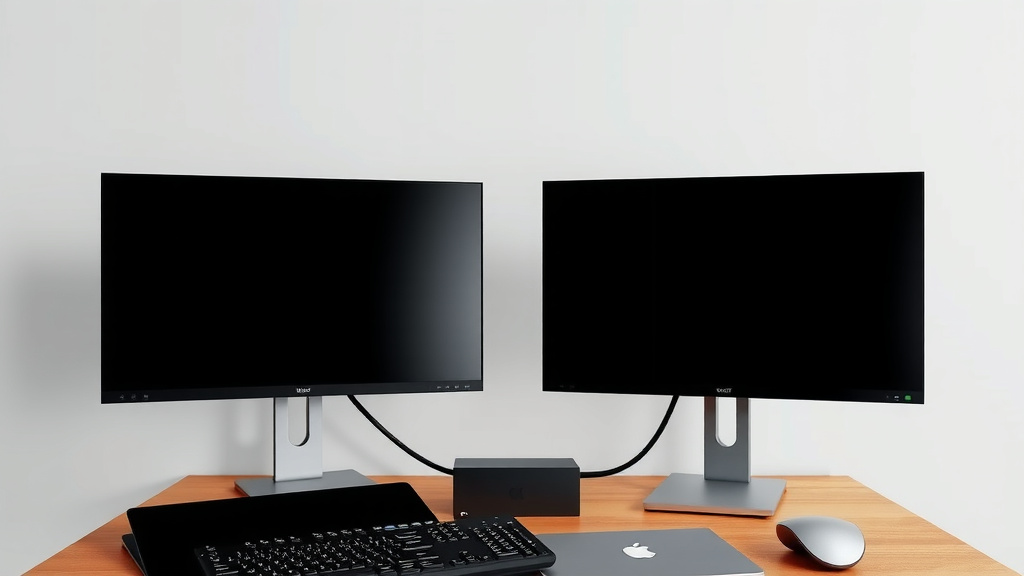
Using two monitors effectively is totally achievable by simply extending your display. This lets you drag windows between screens for more workspace. You can also duplicate your screen to mirror content. Mastering this setup can seriously boost your productivity.
Beyond basic setup, dual monitors help you see more at once. Imagine having your email open on one screen and your work document on another. This makes multitasking much easier. Many users find it hard to go back after experiencing this expanded digital real estate.
- Extend your display to use both screens for more space.
- Duplicate your screen to show the same content on both.
- Arrange your monitors physically for the best workflow.
- Adjust display settings for optimal resolution and layout.
Ready to make your dual monitor setup work for you? Let’s walk through exactly how this works step by step.
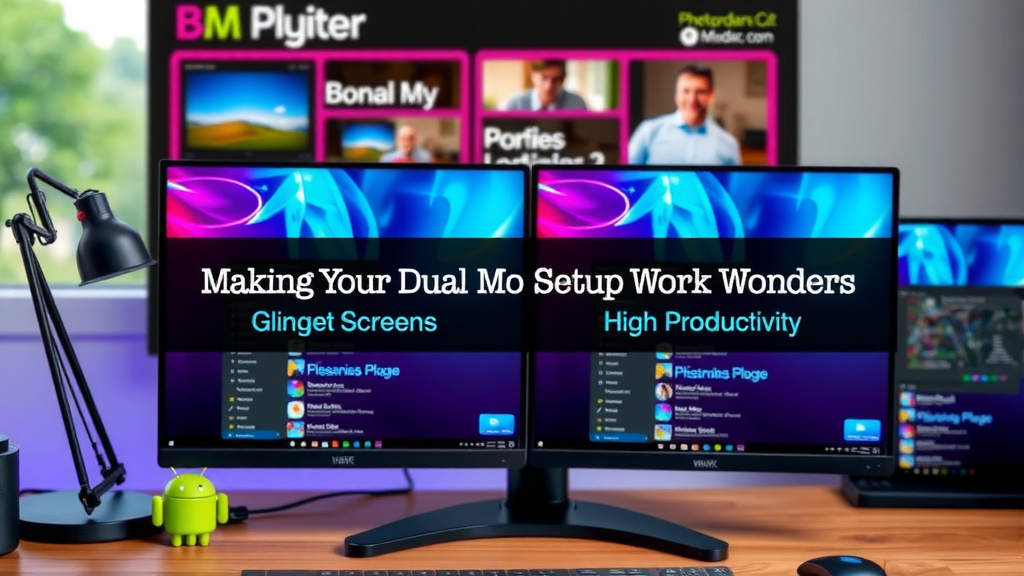
“`htmlMaking Your Dual Monitor Setup Work Wonders
So, you’ve got two screens staring back at you. That’s awesome! It’s like getting a bigger desk for your computer. You can do so much more now. Let’s figure out how to get the most out of this setup. It’s not just about having more space; it’s about working smarter.
Understanding Your Display Modes: Extend vs. Duplicate
Your dual monitor setup has two main ways to work. The first is extending your display. This is usually what you want. It makes your desktop much larger. You can move windows from one screen to the other.
The second mode is duplicating your display. This copies everything from one screen to the other. It’s useful for presentations. You can show your audience exactly what’s on your main screen. But for everyday work, extending is the way to go.
How to Set Up Display Modes in Windows
Getting this right in Windows is pretty simple. You’ll want to right-click on your desktop. Look for “Display settings.” This is where the magic happens. You’ll see a diagram of your monitors.
Under the “Multiple displays” section, you’ll find a dropdown menu. It will likely say “Extend these displays” by default. If it doesn’t, select it. This is how you get that expanded workspace.
If you need to duplicate, choose “Duplicate these displays” from the same menu. You can also choose which monitor acts as the primary display. This is the one with your taskbar and Start menu.
Setting Up Display Modes on a Mac
Mac users will find similar options. Go to the Apple menu. Then select “System Settings.” Click on “Displays.” Here, you’ll see your connected monitors.
By default, macOS often extends your display. You should see your desktop appear across both screens. If you want to mirror, check the “Mirror Displays” box. You can drag the white menu bar from one display diagram to another to set your primary monitor.
Arranging Your Monitors for Peak Productivity
Where you place your monitors matters a lot. Think about how you naturally look at things. Most people have a primary monitor. This is where you’ll do most of your focused work. It should be directly in front of you.
Your secondary monitor can go to the side. Many people place it to the left or right of their primary screen. Consider which hand you use more. If you’re right-handed, placing the second monitor to your right might feel natural. This is where you can put less critical windows like email or chat.
Understanding Monitor Placement and Ergonomics
Ergonomics are important to avoid strain. Your monitors should be at eye level. This prevents neck pain. You might need a monitor stand or an adjustable desk mount. We found that raising them slightly reduces slouching.
Ensure the screens aren’t too far apart. You don’t want to crane your neck constantly. A slight angle towards you can be comfortable. Good lighting also helps. Avoid glare from windows on your screens. We found that positioning them perpendicular to windows works best.
Physical Setup: Cables and Connections
Connecting two monitors is usually straightforward. Most modern computers have multiple display ports. Common ones include HDMI, DisplayPort, and USB-C. Your graphics card will tell you what ports are available.
Make sure you have the right cables. If your computer and monitors support it, USB-C is a great option. It can carry video, data, and power over a single cable. This means less clutter on your desk. Always check your ports before buying cables.
Optimizing Your Extended Desktop: Settings and Tweaks
Once your monitors are set up, you might need to adjust settings. Resolution is key. Make sure each monitor is set to its native resolution. This ensures the sharpest image. You can find this in the display settings we discussed earlier.
You can also change the scaling. Some people find text and icons too small on certain monitors. Adjusting the scale makes them bigger without lowering the resolution. This can make reading much easier.
Choosing Your Primary Display and Taskbar Location
You get to pick your main screen. This is the one with your Start menu and taskbar. Most people choose their primary monitor based on where they sit. It’s usually the one directly in front of them.
In Windows, you can drag the taskbar to the other monitor if you like. Just right-click the taskbar and choose “Taskbar settings.” You can then enable “Show taskbar on all displays.” This is handy for quick access to apps on either screen. Many users find this incredibly helpful for multitasking.
Customizing Your Dual Monitor Workflow
Think about what you do most often. Do you code? Write? Design? Your workflow dictates how you use the screens. For coding, you might have your code on one screen and the live preview on the other. Designers might keep reference images on one and their canvas on another.
For general productivity, email and a browser can live on one screen. Your main work document or application stays on the other. This separation helps you stay focused. You’re less likely to get distracted by notifications popping up in your main workspace.
Productivity Checklist for Dual Monitors
Let’s make sure you’re set up for success. Here’s a quick checklist:
- Physical Placement: Are your monitors at eye level?
- Cable Connections: Are all cables securely plugged in?
- Display Mode: Are you using “Extend these displays”?
- Resolution Settings: Is each monitor at its native resolution?
- Primary Monitor: Have you set your preferred primary display?
- Taskbar Options: Is your taskbar where you want it?
Getting used to a dual monitor setup takes a little time. But once you experience the extra space, you’ll wonder how you ever managed without it. It truly transforms how you interact with your computer.
“`Conclusion
You’ve learned how to turn two monitors into your productivity powerhouse. By understanding extend vs. duplicate modes and properly arranging your screens, you’ve gained significant control over your digital workspace. Remember, optimal placement and display settings are key to avoiding strain and maximizing efficiency. Your dual monitor setup is now ready to help you multitask like never before. Take a moment today to adjust your primary monitor and taskbar to your preferred positions. You’ll quickly feel the difference in how smoothly your work flows.
Frequently Asked Questions
Can I use two monitors with different resolutions?
Yes, you absolutely can. Windows and macOS allow you to set different native resolutions for each monitor. We found that ensuring each screen is set to its highest supported resolution provides the clearest picture. You might need to adjust scaling on one screen if text appears too small.
My mouse feels slow when moving between screens. What can I do?
This often happens if your monitors aren’t aligned correctly in the display settings. In Windows, go to Display Settings and ensure the monitor arrangement matches their physical placement. For Macs, check your Arrangement tab in Displays. Properly aligning them usually solves mouse lag issues.
How do I decide which monitor should be my primary display?
Your primary display is where your taskbar and Start menu appear by default. Most people choose the monitor directly in front of them as their primary, as this is where you’ll likely focus most of your attention. You can easily change this in your display settings at any time.
Is it okay to have my second monitor at a different height than my main one?
For the best ergonomics and to avoid neck strain, we strongly recommend keeping your monitors at a similar eye level. Even a small height difference can cause you to tilt your head uncomfortably. Use monitor stands or risers if needed to level them out.
What if my computer only has one display output port?
Don’t worry, you likely still have options! Many modern computers support docking stations or USB-C hubs that can provide multiple display outputs. You can also find graphics cards that offer additional ports if your current setup is limited. Always check your computer’s specifications and available ports.