BenQ Monitor Power On Guide: Simple Steps
Turning on your BenQ monitor is usually pretty straightforward. You’ll want to locate the power button, which is often found on the bottom edge or back of the monitor. A quick press should do the trick to bring your screen to life.
Sometimes, you might encounter a situation where the monitor doesn’t seem to power on right away. Don’t worry, this is often due to a simple connection issue or a misunderstanding of where the button is located. We’ve found that checking the power cable is a common first step for many users.
- Find the power button.
- It’s usually on the bottom or back.
- Press it once to turn it on.
- Check your power cable if it doesn’t work.
Let’s walk through exactly how to get your BenQ monitor powered up, step by step.
Getting Your BenQ Monitor Powered On
So, you’ve got your new BenQ monitor, and you’re ready to get it up and running. It’s super common to wonder, “Where’s that power button, and how do I use it?” We’ve all been there, staring at a blank screen, wondering if you missed a step. Don’t worry, it’s usually a simple fix.
The main goal here is to get you from unboxing to a bright, clear display as quickly as possible. We’ll guide you through the typical locations and common troubleshooting steps. Think of this as your friendly walkthrough, ensuring you don’t get stuck.
Locating the Power Button: A Visual Guide
The first step is always finding the button itself. BenQ, like most monitor manufacturers, places this button in a few common spots to make it easy to find. But sometimes, “easy” is relative!
The Bottom Edge: A Popular Spot
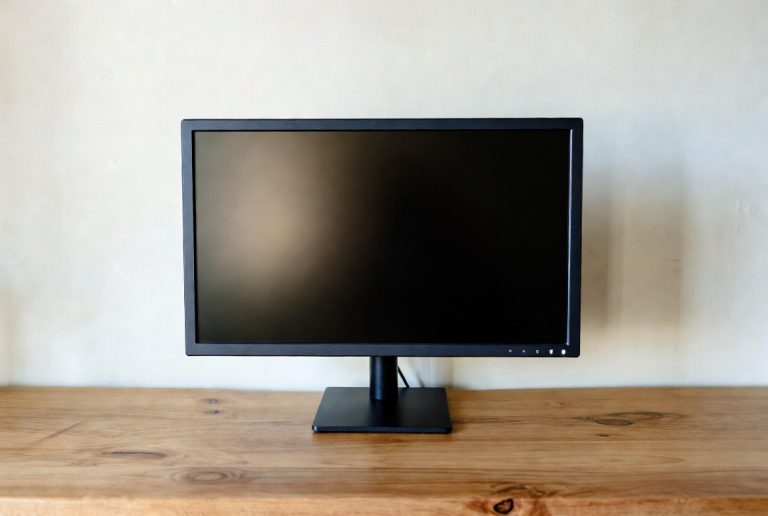
Many BenQ monitors feature the power button right along the bottom edge, usually towards one of the corners. You might need to run your fingers along the underside lip of the monitor. It’s often a small, discreet button. Sometimes it’s a physical button, and other times it might be a touch-sensitive area.
You’ll know you’ve found it if it feels slightly different or has a small power symbol next to it. A gentle press and release is all it usually takes. If you don’t see it immediately, try tilting the monitor slightly or looking for an indicator light.
The Back Panel: Another Common Location
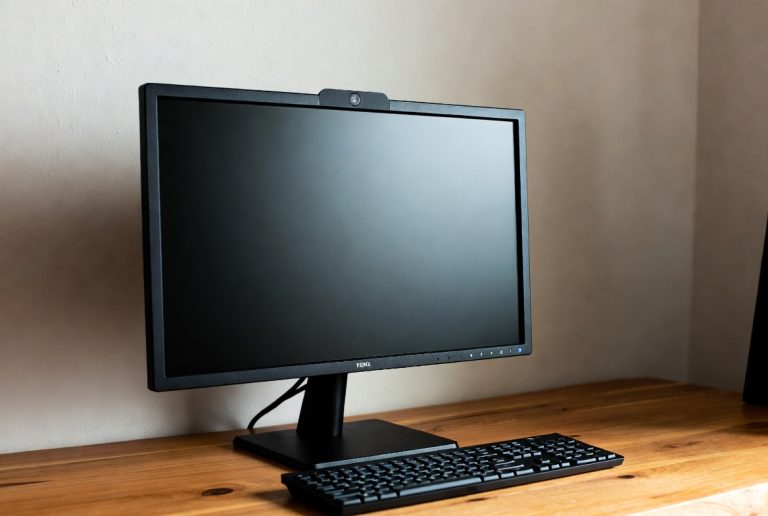
If you can’t find it on the bottom, flip your monitor around. The back panel is another frequent hiding place for the power button. It might be on the right or left side, often near where the cables connect. Some models have a joystick-like control on the back that you press to access menus and also use to power on/off.
Look for a small, round or rectangular button, or that joystick control. Again, a small power icon is your best friend here. This is especially true for monitors with cleaner, more minimalist front designs.
Behind the Screen: Less Common, But Possible
On rarer occasions, the button might be positioned on the rear of the display panel itself, slightly off-center. This is less common for BenQ, but it’s worth a quick check if other spots yield nothing. You’d be looking for a small protrusion or a recessed button.
The Power Connection: More Than Just the Button
Finding the button is only half the battle. The monitor needs power to even *respond* to that button press. This sounds obvious, but many power-on issues stem from simple connection problems.
Checking the Power Cable
First, ensure the power cable is securely plugged into the monitor. There’s a port on the back of your BenQ monitor for this. Give it a gentle push to make sure it’s fully seated. Sometimes, a cable can look plugged in but isn’t making a solid connection.
Next, check the other end of the power cable. Is it firmly plugged into a working wall outlet or power strip? We recommend plugging directly into a wall outlet for the initial setup to rule out issues with power strips or surge protectors. Many experts suggest this direct connection for initial testing (Energy Star Guidelines).
Is the Outlet Working?
It might seem silly, but it’s a common oversight. Is the outlet you’re using actually providing power? You can quickly test this by plugging in another device, like a lamp or a phone charger, to see if it powers on. If the outlet isn’t working, try a different one. This simple step can save a lot of frustration.
Built-in vs. External Power Bricks
Some BenQ monitors use a standard power cord that plugs directly into the monitor. Others might have an external power brick, like a laptop charger. If your monitor has a power brick, ensure both ends of that cable are securely connected – one to the monitor, and one to the wall outlet.
We’ve found that loose connections on these power bricks are a frequent culprit for a monitor not powering on. A quick wiggle and firm push can often resolve the issue.
Pressing the Power Button: The Moment of Truth
Once you’ve confirmed your power connections are solid, it’s time to actually press the button. Remember, it’s usually a quick press, not a long hold.
The Quick Press Method
A simple, brief press of the power button is typically all that’s needed. Hold it down for about one second, then release. You should hear a faint click or see an indicator light illuminate. Many BenQ models have a small LED light near the power button that glows or flashes when the monitor is on or in standby mode.
If you hold the button down for too long, some devices might interpret that as a command to enter a settings menu or even perform a factory reset. So, a quick tap is generally the way to go.
What to Expect When It Powers On
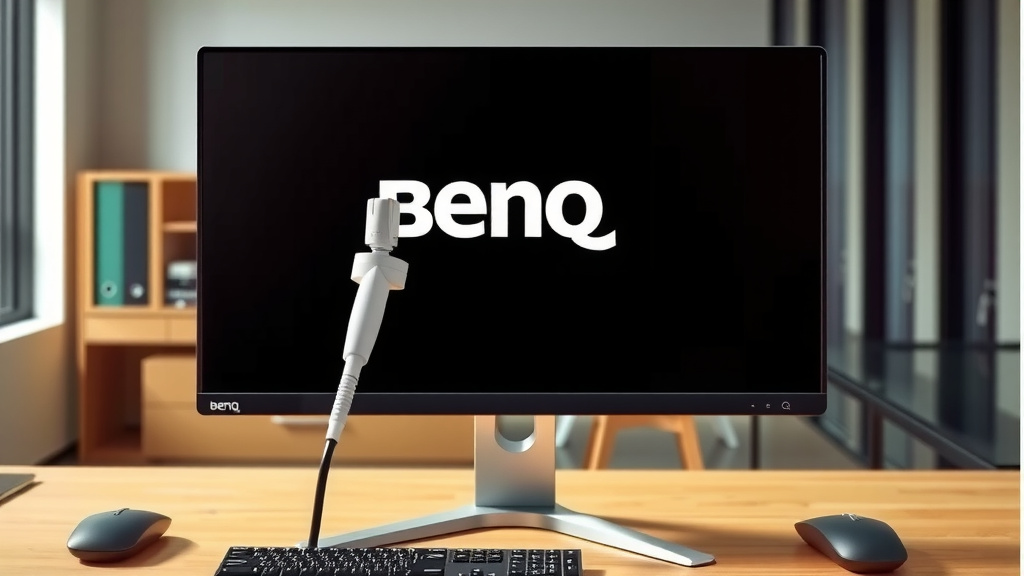
When your BenQ monitor successfully powers on, you’ll usually see the BenQ logo appear on the screen briefly. This is followed by the screen going to a default input (like HDMI or DisplayPort) or showing a “No Signal” message if no device is connected. An indicator light will typically turn solid or change color.
If you see the BenQ logo, you’re golden! The main challenge of powering on is overcome. The next step is connecting your computer or other device.
Troubleshooting: When It Doesn’t Turn On
It’s frustrating when technology doesn’t cooperate. If your BenQ monitor remains stubbornly black after checking connections and pressing the button, don’t despair. Let’s run through a quick checklist.
Basic Troubleshooting Steps
- Power Cycle: Unplug the monitor from the wall outlet. Press and hold the physical power button on the monitor for about 15-30 seconds. This can help discharge any residual power. Then, plug it back in and try powering it on normally.
- Try a Different Cable: If you have a spare power cable that matches your monitor’s connector, try using it. Cables can fail internally.
- Check Your Device: Ensure the computer or device you’re connecting to is also powered on and functioning correctly.
- Input Source: While not directly related to powering on, sometimes a monitor might appear “off” if it’s stuck on the wrong input source. You can try cycling through inputs if you can access the menu.
We found that the power cycle method is quite effective for many electronic devices when they seem unresponsive. It’s like giving the monitor a quick “reset.”
Understanding Indicator Lights
Many BenQ monitors feature an indicator light, often near the power button. This little light is your best friend for diagnosing power issues.
What the Lights Mean
| Light Color/State | Meaning |
|---|---|
| Solid Blue/White | Monitor is powered on and functioning normally. |
| Blinking Blue/White | Monitor is in standby mode or receiving a signal, but no input detected. |
| Solid Amber/Orange | Monitor is in power saving mode or standby. |
| No Light | Monitor is off, or there is no power getting to the monitor. |
If you press the power button and the light remains off, it strongly suggests a power supply issue. Double-check all your connections and the power outlet again. If there’s a solid amber light but no display, the monitor is getting power, but might not be receiving a signal from your computer.
Consulting Your Manual
Every BenQ model is a little different. If you’re still having trouble or the indicator lights are confusing, the best resource is your monitor’s user manual. It will have specific diagrams and troubleshooting tips tailored to your exact model. You can usually find a digital version on the BenQ support website by searching for your monitor’s model number.
Think of the manual as the expert on *your* specific BenQ. It’s written by the people who made it, after all!
Conclusion
You’ve now learned the simple steps to power on your BenQ monitor. Finding that elusive power button, whether on the bottom edge or back, is usually the first hurdle. We’ve also covered the importance of checking your power connections – a loose cable or non-working outlet can easily prevent your screen from coming to life. Remember to give the button a quick press and look for that indicator light.
If you’re still encountering issues, don’t forget those troubleshooting steps like power cycling or consulting your manual. Getting your BenQ monitor up and running is achievable with these tips. Now, go ahead and **connect your device** to enjoy your newly powered-on display!
Frequently Asked Questions
My BenQ monitor won’t turn on, and there’s no indicator light. What should I do?
If there’s absolutely no light, the most common reason is a power issue. Double-check that the power cable is securely plugged into both the monitor and a working wall outlet. Try plugging another device into the same outlet to confirm it’s active. If it still doesn’t light up, consider trying a different power cable if you have one available.
What does a blinking blue or white light on my BenQ monitor mean?
A blinking blue or white light usually indicates that your BenQ monitor is receiving power and is either in standby mode or attempting to detect a signal. This often means the monitor is “on,” but it’s not receiving a video input from your computer or device. Ensure your connected device is powered on and the correct input source is selected on your monitor.
How long should I hold the power button to turn on my BenQ monitor?
For most BenQ monitors, you only need a quick, brief press of the power button, usually about one second. Holding it down for too long can sometimes trigger other functions, like entering a menu or initiating a reset on certain models. A simple tap is generally sufficient to power it on.
Can I use a universal power adapter for my BenQ monitor if I lost the original?
While it might seem convenient, we strongly advise against using a universal power adapter unless it’s specifically designed for your BenQ monitor model and has the correct voltage and amperage. Using an incorrect adapter can potentially damage your monitor. Always try to use the original power supply or an official replacement recommended by BenQ.
My BenQ monitor shows the logo but then goes to a black screen. Is it broken?
This usually means your monitor is powering on correctly, but it’s not receiving a video signal. This is a common issue that isn’t related to the power button itself. First, check that your computer or connected device is turned on and not asleep. Then, verify that you’ve selected the correct input source (like HDMI or DisplayPort) on your monitor using its menu buttons.