How to Know If Your Computer Supports Dual Monitors
Yes, your computer likely supports dual monitors if it has the right ports and a graphics card that can handle it. Most modern computers are built with **dual monitor support** in mind, making it easier than you might think to **expand your screen space**. You just need to check a few things on your current setup.
Adding a second monitor can seriously boost your productivity. We’ve found that having more screen real estate helps you manage tasks more efficiently. It’s all about finding the **correct connections** and ensuring your graphics card is up to the task of displaying content on **two displays simultaneously**.
- Check your computer’s ports for video outputs.
- Identify your graphics card model and its capabilities.
- Understand the different types of video connectors (HDMI, DisplayPort, etc.).
- Confirm your operating system supports multiple monitors.
Ready to see if your PC is ready for a dual-monitor upgrade? Let’s walk through exactly how to check that!
“`htmlChecking Your Computer’s Dual Monitor Capabilities
So, you’re thinking about adding a second monitor to your setup? That’s a fantastic idea for productivity! But before you get too excited, let’s make sure your computer is ready for the show. It’s not as complicated as it sounds; we just need to do a little detective work on your current hardware.
Examining Your Computer’s Video Ports
The first and most obvious place to start is by looking at the back (or sides, for laptops) of your computer. You’re searching for specific types of ports designed to connect to a monitor. Think of these ports like doors that let video signals escape your computer and travel to a screen.
Most modern computers come equipped with several types of video output ports. You’ll want to identify how many of these your machine has. Do you see one, or do you see two or more?
Common Video Port Types You Might Find
- HDMI: This is probably the most common port you’ll see on newer devices. It’s used for both video and audio.
- DisplayPort (DP): Another modern standard, often found on desktop computers and professional monitors. It’s known for its high bandwidth.
- DVI: You might see this on slightly older machines. It’s a bit bulkier than HDMI or DisplayPort but still a solid video connector.
- VGA: This is the oldest type, usually blue with screw holes. If your computer only has VGA ports, you might be limited.
Your goal is to find ports that can send a video signal. If you have two or more of these ports, that’s a great sign! It means your computer physically has the capacity to send a signal to two separate screens.
Identifying Your Graphics Card and Its Support
Beyond just the ports, your computer’s graphics card (sometimes called a GPU or video card) is the powerhouse that actually generates the images for your screens. This is where the real magic happens, and it needs to be capable of handling more than one display at a time.
Most computers today have integrated graphics built right into the processor. However, many desktops and some performance laptops also have a dedicated graphics card. We’ve found that dedicated cards are generally more powerful and better suited for multiple monitors.
How to Find Your Graphics Card Information
Don’t worry if you don’t know what a graphics card is. Finding this information is usually pretty straightforward.
On Windows:
- Right-click on your desktop and select “Display settings.”
- Scroll down and click on “Advanced display settings.”
- Here, you should see your current display adapter listed. It will tell you the manufacturer (like Intel, NVIDIA, or AMD) and the model name.
On macOS:
- Click the Apple menu in the top-left corner.
- Select “About This Mac.”
- Look for the “Graphics” section. It will show you the graphics card your Mac is using.
Once you have the name of your graphics card, a quick online search will tell you its capabilities. Look for specifications like “number of displays supported” or “maximum resolution.” Many resources will tell you if a specific card can handle dual monitors.
Understanding Video Connectors: What They Mean for You
You’ve seen the different ports, but what do they actually do? Each type of connector has different capabilities. This is important because some older ports might not support multiple displays as easily as newer ones.
For instance, HDMI and DisplayPort are very versatile. We’ve found that they are generally excellent for supporting multiple monitors, often allowing you to chain displays together or use multiple outputs from a single card. DVI is also capable, though it might require adapters for some modern setups.
VGA is the outlier. It’s an analog signal, which can lead to lower image quality. While you can technically use VGA for a second monitor, it’s usually the least ideal option. If your computer relies solely on VGA, you might need to upgrade your graphics card or computer for a good dual-monitor experience.
Checking Your Operating System’s Support
The good news is that all modern operating systems are designed with multiple displays in mind. Windows, macOS, and even popular Linux distributions have built-in support for extending your desktop across two or more screens.
So, if your hardware has the right ports and a capable graphics card, your operating system should handle the rest without a hitch. You won’t need to install any special software just to get two monitors working. It’s pretty much plug-and-play once the hardware is set up correctly.
Putting It All Together: A Quick Checklist
Feeling a bit overwhelmed? Don’t be! Here’s a simple checklist to help you quickly assess your computer’s readiness:
- Count your video output ports: Do you have at least two ports like HDMI, DisplayPort, or DVI?
- Identify your graphics card: Look up its specs online.
- Check graphics card capabilities: Does it officially support two or more displays?
- Note your port types: Are they modern (HDMI, DP) or older (VGA)?
- Confirm your OS: (Likely yes) Your operating system almost certainly supports dual monitors.
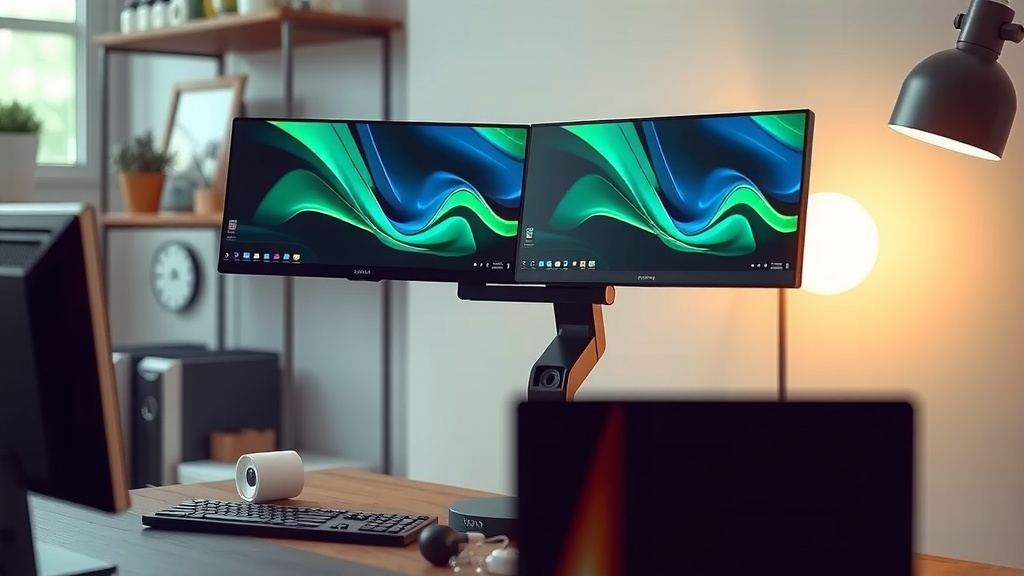
If you’ve got at least two modern video output ports and a graphics card that can handle multiple displays, you are very likely good to go! It’s like having two windows into your digital world, and it can make a huge difference in how you work or play.
“`
Conclusion
You’ve learned how to check your computer’s readiness for dual monitors. It mostly comes down to two things: having the right ports and a graphics card that can handle it. Most modern computers are already set up for this. Take a moment to look at your ports and check your graphics card specs online. If you have at least two video outputs and a capable GPU, you’re probably good to go. Your next step is simple: grab that second monitor and start enjoying your expanded workspace. It’s a simple upgrade that can make a big difference!
Frequently Asked Questions
What if my computer only has one video port?
If your computer only has one video output port, you likely cannot directly support two monitors without additional hardware. You might need to consider a USB-to-HDMI adapter or a docking station, or potentially upgrade your computer’s graphics card if it’s a desktop.
Can older computers support dual monitors?
Some older computers can support dual monitors, especially if they have multiple VGA or DVI ports. However, performance might be limited, and you may need adapters to connect to newer monitors. If it only has a single older port, it’s unlikely without upgrades.
Do I need a special graphics card for dual monitors?
Not usually for basic setups. Most integrated graphics cards in modern computers can handle dual monitors at standard resolutions. For higher resolutions, gaming, or demanding visual tasks, a dedicated graphics card with specific multi-monitor support is recommended.
Will adding a second monitor slow down my computer?
For most everyday tasks, adding a second monitor won’t noticeably slow down your computer, especially if your graphics card is capable. However, if your graphics card is older or underpowered, running very demanding applications on both screens simultaneously could impact performance.
What is the easiest way to check my graphics card model?
On Windows, the quickest way is to right-click on your desktop, select “Display settings,” then “Advanced display settings,” and your graphics card model will be listed under “Display adapter properties.” On a Mac, go to the Apple menu and select “About This Mac,” then look for the “Graphics” section.