How to Install Dual Monitors
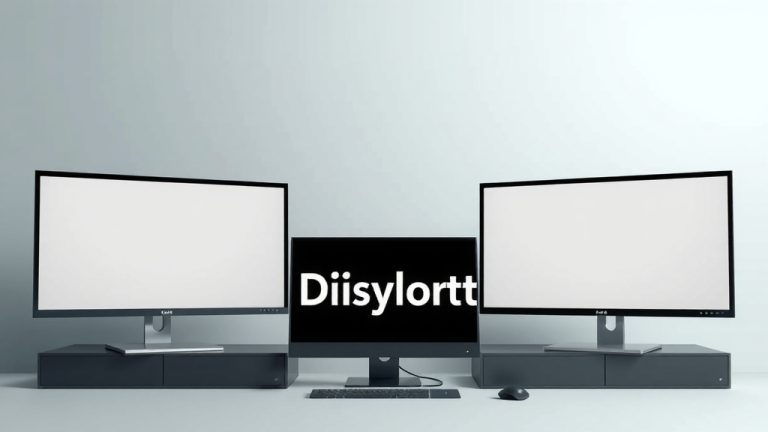
Yes, you can easily install dual monitors yourself! It’s a straightforward process that can boost your productivity and make multitasking a breeze. You just need to ensure your computer has the right ports and cables.
Adding a second screen gives you more space to work. Think of it like getting a bigger desk, but for your computer. Many users find that a dual monitor setup reduces switching between windows. It’s a simple upgrade with big benefits.
- Connect your second monitor to your computer’s graphics card.
- Ensure your computer recognizes the new display.
- Adjust display settings for optimal arrangement.
- Enjoy your expanded workspace!
Let’s walk through exactly how to get your second monitor set up and running in just a few simple steps.
“`htmlSetting Up Your Second Monitor: A Simple Guide
You’re ready to expand your digital workspace! Installing a second monitor is a fantastic way to boost your efficiency. We’ll guide you through the steps to get it connected and working smoothly.
Checking Your Computer’s Connections
Before you even unbox that shiny new screen, let’s make sure your computer is ready for action. This is the most important first step.
Identifying Available Ports
Your computer’s graphics card (or integrated graphics) is where your monitors connect. You need to find the right ports. What kind of ports does your computer have? Common types include HDMI, DisplayPort, and DVI. Some older computers might still have VGA ports.
You’ll want to look at the back of your desktop computer. For laptops, check the sides or back. You’re looking for rectangular or slightly rounded openings where cables plug in. Most modern computers will have at least one HDMI or DisplayPort.
Matching Ports to Cables
Once you know your available ports, you need the right cables. Your new monitor likely came with a cable, but it might not match your computer’s ports. If it doesn’t, you’ll need to buy a compatible cable.
For example, if your graphics card has an HDMI port and your monitor has an HDMI port, you’ll need an HDMI cable. If your graphics card has a DisplayPort and your monitor has HDMI, you’ll need a DisplayPort to HDMI cable. Make sure the cable supports the resolution and refresh rate you want.
Connecting Your New Display
With your ports identified and cables in hand, it’s time to physically connect everything. This is where it starts to feel real!
Plugging In the Monitor
First, connect the monitor’s power cable to the monitor and plug it into a wall outlet or surge protector. Next, take your video cable (HDMI, DisplayPort, etc.) and plug one end into the corresponding port on your graphics card or motherboard. Then, plug the other end into your new monitor.
It sounds simple, but sometimes a loose connection can cause issues. Make sure the cables are seated firmly in their ports. You shouldn’t feel any wobble.
Powering Up and Initial Boot
Turn on your new monitor. Then, power on your computer. Most modern operating systems, like Windows and macOS, are pretty smart. They’ll often automatically detect the new display during the boot-up process. You might even see your computer’s startup logo appear on both screens!
If your computer only boots to one screen, don’t worry. We’ll cover how to get it recognized next.
Configuring Your Display Settings
Now that your monitor is connected, you need to tell your computer how to use it. This is where you arrange your screens and set them up how you like.
Windows Display Settings
On Windows, right-click anywhere on your desktop and select “Display settings”. You’ll see a diagram representing your monitors, usually numbered 1 and 2. If you don’t see your second monitor, scroll down and click “Detect”.
Once both monitors appear, you can drag and drop them in the diagram to match their physical arrangement on your desk. This is important! It ensures your mouse cursor moves naturally between screens. For instance, if your second monitor is to the right of your main one, drag the monitor icon to the right.
Setting Your Main Display
You can choose which monitor is your primary display. This is where your taskbar and system icons will appear. Scroll down in the Display settings and check the box that says “Make this my main display” under the monitor you want as primary.
Display Modes Explained
Below your monitor arrangement, you’ll find “Multiple displays” options. You’ll typically see:
- Duplicate these displays: Shows the same image on both screens. Good for presentations.
- Extend these displays: This is what most people want for dual monitors. It creates one large desktop across both screens.
- Show only on 1 / Show only on 2: Disables one of the monitors.
Select “Extend these displays” for your dual monitor setup. You can also adjust the resolution and orientation for each monitor here. Ensure each monitor is set to its native resolution for the clearest picture.
macOS Display Settings
On a Mac, go to the Apple menu and select “System Settings” (or “System Preferences” on older versions). Then, click on “Displays”.
Your connected displays will appear. You can arrange them by dragging the monitor icons to match their physical positions. A red border will flash around the screen you’re dragging. This helps you identify which monitor is which.
Arranging and Mirroring on Mac
Click the “Arrangement” tab. Here, you can drag the displays to align them. The white bar at the top represents your primary display’s menu bar. Drag this white bar to the monitor you want as your main screen.
If you want both screens to show the same thing, you can check the “Mirror Displays” box. For an extended desktop, leave this unchecked. Like Windows, you can adjust resolutions and refresh rates here.
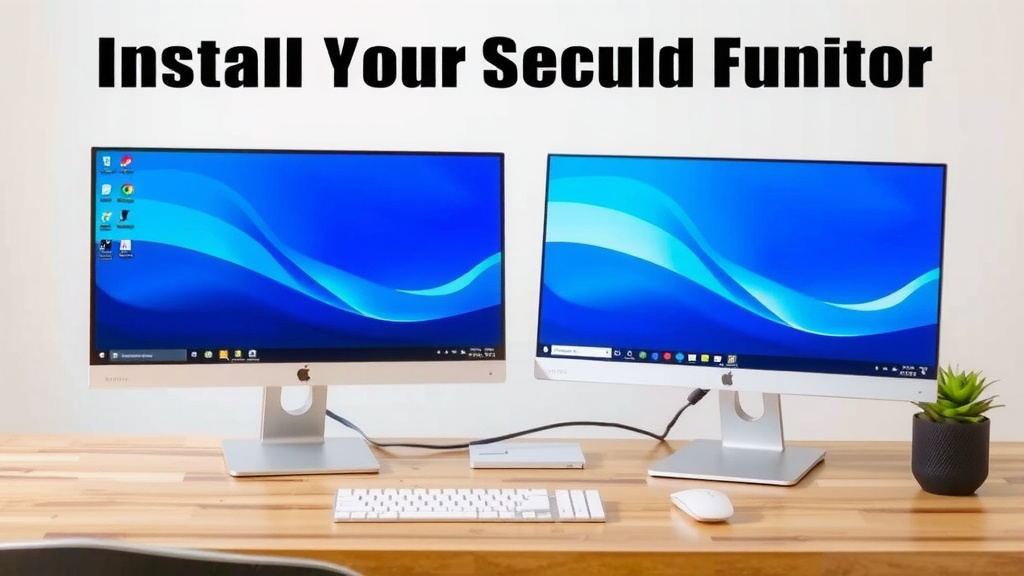
Optimizing Your Dual Monitor Experience
With everything connected and configured, you’re almost there! A few tweaks can make your new setup even better.
Physical Arrangement Matters
Position your monitors side-by-side if possible. This allows for smooth mouse movement. Try to keep the top edges of the monitors at the same height. This minimizes a jarring visual jump when moving your eyes between screens.
Many experts suggest placing your primary monitor directly in front of you, with the secondary monitor to the side. This reduces neck strain. We found that slight adjustments to monitor height and angle can make a big difference over time (Cleveland Clinic).
Software and Workflow Tips
Take advantage of the extra space! Keep your email or chat applications on one screen. Use your main screen for your active project. You can also use display management software. Some programs help you create custom screen layouts or snap windows into place.
Consider what you do most often. If you code, you might put your code on one screen and documentation on the other. If you’re a graphic designer, you might have your tools on one and your canvas on the other. Experiment to find what works best for your workflow.
Troubleshooting Common Issues
Sometimes, things don’t go perfectly the first time. Don’t get discouraged!
No Signal or Black Screen
If your second monitor shows “No Signal” or stays black, first double-check all cable connections. Ensure they are securely plugged into both the monitor and the computer. Try a different video port on your computer if available. Also, make sure the correct input source is selected on the monitor itself.
Incorrect Resolution or Fuzzy Display
This often happens if the computer isn’t using the monitor’s native resolution. Go back into your display settings (Windows: Display Settings, macOS: System Settings > Displays) and select the recommended resolution for your monitor. If the display still looks fuzzy, a different or higher-quality cable might be needed.
Mouse Cursor Movement Issues
If your mouse cursor jumps erratically or gets stuck, it’s usually because the monitor arrangement in your computer’s settings doesn’t match how they are physically placed. Go back to your display settings and drag the monitor icons to accurately reflect their real-world positions.
Quick Setup Checklist
- Verify your computer has compatible video ports.
- Use the correct video cable for your ports.
- Connect the monitor’s power and video cables securely.
- Power on the monitor and then the computer.
- Configure display settings to “Extend these displays.”
- Arrange monitor icons to match physical placement.
You’ve done it! You now have a dual monitor setup. Enjoy the extra screen real estate and get ready to multitask like a pro.
“`Conclusion
You’ve successfully navigated the steps to set up your dual monitors! It’s a rewarding upgrade that significantly expands your workspace and makes multitasking much smoother. We covered checking your ports, making the physical connections, and configuring your display settings in both Windows and macOS. Remember to adjust your physical setup for comfort and explore software to optimize your new workflow. Your enhanced productivity awaits!
Now, go enjoy your expanded digital desktop and see how much more you can accomplish!
Frequently Asked Questions
Can I use two different types of monitors with my computer?
Yes, you absolutely can mix and match monitors. As long as your graphics card has the correct ports and you use the right cables (possibly with adapters), your computer can manage displays of different sizes, resolutions, and brands. Just ensure your system can support the combined resolution.
What if my computer doesn’t have enough video ports for a second monitor?
If your computer is lacking ports, you have a few options. You could consider a USB to HDMI or DisplayPort adapter, which essentially adds a video output. For desktops, upgrading your graphics card to one with more outputs is another common solution. Some docking stations also offer multiple display connections for laptops.
How do I make sure my mouse moves smoothly between screens?
This is all about arranging your display icons in your computer’s settings to match their physical placement. Drag the monitor icons in the “Display settings” (Windows) or “Displays” (macOS) menu so they mirror how your monitors are actually positioned on your desk. This ensures your cursor flows naturally from one screen to the next.
Do I need a powerful graphics card for dual monitors?
For basic tasks like web browsing, office work, and general productivity, most modern integrated graphics or entry-level dedicated graphics cards are sufficient. However, if you plan to do demanding tasks like gaming or heavy video editing across both screens, a more powerful graphics card would be beneficial.
Can I use a TV as a second monitor?
In many cases, yes! Modern TVs often have HDMI ports that are compatible with most computers. You’ll want to ensure the TV supports the resolution you desire and check the refresh rate. Connecting a TV might offer a large viewing area, but be mindful of potential input lag, which can affect responsiveness for fast-paced activities.