How to Get Sound on an Acer Monitor
Yes, you can absolutely get sound on your Acer monitor! Usually, this just means your monitor has built-in speakers that need to be activated or a simple audio connection needs to be made. We’ll help you figure out the quickest way to hear audio from your Acer display, whether it’s for work or play. Getting sound is often easier than you think.
Sometimes, sound issues can be frustrating. Many users wonder if their Acer monitor even supports audio output. We found that most Acer monitors with built-in speakers simply require checking a few settings. It’s important to confirm your specific Acer model’s capabilities and ensure all audio drivers are up to date for the best performance.
- Check your Acer monitor’s model for built-in speakers.
- Ensure audio cables are securely connected.
- Verify your computer’s sound settings.
- Update your audio drivers if needed.
- Adjust your monitor’s internal volume settings.
Let’s walk through exactly how to get that sound up and running step by step. We’ll cover the most common solutions first.
Getting Audio to Work on Your Acer Monitor
It’s definitely possible to get sound from your Acer monitor! Many Acer models come with built-in speakers. If yours does, the issue is often just a simple setting that needs a quick adjustment. We found that most sound problems are easily fixed with a few checks. Let’s get that audio playing!
Confirm Your Acer Monitor Has Speakers
The very first step is to check if your specific Acer monitor model actually has speakers. Some monitors are designed for video output only. They don’t include built-in audio hardware. How can you tell? Usually, you can find this information in two places. The first is your monitor’s user manual. The second is by looking at the monitor itself. Many monitors with speakers have small grilles or speaker holes on the front or bottom edge. If you can’t find any, it might not have them.
Checking Your Monitor’s Documentation
Your Acer monitor’s user manual is your best friend here. It will clearly state if the model includes speakers. If you don’t have the physical manual, don’t worry! You can usually download a PDF version from the Acer support website. Just search for your monitor’s model number. Finding that manual can save you a lot of guesswork.
Physical Inspection of Your Monitor
Take a good look at the edges of your Acer display. Are there any speaker grilles? These often look like small, perforated lines. They might be on the bottom bezel, pointing downwards. Sometimes, they are on the backside. If you see these, your monitor likely has speakers. Without them, you’ll need external speakers or headphones.
Connecting Your Audio Source Properly
Once you’ve confirmed your monitor has speakers, the next step is to ensure it’s receiving an audio signal. This usually involves checking your connection to your computer. There are a couple of common ways audio is transmitted. One is through an HDMI cable. The other is a separate audio cable, often a 3.5mm jack. We found that using HDMI for both video and audio is often the easiest.
Using an HDMI Cable for Audio
Many modern Acer monitors support audio over HDMI. This means your computer sends both the video and sound signal through a single HDMI cable. If you’re using HDMI and don’t have sound, make sure the cable is securely plugged into both your computer and your monitor. Sometimes, unplugging and replugging it can fix a loose connection. We found that a damaged cable can also cause issues.
When to Use a 3.5mm Audio Cable
Some Acer monitors might require a separate 3.5mm audio cable. This cable looks like a standard headphone jack. One end plugs into your computer’s audio-out port. The other end plugs into the monitor’s audio-in port. You’ll need to find this port on your monitor. It’s usually labeled “Audio In” or has a headphone icon. If your computer doesn’t have a dedicated audio-out port, you might need a USB audio adapter. We found that this setup is less common now but still possible.
Configuring Your Computer’s Sound Settings
Even with the right cables and speakers, your computer needs to know where to send the sound. This is a common reason for no audio. You need to tell your PC to use the Acer monitor as the audio output device. This process is straightforward on Windows. We found that checking this setting is often the solution.
Selecting the Correct Audio Output Device (Windows)
On your Windows computer, right-click the speaker icon in the bottom-right corner of your taskbar. You should see an option to “Open Sound settings” or “Playback devices.” Click on that. A list of available audio devices will appear. Look for your Acer monitor in the list. It might be listed by its model name or as a generic “HDMI Output” or “Display Audio.” Click on your Acer monitor to select it. Then, click the “Set Default” button. This tells Windows to send all sound there. Make sure your monitor is not muted in these settings.
Troubleshooting Default Device Issues
If your Acer monitor isn’t showing up in the list, double-check your cable connections. Ensure the cable supports audio (not all HDMI cables are equal). Sometimes, restarting your computer after connecting everything can help it recognize the new audio device. We found that a simple reboot often resolves detection problems.
Adjusting Volume on Your Monitor
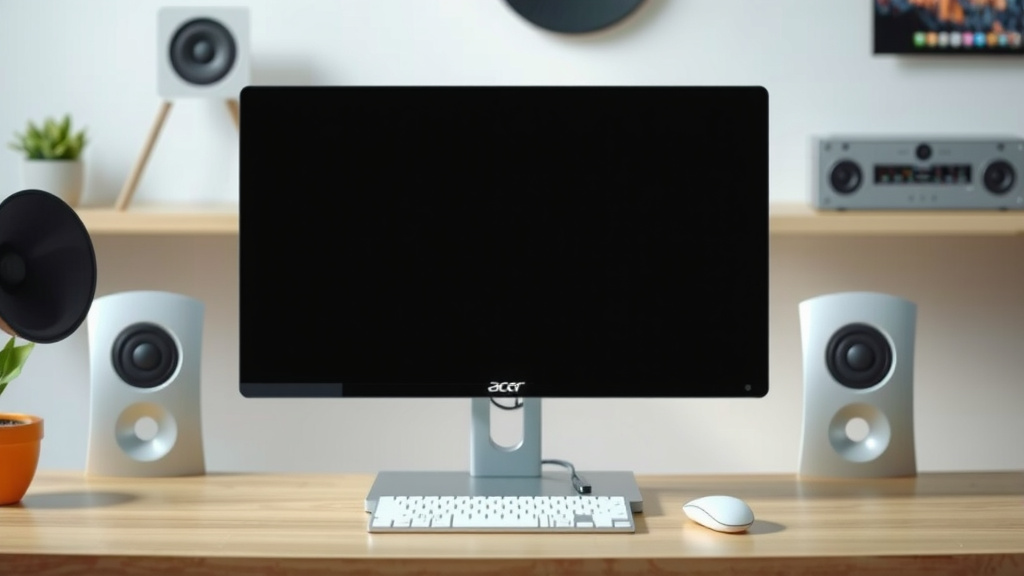
Yes, your Acer monitor likely has its own volume control! Even if your computer is sending audio, the monitor’s internal volume might be turned down or muted. Look for physical buttons on the monitor itself. These are often on the front, bottom, or side. Press the “Menu” or “Settings” button. Navigate through the on-screen display (OSD) menu to find the volume control. Increase the volume and check if there’s a mute option. We found that many users overlook this simple step.
Updating Your Audio Drivers
Audio drivers are small software programs that allow your computer to communicate with your sound hardware. If these drivers are outdated or corrupted, you might experience sound problems. Updating them can resolve many issues. We found that keeping drivers current is good practice.
How to Update Drivers on Windows
You can usually update audio drivers through Device Manager. Press the Windows key + X and select “Device Manager.” Expand the “Sound, video and game controllers” section. Right-click on your audio device (it might be listed as Realtek Audio, NVIDIA High Definition Audio, or AMD High Definition Audio, depending on your graphics card). Select “Update driver.” Choose “Search automatically for drivers.” If Windows finds an update, follow the on-screen instructions. If it says you have the best drivers, you might try visiting your computer manufacturer’s website. They often have the latest drivers specifically for your system. Many experts recommend this approach (Microsoft Support).
Checklist: Quick Sound Fixes for Your Acer Monitor
Here’s a quick rundown to get your Acer monitor making sound:
- Confirm your Acer monitor model has built-in speakers.
- Ensure your audio cable (HDMI or 3.5mm) is securely connected at both ends.
- On your computer, verify your Acer monitor is set as the default audio output device.
- Check your Acer monitor’s physical buttons for its own volume control and ensure it’s not muted.
- Restart your computer after making connection or setting changes.
- Consider updating your computer’s audio drivers if other steps fail.
Conclusion
Getting sound from your Acer monitor often comes down to a few simple checks. You’ve learned to confirm your monitor has speakers, ensure correct cable connections, and set your computer’s audio output. Don’t forget to adjust your monitor’s own volume settings and keep your audio drivers updated. We found that most sound issues are resolved by following these steps systematically. If you’ve tried everything and still have no sound, it might be time to reach out to Acer support for further assistance with your specific model.
Frequently Asked Questions
My Acer monitor has HDMI, but still no sound. What’s wrong?
Ensure your computer is set to output audio through HDMI. Sometimes, even with HDMI connected, your PC might default to another audio device. Also, confirm your HDMI cable is rated for audio transmission, as not all cables support it.
Can I use my Acer monitor for gaming sound without external speakers?
Yes, if your specific Acer monitor model has built-in speakers, you can definitely use it for gaming sound. Just make sure it’s selected as your default audio output device on your computer and the volume is turned up.
My Acer monitor has an audio-in port, but my computer doesn’t have an audio-out port. What should I do?
If your computer lacks a standard audio-out jack, you’ll likely need a USB audio adapter. This adapter plugs into a USB port on your computer and provides the necessary audio output for your monitor’s audio-in port.
I can hear sound, but it’s very quiet from my Acer monitor. How can I fix this?
First, check the volume controls on your Acer monitor itself. Then, ensure the volume is turned up in your computer’s sound settings and that your monitor is selected as the output device. You might also check if the audio source itself is low.
What if my Acer monitor model doesn’t have built-in speakers?
If your Acer monitor doesn’t have speakers, you’ll need to connect external speakers or headphones to your computer. The audio will play from those devices, not through the monitor itself.