How to Get Your Monitor Out of Standby Mode
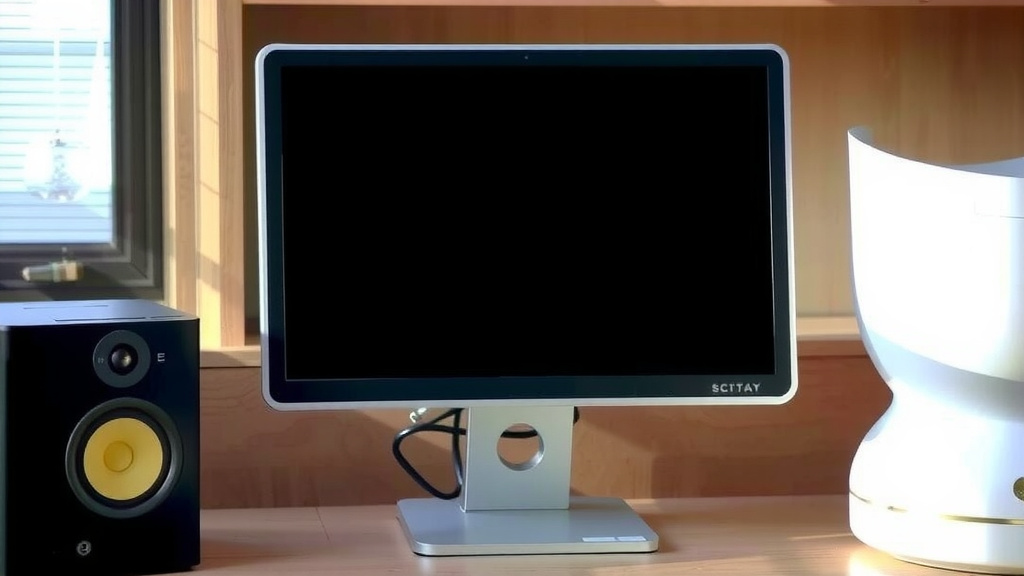
The simplest way to get your monitor out of standby mode is to press any key on your keyboard or move your mouse. Your monitor should wake up almost instantly. Sometimes, you might need to press the power button on the monitor itself if the keyboard or mouse doesn’t do the trick.
It’s frustrating when your screen stays black, especially when you’re ready to get back to work or play. This standby mode, often called sleep mode, is designed to save energy. But when it doesn’t wake up as expected, it can cause a minor panic. We found that most of the time, a simple input will solve it.
- Wake your monitor by moving your mouse.
- Try pressing a key on your keyboard next.
- If that fails, locate the monitor’s power button.
- Check your computer’s power settings too.
- Ensure all cables are securely connected.
Let’s walk through exactly how to get your display back online, step by step.
Getting Your Monitor Back Online After Standby
It’s a familiar scene: you step away from your computer for a moment, and when you return, your screen is black. Your monitor has likely entered standby mode to conserve energy. Usually, waking it up is as simple as moving your mouse or tapping a key. But what happens when those simple actions don’t work? Don’t worry, we’ve got you covered. We’ll guide you through the steps to get your display back to its full glory.
Common Reasons for a Stubborn Monitor
Sometimes, your monitor might seem stuck in standby, even after you’ve tried the usual tricks. This can be due to a few common issues. Understanding these can help you solve the problem faster. We found that connection problems are quite frequent culprits.
Checking Your Cable Connections
The first and often overlooked step is to check all your cable connections. A loose cable can prevent your computer from sending the wake-up signal to your monitor. Make sure the cable connecting your computer to your monitor is securely plugged in at both ends. This includes the power cable for the monitor itself.
Video Cable Check
Your video cable (like HDMI, DisplayPort, or DVI) is the lifeline for your display. Ensure it’s firmly seated in both the graphics card on your computer and the corresponding port on your monitor. Sometimes, just unplugging and replugging it can resolve a connection glitch.
Power Cable Check
It sounds basic, but double-checking your monitor’s power cord is essential. Is it plugged securely into the wall outlet and the monitor? If you’re using a power strip, try plugging the monitor directly into the wall to rule out any issues with the strip itself.
Understanding Your Monitor’s Power Button
Most monitors have a physical power button. This isn’t just for turning the monitor on and off initially. It can often be used to wake the display from standby mode. Many people forget about this button when their screen goes black.
Locating the Button
These buttons are typically found on the front, bottom, or back edge of the monitor. They might be a physical button, a touch-sensitive area, or even a small joystick-like control. Refer to your monitor’s manual if you’re having trouble finding it.
Using the Power Button to Wake
Once you locate it, try pressing the monitor’s power button. A quick press usually suffices. If that doesn’t work, try holding it down for a few seconds. This can sometimes force the monitor to reset and wake up. We found this to be a very effective method when keyboard and mouse inputs fail.
Computer Power Settings and Sleep Mode
Your computer’s power settings play a big role in when your monitor goes into standby. If your computer itself is in sleep mode, the monitor won’t receive a signal and will remain off. Let’s look at how your computer’s sleep settings might be affecting your monitor.
How Computer Sleep Mode Works
When your computer goes into sleep mode, it conserves power by shutting down most components, including the display output. This is different from the monitor going into standby. The computer needs to be awake for the monitor to wake up properly.
Adjusting Power & Sleep Settings
You can often control how long your computer waits before going to sleep and how long your display stays on before turning off. These settings are usually found in your operating system’s control panel or settings menu. We recommend setting your display to turn off after a reasonable period, but not so short that it’s constantly going to standby.
Windows Settings Example
On Windows, you can find these options by searching for “Power & sleep settings.” Here, you can adjust screen timeout and sleep timers. Ensuring these are set appropriately can prevent unexpected monitor downtime. Many users find tweaking these settings solves recurring issues.
macOS Settings Example
For Mac users, navigate to “System Settings” (or “System Preferences” on older versions) and then “Energy Saver” (or “Battery” on newer Macs). You can adjust when the display sleeps. Making sure your Mac isn’t set to go to sleep too quickly is key.
Troubleshooting Advanced Issues
If the basic steps haven’t solved your problem, there might be a more technical issue at play. Sometimes, the problem lies within the communication between your computer and the monitor.
Checking Graphics Card Drivers
Outdated or corrupted graphics card drivers can cause display problems, including issues with standby mode. Keeping your drivers updated is good practice for overall system performance and stability. Many experts recommend checking for driver updates periodically (NVIDIA, AMD, Intel).
How to Update Drivers
You can usually update your graphics drivers through the manufacturer’s website (NVIDIA, AMD, or Intel) or through your operating system’s device manager. A fresh driver installation can sometimes clear up stubborn display quirks.
Testing with Another Monitor or Computer
To pinpoint whether the problem is with your monitor or your computer, try connecting a different monitor to your computer, or connect your current monitor to a different computer. This diagnostic step can help you understand where the fault lies.
Quick Checklist for Monitor Woes
Here’s a handy checklist to run through if your monitor is acting stubborn:
- Confirm all cables are snug at both ends.
- Press the monitor’s physical power button.
- Gently wiggle your mouse.
- Tap a key on your keyboard.
- Check your computer’s sleep settings.
- Restart your computer and monitor.
Conclusion
You’ve now learned several ways to get your monitor out of standby mode. We found that the simplest solutions often involve basic checks like moving your mouse, pressing a key, or using the monitor’s power button. If those don’t work, checking your cable connections and adjusting your computer’s power settings can resolve the issue. Don’t forget to update your graphics drivers if problems persist. If your monitor is still acting up, try testing it with another device. By following these steps, you should be able to get your display back online quickly.
Frequently Asked Questions
Why does my monitor keep going into standby mode so quickly?
Your monitor likely has a low timeout setting in your computer’s power options. You can adjust this in your operating system’s power and sleep settings to prevent it from entering standby too rapidly. We recommend finding a balance that conserves energy without being inconvenient.
Can a loose cable really cause my monitor not to wake up?
Yes, absolutely. A loose video cable or power cable can prevent the necessary signals from reaching your monitor. We found that ensuring all connections are snug is a common fix for wake-up issues.
What’s the difference between monitor standby and computer sleep mode?
Monitor standby is when the display itself conserves power, often when it doesn’t receive a signal. Computer sleep mode is when the entire computer goes into a low-power state; your monitor can’t wake up if the computer is asleep.
Is it bad for my monitor to be in standby mode often?
Generally, no. Standby mode is designed to save energy and prolong the life of your monitor components by reducing constant power draw. It’s perfectly normal for monitors to enter this state when not in use.
My monitor is black, but the power light is on. Is it in standby?
A solid power light, often a different color than when fully on, usually indicates standby mode. If the screen is black but the light is on, try the simple wake-up methods like moving your mouse or pressing a key first.