How to Find Your Monitor Size
Finding the right monitor size is about balancing your desk space with your viewing needs. We found that measuring your available desk area and considering what you’ll use the monitor for are the most important first steps. A larger screen isn’t always better; it depends on your personal setup and how close you’ll sit.
The diagonal measurement, usually in inches, tells you how big the screen is. But don’t just go for the biggest you can fit. Think about resolution, too, as it affects how sharp images appear on different screen sizes. We found that many people overlook this, leading to disappointment.
- Measure your desk first.
- Think about what you do on your computer.
- Consider screen resolution.
- Smaller monitors are great for tight spaces.
- Larger monitors are better for gaming and design work.
Let’s walk through how to figure out the perfect monitor size for your space and your work step by step.
Choosing the Right Monitor Size for Your Space
Picking the ideal monitor size is a surprisingly personal journey. It’s not just about getting the biggest screen possible. We found that a monitor’s size dramatically impacts your comfort and productivity. Let’s figure out what works best for your setup. We’ll guide you through the key considerations.
Understanding Monitor Dimensions
Monitors are measured diagonally. This means from one corner to the opposite corner. This measurement is always in inches. A 24-inch monitor has a diagonal screen measurement of 24 inches. This is the standard way to talk about screen size.
How Your Viewing Distance Matters
Where you sit relative to your monitor is a big deal. This is called your viewing distance. If you sit very close, a huge screen can feel overwhelming. You might end up moving your head a lot to see everything. That’s tiring. On the other hand, sitting too far from a small screen strains your eyes. You might lean forward constantly.
We found that a good rule of thumb is to keep the monitor at arm’s length. This distance is usually about 2 to 3 feet. For most people, a monitor between 24 and 32 inches fits this sweet spot perfectly. This distance allows you to see the whole screen without much effort.
What Do You Use Your Computer For?
Your daily computer tasks are a primary driver for monitor size. What you do influences what size screen will benefit you most. Think about your primary computer activities. Are you mostly writing emails and browsing the web? Or are you deep into video editing or gaming?
Everyday Computing and Office Work
For standard tasks like email, web browsing, and document editing, smaller monitors often suffice. Many experts suggest that 22 to 24 inches is perfectly adequate. This size won’t overwhelm your desk. It also keeps everything within easy view. You won’t need to do much scrolling or zooming.
We found that resolution plays a role here too. A 24-inch monitor with a 1920×1080 (Full HD) resolution is a popular choice. It offers a crisp display for these common tasks. You get good detail without needing a massive screen. It’s a balanced option for most home offices.
Gaming and Entertainment Needs
Gamers and movie buffs often crave an immersive experience. This usually means wanting a larger screen. We found that monitors 27 inches and above are very popular for gaming. They can fill your field of vision more effectively. This makes games feel more engaging.
However, with larger screens, resolution becomes even more critical. A 27-inch monitor should ideally have at least a 2560×1440 (QHD) resolution. A 32-inch or larger monitor benefits greatly from 3840×2160 (4K) resolution. This prevents images from looking grainy or pixelated. You want sharp details, especially in fast-paced games.
Creative Work and Multitasking
If your work involves graphic design, video editing, or programming, screen real estate is key. More space means you can see more of your project at once. This reduces the need to constantly pan and zoom. We found that many professionals prefer monitors 27 inches and larger for these roles.
Ultrawide monitors are also a great option here. These are significantly wider than they are tall. They offer an expansive view, perfect for timelines in video editing or multiple code windows. A 34-inch ultrawide can be like having two standard monitors side-by-side, but without the bezel in the middle. This makes it a powerful tool for productivity.
Consider Your Desk Space and Ergonomics
Your desk size is a hard limit. You don’t want a monitor that hangs over the edges or makes it impossible to use your keyboard comfortably. Measure your available desk space before you even start looking. Pay attention to the depth too. Some monitors are deeper than others due to their stands.
We found that a 24-inch monitor is generally a safe bet for smaller desks. It offers a good balance of screen size and footprint. A 27-inch monitor is often considered the sweet spot for many standard desks. It provides more screen real estate without dominating the space. For larger desks, you have more freedom to go up to 32 inches or even larger.
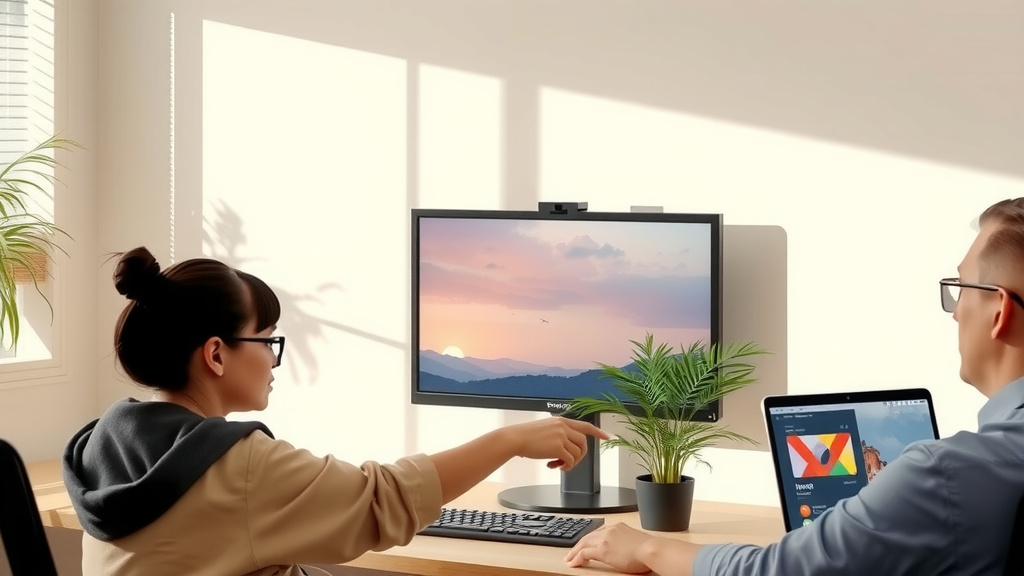
Remember to also consider ergonomics. Your monitor should be positioned so the top of the screen is at or slightly below eye level. This helps prevent neck strain. If you get a large monitor, ensure you can position it correctly. You might need a monitor arm for optimal placement and to free up desk space. This is a wise investment for comfort.
Resolution: More Than Just Pixels
You can’t talk about monitor size without mentioning resolution. Resolution refers to the number of pixels on the screen. More pixels mean a sharper image. The common resolutions you’ll see are:
| Resolution Name | Pixels (Width x Height) | Common Monitor Sizes |
|---|---|---|
| Full HD (FHD) | 1920 x 1080 | 21-27 inches |
| Quad HD (QHD) or 2K | 2560 x 1440 | 25-32 inches |
| Ultra HD (UHD) or 4K | 3840 x 2160 | 27 inches and larger |
We found that on smaller monitors (like 21-24 inches), Full HD provides good clarity. On larger monitors (27 inches and up), Full HD can start to look a bit pixelated. This is because the pixels are more spread out. For these larger sizes, QHD or 4K offers a much sharper and more detailed picture. You get a smoother viewing experience.
A Quick Checklist for Your Monitor Size Decision
Let’s summarize what we’ve discussed. Use this quick list to help you decide:
- Measure your desk area carefully.
- Note your typical viewing distance.
- List your primary computer activities.
- Consider how many applications you run side-by-side.
- Think about your budget.
- Check the monitor’s resolution.
By going through these steps, you’ll be well on your way to selecting a monitor size that fits your needs and your space perfectly. It’s all about finding that ideal balance.
Conclusion
You’ve learned that finding your ideal monitor size is a personal journey. It balances your desk space, how you sit, and what you do on your computer. We found that measuring your desk and understanding your viewing distance are your first essential steps. Don’t forget that resolution plays a big part in sharpness, especially on larger screens. By considering your daily tasks, from everyday work to creative projects, you can make an informed choice. Now, take those measurements and your task list to find the perfect fit for your setup!
Frequently Asked Questions
What’s the best monitor size if I have a small desk?
For smaller desks, we found that a 22-inch to 24-inch monitor is often the best choice. These sizes offer a good viewing area without taking up too much surface space. They also tend to be more budget-friendly. Make sure you can still comfortably place your keyboard and mouse.
How do I know if I need a higher resolution?
You’ll benefit from a higher resolution, like QHD or 4K, if you’re using larger monitors (27 inches and up). We found that Full HD on a big screen can make text and images appear pixelated. Higher resolutions provide sharper details, which is especially important for gaming, photo editing, or watching movies.
Is an ultrawide monitor good for multitasking?
Yes, ultrawide monitors are excellent for multitasking. Their expansive aspect ratio allows you to view multiple windows side-by-side without bezels in the middle. We found this can significantly boost productivity for tasks like coding or managing spreadsheets.
Should I consider a monitor arm?
A monitor arm is a wise investment, especially for larger monitors or if you have limited desk space. It allows you to adjust the monitor’s position easily for optimal ergonomics and can free up valuable desk real estate. This helps you achieve the ideal viewing height and distance.
What is the standard viewing distance for most monitors?
We found that a typical viewing distance is about an arm’s length away, roughly 2 to 3 feet. For this distance, monitors between 24 and 32 inches often provide a comfortable and immersive experience. If you sit much closer, you might prefer a smaller screen to avoid strain.