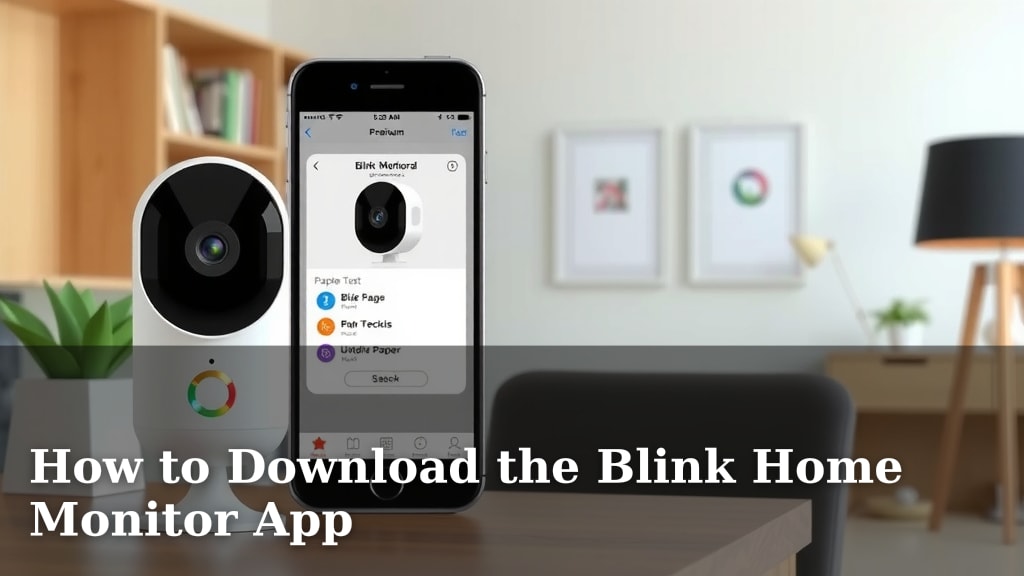
How to Download the Blink Home Monitor App
Downloading the Blink Home Monitor app is a straightforward process. You can easily get it on your smartphone or tablet to manage your Blink security cameras. This guide will show you exactly how to download and set it up.
Having the Blink app means you can keep an eye on your home from anywhere. It’s designed to be user-friendly for everyone. You’ll be able to view live feeds and receive motion alerts with just a few taps.
- Download the app from your device’s app store.
- Search for “Blink Home Monitor.”
- Install the app on your phone or tablet.
- Open the app and follow setup instructions.
Let’s walk through exactly how to get the Blink Home Monitor app onto your device, step by step!
So, you’ve got your Blink security cameras and you’re ready to bring your home security into the modern age. That’s fantastic! The next big step is getting the Blink Home Monitor app onto your smartphone or tablet. Think of it as your personal command center for your home’s eyes and ears. It’s not complicated, and we’re here to guide you through every click.
Getting the Blink App on Your Device
Downloading the Blink Home Monitor app is your gateway to watching live feeds, getting alerts, and managing your cameras from anywhere. Let’s get it installed!
Downloading for iOS (iPhone & iPad)
If you’re using an Apple device, the process is super familiar. You’ll be heading to the App Store. It’s the digital marketplace where you find all your favorite apps. Here’s how to find the Blink app:
- Open the App Store on your iPhone or iPad.
- Tap the Search icon at the bottom right of the screen.
- In the search bar at the top, type “Blink Home Monitor” and tap Search.
- Look for the official Blink Home Monitor app. It usually has the Blink logo.
- Tap the Get button or the cloud icon with a down arrow if you’ve downloaded it before.
- You might need to use Face ID, Touch ID, or your Apple ID password to confirm the download.
- The app will download and install automatically. You’ll see its icon appear on your home screen.
Downloading for Android Devices
For those on Android phones or tablets, your go-to spot is the Google Play Store. It functions much like the App Store, offering a vast selection of applications. Follow these steps:
- Open the Google Play Store app on your Android device.
- Tap the search bar at the top and type “Blink Home Monitor”.
- Press the search icon (magnifying glass).
- Find the official Blink Home Monitor app in the search results.
- Tap the Install button.
- The app will download and install. Once it’s done, the Install button will change to Open.
- You’ll also find the Blink app icon on your device’s home screen or in the app drawer.
Setting Up Your Blink Home Monitor App
Once the app is on your device, it’s time for the fun part: getting it ready to connect to your Blink cameras. Think of this as introducing your phone to your security system.
Creating or Logging Into Your Blink Account
The first time you open the app, it will prompt you to either create a new Blink account or log in if you already have one. Having an account is how Blink keeps your settings and camera access secure.
- New Users: Tap “Create Account” and follow the on-screen prompts. You’ll typically need to provide an email address and create a password. You’ll also need to verify your email. Many security experts suggest using a strong, unique password for each online account (National Cybersecurity Alliance).
- Existing Users: If you’ve used Blink before or have other Ring or Amazon devices, you might already have an account. Enter your email and password. If you’ve forgotten your password, there’s usually a “Forgot Password?” link to help you reset it.
Adding Your Blink System and Cameras
With your account set up, you’re ready to connect your Blink hardware. This is where your cameras come to life within the app.
You’ll typically need your Blink Sync Module for this step. It acts as the bridge between your cameras and your Wi-Fi network.
- In the Blink app, look for an option like “Add Device” or a “+” icon.
- The app will guide you. You might be asked to scan a QR code on your Sync Module or enter a serial number.
- Follow the on-screen instructions carefully. This often involves putting the Sync Module into pairing mode.
- Once the Sync Module is connected, you can then add your individual Blink cameras to that system. This is usually done by pressing a button on each camera while the app is looking for them.
Initial App Settings and Permissions
When you first use certain features, the app will ask for permissions. These are important for the app to work correctly. For example, it might ask for permission to send you notifications, access your location, or use your microphone and camera (for setup or two-way talk features).
Make sure you grant the necessary permissions for alerts and live viewing. For instance, to receive motion alerts right when they happen, you’ll need to allow notifications. We found that enabling notifications is key to getting the most out of your Blink system (Blink Support Documentation).
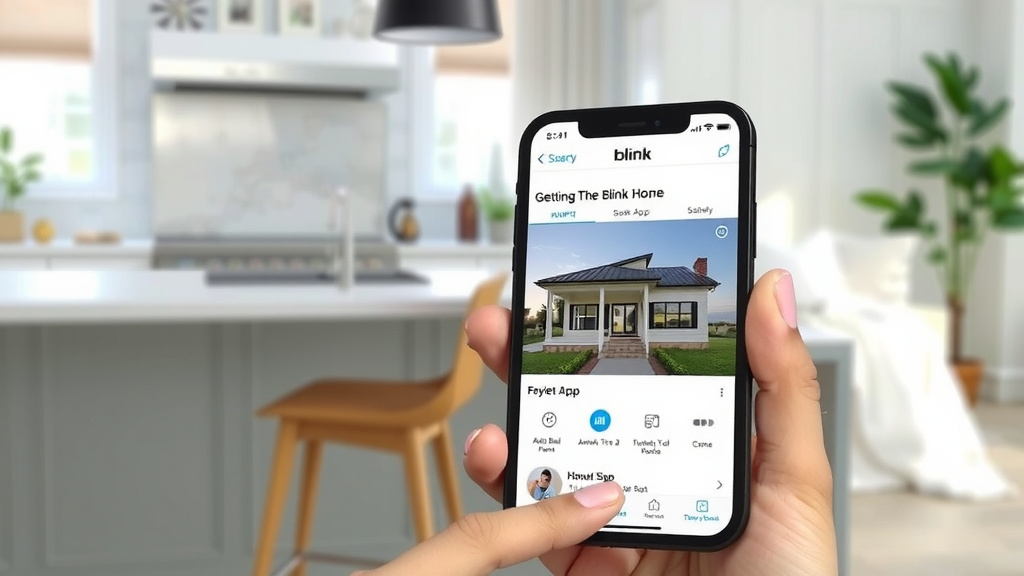
Troubleshooting Common Download Issues
Sometimes, technology doesn’t cooperate perfectly. If you run into a snag, don’t worry. Here are a few common issues and how to fix them:
App Not Found in Store
Double-check that you spelled “Blink Home Monitor” correctly. Also, ensure your device’s operating system is up-to-date. Sometimes, older OS versions aren’t compatible with newer apps. Your device’s region settings might also affect what apps are available.
Download or Installation Errors
A slow or unstable internet connection can cause downloads to fail. Try connecting to a different Wi-Fi network or using a stable connection. Make sure you have enough free storage space on your device. If the error persists, try restarting your phone or tablet. Sometimes a simple reboot clears temporary glitches.
App Won’t Open or Crashes
If the app installs but won’t open, or closes unexpectedly, try these steps:
- Force Close the App: On iOS, swipe up from the bottom of the screen and pause, then swipe the app preview up to close it. On Android, go to Settings > Apps, find Blink, and tap “Force Stop.”
- Restart Your Device: A full restart can resolve many software issues.
- Clear App Cache (Android Only): Go to Settings > Apps > Blink > Storage > Clear Cache. This removes temporary files that might be causing problems.
- Reinstall the App: Delete the Blink app from your device and then download it again from the app store. This ensures you have a fresh, uncorrupted version.
Here’s a quick checklist to make sure you’re all set:
- Blink Home Monitor app downloaded from your official app store.
- Blink account successfully created or logged into.
- Sync Module and cameras successfully added to your account.
- Notification permissions enabled for timely alerts.
- Live view tested to confirm camera connection.
- Motion detection settings reviewed.
Conclusion
You’ve successfully navigated the steps to download and set up your Blink Home Monitor app! You’re now equipped to keep a close watch on your home from anywhere. Remember, the app is your direct link to peace of mind, letting you see live feeds and receive important alerts instantly. To make sure you’re getting the most out of your system, take a moment to test a live view and confirm your notification settings are just right. Your connected home security is now in your hands!
Frequently Asked Questions
Can I use the Blink app on multiple devices?
Yes, you can! The Blink Home Monitor app is designed to be used on multiple smartphones and tablets. You’ll just need to log in with the same Blink account credentials on each device you wish to use.
Is the Blink Home Monitor app free to download?
Absolutely. Downloading the Blink Home Monitor app itself is completely free from both the Apple App Store and the Google Play Store. Any associated costs would be for the Blink hardware or optional cloud storage plans.
What if my phone or tablet is too old for the Blink app?
You’ll want to check the app store listing for the specific operating system requirements for the Blink app. If your device’s OS is too outdated, you might need to consider updating your device or using a newer model to run the app.
Do I need a Blink Sync Module to use the app?
While you can download and set up the Blink app without a Sync Module, you will need one to connect and manage your Blink cameras. The Sync Module acts as the central hub for your camera system.
What should I do if the app keeps crashing after installation?
If the app crashes, first try force closing it and reopening it. If that doesn’t work, restart your device. As a last resort, you may need to uninstall and then reinstall the Blink Home Monitor app from your device’s app store.