Monitor Size Guide: What’s the Right Computer Monitor for You
Computer monitors come in a wide range of sizes, typically measured diagonally from corner to corner. Most common desktop monitors today range from 22 to 32 inches, with smaller laptops usually featuring screens between 11 and 17 inches. Ultra-wide and large format displays can easily exceed 40 inches for specialized uses.
Your choice of monitor size greatly impacts your viewing experience. A larger screen offers more screen real estate for multitasking and immersive entertainment. However, screen size also relates to resolution and pixel density, which affect how sharp your picture appears. We’ll look at what factors make a monitor “big” for your needs.
- Monitor sizes are measured diagonally.
- Most desktop monitors are 22-32 inches.
- Laptops typically have 11-17 inch screens.
- Larger screens offer more space but depend on resolution.
- Choosing the right size depends on your usage.
So, how big is “big” when it comes to computer monitors, and what should you consider for your setup? Let’s break down the details.
Understanding Computer Monitor Sizes
When we talk about computer monitor sizes, we’re generally referring to the diagonal measurement of the screen. This is a standard industry practice. Most commonly, this is measured in inches. So, when you see a monitor listed as 27 inches, it means the distance from one corner of the screen to the opposite corner is 27 inches. This measurement excludes the bezel or frame around the screen itself.
Standard Screen Sizes and Their Uses
The monitor market offers a wide spectrum of sizes to suit different needs and desk setups. We’ve seen a definite shift towards larger screens over the years, but understanding the common ranges can help you make the right choice.
Small to Medium Monitors (Under 24 Inches)
These monitors are great for saving space. They are often found in budget-friendly setups or in environments where screen real estate isn’t a primary concern. Think of them as the compact cars of the monitor world – efficient and gets the job done without taking up too much room. You might find these in shared office spaces or for users who primarily use their computer for basic tasks like email and web browsing.
The Most Popular Range (24 to 27 Inches)
This is where most people find their sweet spot. Monitors in the 24 to 27-inch range offer a good balance. They provide enough screen space for comfortable multitasking and enjoyable media consumption without overwhelming your desk. Many gaming and productivity monitors fall into this category. We found that this size range often hits the sweet spot for a majority of users, balancing immersion with practicality.
Larger Displays (28 Inches and Up)
Stepping up to 28 inches and beyond opens up a new level of immersion and productivity. These larger displays are fantastic for content creation, detailed graphic design, or simply having multiple windows open side-by-side without feeling cramped. They can truly transform your workspace into a command center. For those who want to dive deep into their work or entertainment, larger monitors are a compelling option.
Beyond Traditional Sizes: Ultra-Wide and Curved Monitors
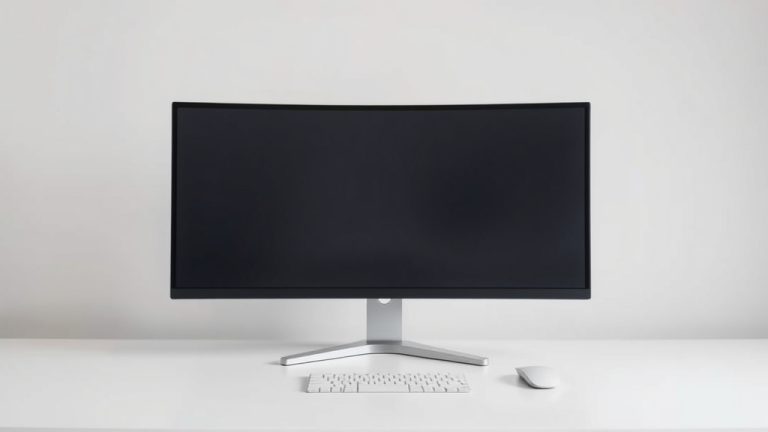
The definition of “big” can also extend beyond the standard aspect ratio. We’ve seen a surge in ultra-wide monitors, which are significantly wider than they are tall. These are often 34 inches or more in diagonal, but their extra width provides a different kind of screen real estate. It’s like having two monitors placed side-by-side without the distracting bezel in the middle.
Curved monitors also play a role in how large a screen feels. The curve is designed to bring the edges of the screen closer to your peripheral vision. This can make a large monitor feel even more immersive, especially for gaming or watching movies. Many users report a more comfortable viewing experience with curved displays, as it reduces eye strain by minimizing the need to constantly shift focus.
How Size Impacts Your Viewing Experience
The physical size of your monitor is just one piece of the puzzle. How big it feels and how useful it is depends on a few other factors. We need to consider how the display’s resolution and pixel density work together with its size.
Resolution: The Detail Factor
Resolution refers to the number of pixels a monitor can display. Common resolutions include 1080p (Full HD), 1440p (QHD), and 4K (UHD). A higher resolution means more pixels, and therefore, a sharper and more detailed image. Imagine a mosaic; a higher resolution is like having many tiny tiles to create a clearer picture.
Size and Resolution Working Together
A 27-inch monitor with a 1080p resolution will look different from a 27-inch monitor with a 4K resolution. On the 1080p screen, the pixels might be more noticeable, making text and images appear slightly less sharp. On the 4K screen, those same pixels are packed much more densely, resulting in a incredibly crisp and smooth image. This is why simply going bigger isn’t always better; you need to match the size with an appropriate resolution for the best visual experience.
Pixel Density: Pixels Per Inch (PPI)
Pixel density, often measured in Pixels Per Inch (PPI), tells you how many pixels are squeezed into each inch of the screen. Higher PPI means sharper images and text. A monitor with a high PPI will look significantly clearer, especially for reading text or viewing fine details in images.
Many experts recommend a PPI of around 100-110 for a comfortable viewing experience at a typical desk distance. For example, a 24-inch 1080p monitor has a PPI of about 92. A 27-inch 1440p monitor has a PPI of about 109. A 27-inch 4K monitor boasts a PPI of about 163, offering exceptional clarity. We found that a PPI in this sweet spot leads to a noticeable improvement in visual comfort and detail.
Choosing the Right Monitor Size for Your Needs
So, how do you pick the perfect size for your setup? It really comes down to what you plan to do with your computer. Think about your daily tasks and your personal preferences.
Consider Your Desk Space
First and foremost, measure your desk! A massive 34-inch ultra-wide monitor might be amazing, but not if it leaves no room for your keyboard and mouse. You need to ensure the monitor fits comfortably without making your workspace feel cluttered or cramped. It’s easy to get excited about the biggest screen, but practical considerations are key.
Think About Your Primary Usage
Here’s a simple breakdown we often see:
| Primary Use | Recommended Size Range | Ideal Resolution |
|---|---|---|
| Basic Tasks (Web browsing, email, documents) | 19-24 inches | 1080p |
| General Productivity & Multitasking | 24-27 inches | 1080p or 1440p |
| Gaming & Creative Work (Photo/Video Editing) | 27 inches and up (including ultra-wide) | 1440p or 4K |
| Immersion (Movies, some games) | 27 inches and up (consider curved) | 1440p or 4K |
Your Viewing Distance Matters
How far away do you typically sit from your monitor? If you sit quite close, a very large monitor might force you to move your head back and forth to see everything, which can be tiring. For closer seating, a 24- to 27-inch monitor is often ideal. If you have more space and sit further back, you might comfortably enjoy a larger screen.
Don’t Forget Your Budget
Generally, larger monitors and those with higher resolutions come with a higher price tag. You’ll need to balance your desired size and features with what your budget allows. Sometimes, a slightly smaller monitor with a better resolution might offer a superior viewing experience than a larger one with a lower resolution.
A Quick Checklist for Choosing Your Monitor Size:
- Measure your desk space.
- Identify your main computer tasks.
- Consider your typical viewing distance.
- Balance size with resolution.
- Set a realistic budget.
- Don’t forget about ergonomics!
Conclusion
Choosing the right computer monitor size is about finding your personal sweet spot. We’ve seen that monitor sizes range widely, from small laptop screens to massive displays. The most popular desktop monitors typically fall between 24 and 27 inches, offering a great balance for most users. Remember that size works hand-in-hand with resolution and pixel density to create your viewing experience. Before you buy, always measure your desk and think about how you’ll use your computer most often.
Your next step? Measure your current setup and think about what screen size would truly improve your daily computer tasks. Happy shopping!
Frequently Asked Questions
What is the most common computer monitor size?
The most common monitor sizes we see today for desktop use are between 24 and 27 inches. This range offers a good balance between screen real estate for multitasking and comfortable viewing without taking up too much desk space. Many users find this size perfect for both work and entertainment.
Can a monitor be too big for my desk?
Yes, a monitor can definitely be too big for your desk. You need to ensure there’s enough room for the monitor itself, plus your keyboard and mouse. A monitor that’s too large can make your workspace feel cramped and lead to an uncomfortable setup.
Does a bigger monitor always mean a better picture?
Not necessarily. While a bigger monitor offers more screen space, the picture quality also depends heavily on its resolution and pixel density (PPI). A large monitor with a low resolution might appear less sharp than a smaller monitor with a higher resolution.
How does my viewing distance affect monitor size choice?
Your viewing distance is important for comfort. If you sit very close to your screen, a smaller or mid-sized monitor (like 24-27 inches) is often best to avoid excessive head movement. If you sit further back, you can comfortably enjoy larger displays.
Are ultra-wide monitors good for multitasking?
Yes, ultra-wide monitors are excellent for multitasking. Their extended width allows you to display multiple application windows side-by-side without the gap you’d get from two separate monitors. This can significantly boost productivity for certain workflows.