How to Get Sound to Play Through a Monitor
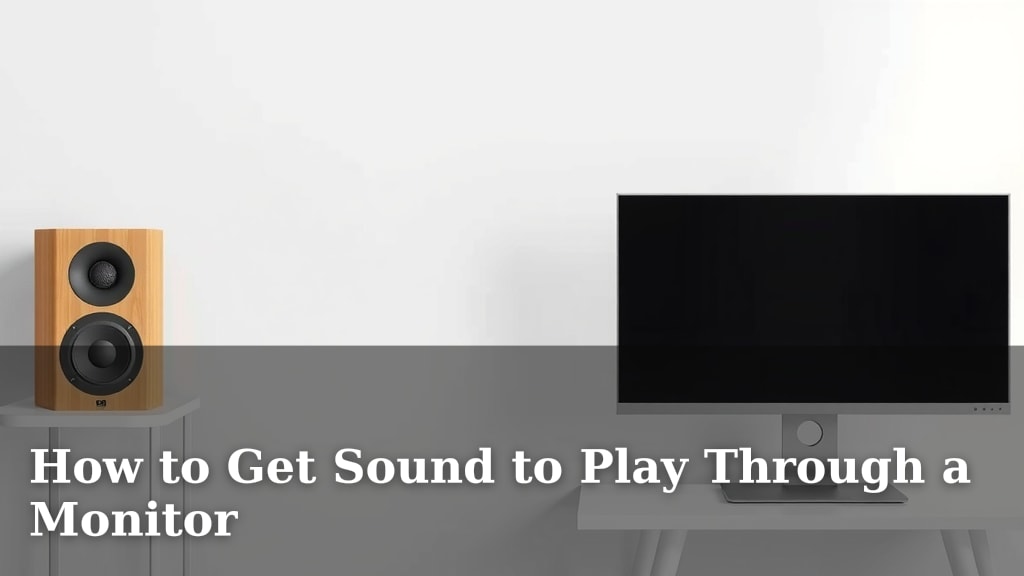
Yes, you can absolutely get sound to play through your monitor, often without needing separate speakers. This is usually possible because many monitors have built-in speakers or an audio output jack. You just need to make sure your computer is set up to send the audio signal to the correct device. Getting this right means cleaner desk space and simpler setup for your computer.
You might be wondering if your monitor even has speakers. Some do, and some don’t. If yours does, you’ll want to ensure your computer recognizes it as an audio output. If it doesn’t have built-in speakers, your monitor might still have an audio jack for headphones or external speakers. Checking your monitor’s specifications will confirm its audio capabilities.
- Check if your monitor has built-in speakers or an audio output jack.
- Connect your monitor to your computer using an HDMI or DisplayPort cable if possible.
- Adjust your computer’s sound settings to output audio to the monitor.
- Troubleshoot if you still don’t hear any sound.
Let’s walk through exactly how to make sure your monitor is providing that sweet, sweet sound.
Getting Your Monitor to Produce Sound
So, you’ve got your shiny new monitor, and you’re ready to enjoy some audio. It’s totally possible to get sound to come straight from your monitor, saving you from buying extra speakers. Many monitors today are equipped with built-in speakers, or at least an audio output jack. Your main goal is to tell your computer to send the sound signal to the right place. This can really clean up your desk setup!
Checking Your Monitor’s Audio Capabilities
First things first, let’s figure out what your monitor can do. Not all monitors are created equal when it comes to sound. Some come with speakers already built in, ready to go. Others might not have speakers but could have an audio-out port, kind of like a headphone jack, where you can plug in external speakers or headphones. You can usually find this information in your monitor’s user manual or by looking up its model number online.
Does Your Monitor Have Built-In Speakers?
A quick way to check is to look at the monitor itself. Often, you’ll see small speaker grilles on the front or bottom edge. If you can’t find any physical signs, your manual or online specs will tell you for sure. Having built-in speakers means you’re one step closer to getting sound directly from your display.
Looking for an Audio Output Jack
Even if your monitor doesn’t have built-in speakers, it might still help you with sound. Look on the back or side of your monitor for a small, usually green, circular port. This is your audio-out jack. You can plug your headphones or a set of computer speakers into this port. When you do this, your computer will send sound through the monitor’s jack to your attached audio device.
Connecting Your Monitor for Audio Transmission
How you connect your monitor to your computer plays a big role in getting sound to work. The type of cable you use matters. Some connections are designed to carry both video and audio signals, while others only handle video.
HDMI and DisplayPort: The Dynamic Duo
For getting sound to your monitor, HDMI and DisplayPort cables are your best friends. These modern connection types are built to transmit both high-definition video and digital audio. If your computer and monitor both support HDMI or DisplayPort, using one of these cables is usually the easiest way to send sound. You won’t need a separate audio cable.
We found that most modern graphics cards and monitors will default to sending audio over HDMI or DisplayPort if they are connected. This simplifies the setup process significantly. It’s like having a two-in-one cable for your entertainment needs!
What About Other Cables?
Older connections, like VGA or DVI, typically only carry video signals. If you’re using one of these, you’ll need a separate audio cable (often a 3.5mm jack) to connect your computer’s audio output to your monitor’s audio input or to external speakers. This is less common nowadays, but good to know if you’re working with older hardware.
Configuring Your Computer’s Sound Settings
Once your monitor is connected, you need to tell your computer to actually send sound to it. This is usually done through your operating system’s sound settings. Think of it like telling your computer which “speaker” to use.
Windows Sound Settings
On Windows, getting sound to your monitor is pretty straightforward. Right-click on the speaker icon in your system tray (usually in the bottom-right corner of your screen). From the menu that pops up, select “Open Sound settings” or “Playback devices.”
You’ll see a list of available audio output devices. Look for your monitor in this list. It might be named after your monitor’s brand or model, or it might simply say “HDMI Output” or “DisplayPort Output.” Select your monitor as the default playback device. You might need to click a button that says “Set Default.”
macOS Sound Settings
For Mac users, the process is similar. Click on the Apple menu in the top-left corner and select “System Settings” (or “System Preferences” on older versions). Click on “Sound,” then go to the “Output” tab. You should see your monitor listed as an output device. Click on it to select it as the audio output.
If you don’t see your monitor listed, don’t worry. We’ll cover troubleshooting next. Sometimes, a simple restart of your computer can help it recognize new audio devices.
Troubleshooting Common Sound Issues
Sometimes, even after following the steps, you might not get any sound. Don’t throw your monitor out the window just yet! Most problems are fixable with a little patience.
Basic Checks to Perform First
Before diving into complex solutions, let’s go through the easy stuff. First, check your volume levels. Is the volume turned up on both your computer and your monitor itself? Many monitors have their own volume controls, often operated by buttons on the monitor’s frame. Ensure your monitor’s volume isn’t muted or set too low.
Next, double-check your cables. Make sure your HDMI or DisplayPort cable is securely plugged into both your computer and your monitor. Try unplugging and replugging them. If possible, try a different cable or a different port on your computer or monitor.
Driver Updates Can Help
Outdated or corrupt audio drivers are a common culprit for sound problems. You can update these through your computer’s Device Manager. For Windows, search for “Device Manager,” then expand the “Sound, video and game controllers” section. Right-click on your audio device and select “Update driver.” Following these steps often resolves audio playback issues.
Monitor Specific Settings
Some monitors have specific settings within their on-screen display (OSD) menu that might affect audio. You might find options related to audio input selection or speaker control. Consult your monitor’s manual to see if there are any settings that need to be adjusted there.
When to Consider External Speakers
While getting sound through your monitor is convenient, it’s important to manage expectations about audio quality. Built-in monitor speakers are often designed for basic use, like system alerts or casual video watching.
If you’re looking for rich, immersive sound for music, movies, or gaming, you might find that external speakers or headphones offer a superior audio experience. They typically have larger drivers and better acoustics, providing a fuller sound. If your monitor only has an audio-out jack, this is exactly what it’s designed for – connecting to better sound systems.
Quick Checklist for Sound Success
Here’s a quick rundown to get your monitor singing:
- Verify your monitor has speakers or an audio-out jack.
- Use an HDMI or DisplayPort cable for best results.
- Ensure the cable is firmly connected at both ends.
- Set your monitor as the default audio output in your OS.
- Check volume levels on both your computer and monitor.
- Restart your computer if it doesn’t detect the audio device.
Conclusion
Getting sound to play through your monitor is often simpler than you think. You’ve learned how to check your monitor’s audio capabilities, whether it has built-in speakers or an audio-out jack. We covered how using HDMI or DisplayPort cables makes transmitting sound straightforward. You also now know how to adjust your computer’s sound settings to ensure the audio is routed correctly. If you hit a snag, remember those troubleshooting steps, from checking volume levels to updating drivers. Ready to enjoy audio from your monitor? Your next step is to try these settings yourself and see your monitor come alive with sound!
Frequently Asked Questions
Why can’t I hear any sound from my monitor even after connecting it?
This often happens if your computer isn’t set to output audio to the monitor. First, right-click your speaker icon and select “Open Sound settings” on Windows, or go to “System Settings” > “Sound” on Mac. Make sure your monitor is selected as the default playback device. Double-check that both your computer and monitor volumes are turned up and not muted.
Does my monitor need special cables to play sound?
Yes, the type of cable matters. HDMI and DisplayPort cables are designed to carry both video and audio signals, so they’re your best bet. If you’re using older cables like VGA or DVI, they typically only transmit video, and you’ll need a separate audio cable to connect your computer’s sound output to your monitor or speakers.
My monitor has an audio jack, but it doesn’t seem to work. What should I do?
If your monitor has an audio-out jack but no sound comes through headphones or external speakers plugged into it, first ensure your computer is set to send audio to that monitor. Check your computer’s sound settings and make sure the correct output device is selected. Also, test your headphones or speakers with another device to confirm they are working properly.
Will the sound quality from monitor speakers be as good as dedicated speakers?
Generally, no. Built-in monitor speakers are usually designed for basic audio needs, like system notifications or casual video watching. For a richer, more immersive sound experience for music, movies, or gaming, you’ll likely find that external speakers or good headphones offer superior audio quality due to their better design and components.
I’m using a laptop. Can I get sound to play through my external monitor?
Absolutely! If your laptop is connected to an external monitor via HDMI or DisplayPort, you can usually set the monitor as your audio output device through your laptop’s sound settings. This is especially useful for a cleaner desk setup if your monitor has decent speakers or an audio-out jack.